Monitor indexing jobs
You can view reports on indexing jobs to see when a job last ran, whether it was successful and, if not, what went wrong. These reports can also tell you if any documents were dropped or if any failed and if so, why. A document can be dropped, for example, when an issue with the extraction rules results in an inability to fulfill all required documents. A document can fail when the crawler did not make it to the designated URL.
You can monitor the health of your sources on the following pages:
- The Sources page, where you'll find a general overview of information about sources and indexing job runs.
- The Analytics page, in the Sources section, where there are in-depth reports about individual sources and indexing job runs that you can drill into for more details.
Debug information, error details, and document-level processing records for connector jobs are automatically deleted after 14 days.
Sources
You can access general details about your sources, including the status of the most recent job runs, directly from the Sources page. There are two different types of reports here: an overview of all of your sources, and overviews of each source individually.
Sources overview report
To see a general overview of all your source indexing jobs, click Sources Performance  on the Sources page. This opens the Sources overview report.
This report is designed to be a simplified snapshot of your sources over the last seven days, including the most recent source job runs. It isn't interactive, and you can't click anything in it to view more information. For more detailed information about your source runs, view them in the Sources section of the Analytics page.
Single source overview report
You can see an overview of a single source by selecting the source on the Sources page and then clicking Source - . This opens the overview report for that source.
Similar to the sources overview report, this report is designed to be a simplified snapshot of a single source, including information about recent job runs. You can't click anything in this report to view more information about any specific data point. For more detailed information about a single source, view it in the Sources section of the Analytics page.
Analytics
If you want to view more details about each source, you can use the Sources section of the Analytics page and drill down through the data.
Sources overview report
The Sources overview report contains the same information that is available from the Sources page, but you can drill into it for information about specific sources and job runs.
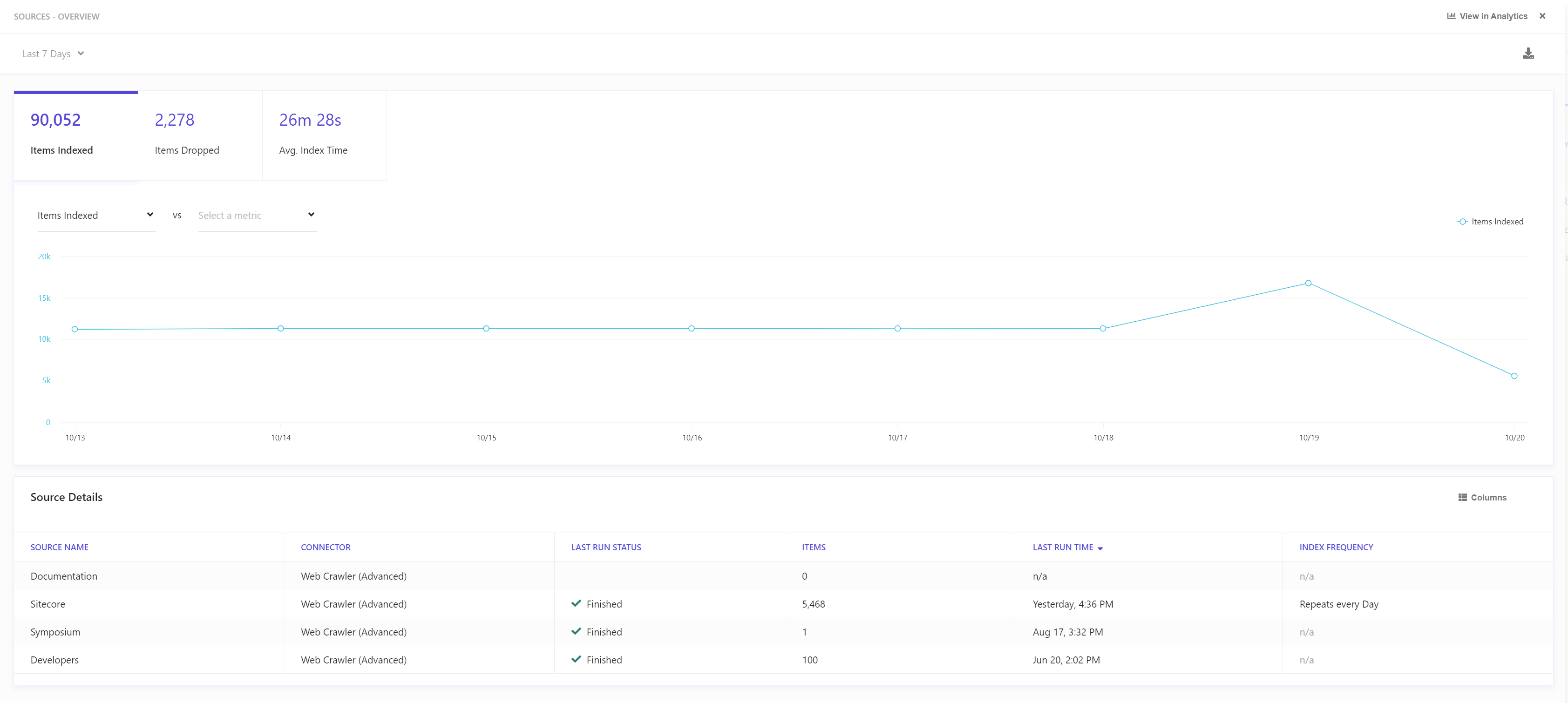
This view displays a graph where you can compare the total number of items indexed to the total number of items dropped as well as see the average index time. You can view these data points for the last 7, 14, 30, or 90 days. You can also specify a customized date range.
Below the graph is the Source details section, with a tabular list that displays the following basic information about each source:
- Source name
- Type of connector
- Last run status
- Number of items
- Last run time
- Index frequency
Source detail view
If you click a source in the Source details section of the Analytics page, you can view more details about that source. In this view, the following reports are available:
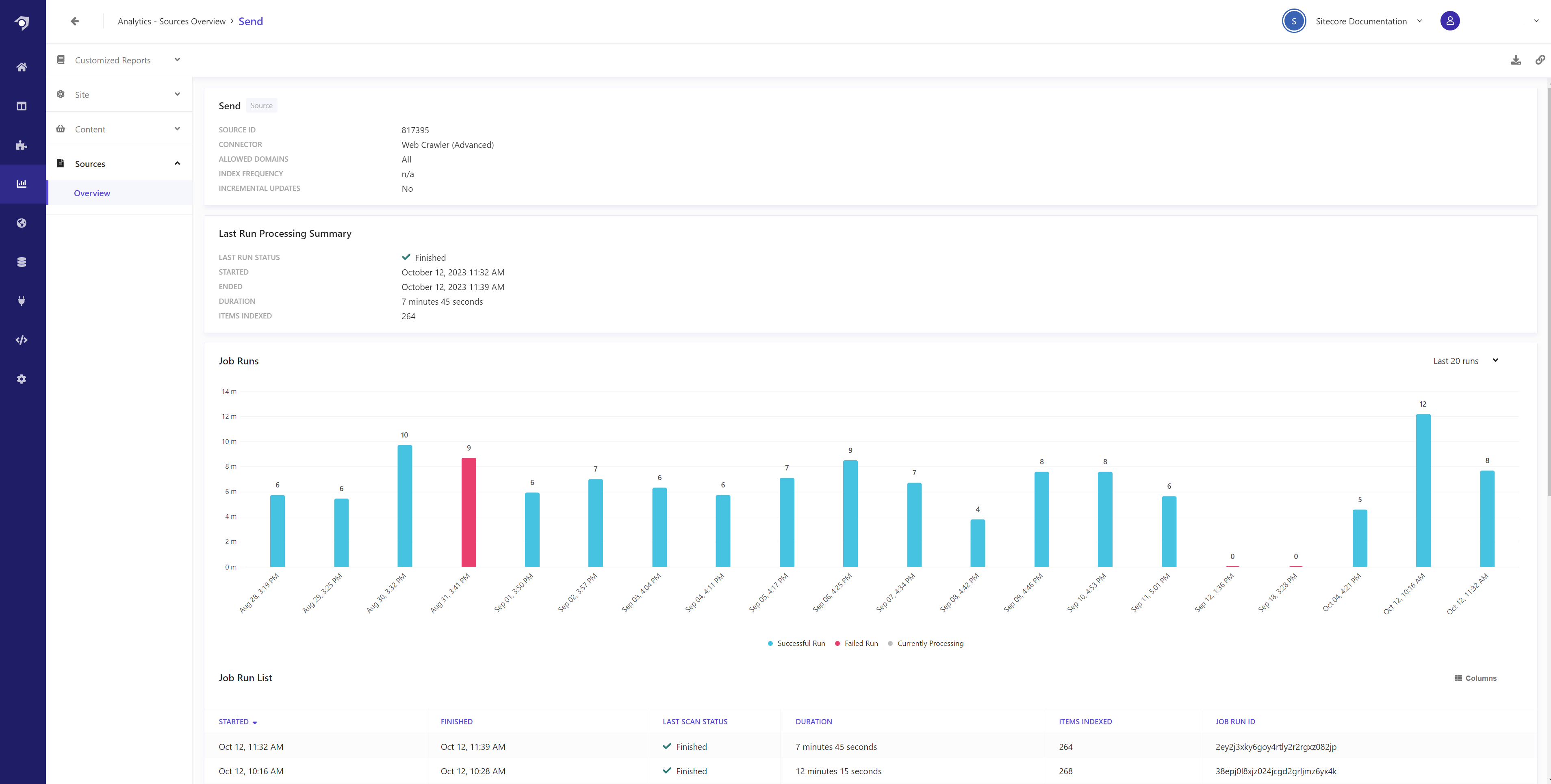
- Source - lists the source ID, connector type, allowed domains, index frequency, and whether the source uses incremental updates.
- Last run processing summary - lists the last run status, when the last run started and ended, the duration of the run, and the number of items indexed.
- Job runs - shows individual indexing job runs in graph form and as a list. You can choose to view the last 20, 30, or 50 runs. For each run listed, you can see the start and finish times of the run, the last scan status, the duration, the number of items indexed, and the job run ID. These data points are clickable and bring up the job run view for that specific indexing job run.
Job run view
If you click a run in the Job Runs section of the source detail view, detailed information about a single job run is displayed. This view contains the following reports:
- An overview of the job run.
- The job run timeline.
- A summary of the job run statistics.
- Details about the indexed, dropped, and failed URLs.
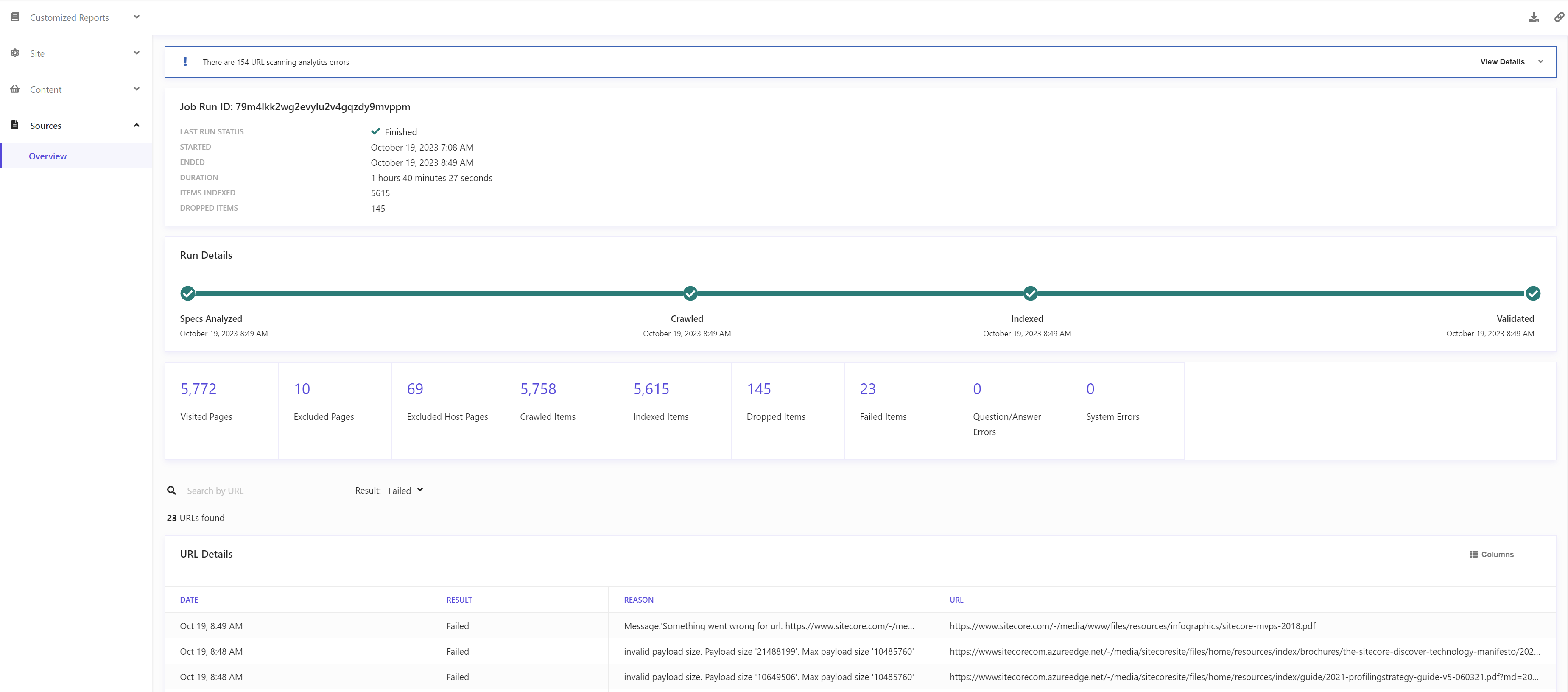
If there are any errors, they are displayed at the top of this view. You can click View details to see more details about the error. Errors are also listed in detail in the URL details report at the bottom of the page.
Job run overview
The first report in the job run view is the job run overview.
This report includes the following data:
- Last run status.
- Date and time the indexing job started.
- Date and time the indexing job ended.
- Duration of the indexing job.
- The number of items indexed.
- The number of items dropped.
Run details timeline
Below the job run overview is a timeline of the indexing job run that details when:
- The specs were analyzed.
- The source was crawled.
- The source was indexed.
- The results were validated.
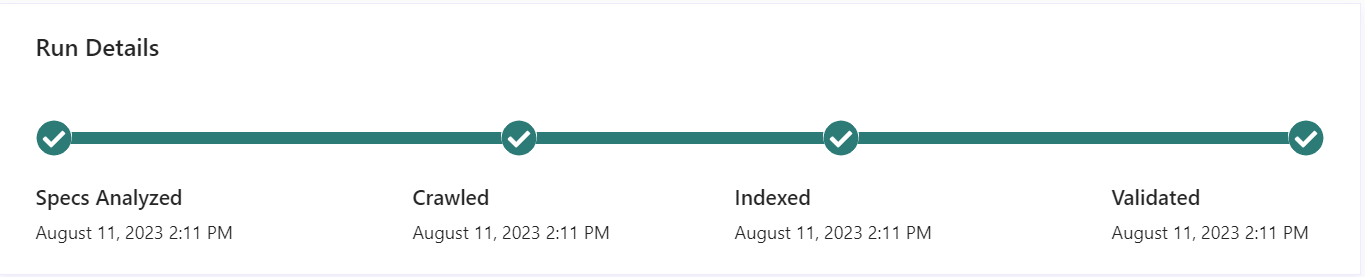
If the run failed, this report can show you the point where the failure occurred.

If a job fails during validation, it is typically because more than 25% of documents were dropped, or because the number of crawler errors exceeded 30% of the crawled documents. These thresholds are not configurable.
Statistical snapshot
After the run details timeline is a snapshot of statistics about the indexing job run.

The statistics included in this snapshot differ by source types and domains, but can include the following:
- Number of pages visited.
- Number of pages excluded.
- Number of excluded hosted pages.
- Number of items crawled.
- Number of items indexed.
- Number of items deleted.
- Number of items dropped.
- Number of failed items.
- Number of questions and answers errors.
- Number of system errors.
URL details
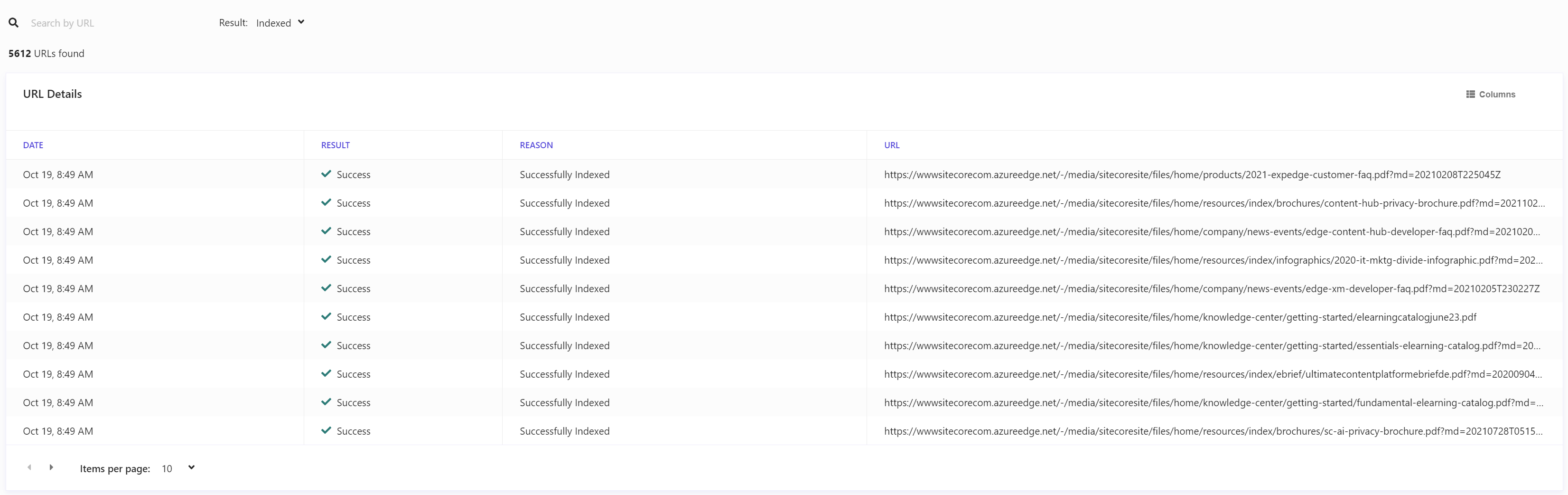
Underneath the statistical snapshot is the URL details report, which lists all of the URLs visited in the indexing run. You can search for a specific URL, or filter by the result and view only the URLs that were indexed, deleted, dropped, or failed. Entries for dropped and failed URLs include a reason for why they were not successfully indexed.
Incremental updates in queue
In the Job run overview, you can also view a table of items that are queued for incremental processing but have not yet been indexed. This table appears beneath the Job Run List. It supports filtering by Operation, and filtering or searching by Document ID.
The report shows the following data:
-
Timestamp - the date and time that the update was enqueued.
-
Batch ID - the identifier of the batch.
-
Entity - the entity associated with the update.
-
Operation - the operation performed during the update.
-
Document ID - the identifier of the item.
TipClicking View
 will show the JSON payload for the selected incremental update.