Walkthrough: Linking Sitecore data to the Salesforce data extensions
To use the Sitecore data in Salesforce Marketing Cloud (SFMC) for marketing purposes, you need to link the Sitecore data to the data extensions in Salesforce.
Before you do this, you must run the pipeline batches Setup - SFMC Account Infrastructure, Push xConnect Contacts, and Push Marketing Lists once. These pipeline batches install the necessary folders in SFMC and push contact and marketing data from Sitecore to SFMC.
To link the contacts, you must create a primary/foreign key relationship in SFMC.
This walkthrough describes how to:
-
Create a link for the contact data.
-
Extend the contact data to the membership data.
Create a link for the contact data
Create a link for the contact data
To create a link for the contact data from xDB in SFMC:
-
Open your SFMC site.
-
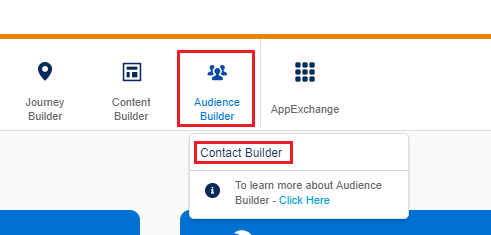
In the top navigation bar, click Audience Builder, then click Contact Builder.
-
In the Data Designer tab, create an attribute group for Sitecore. Give it a name, for example, Sitecore.
NoteYou should only have one Sitecore attribute group. If you have previously created a Sitecore attribute group, use that group instead of creating a new group.
-
Click the Sitecore attribute group. Click Link Data Extension.
-
In the new window, go to
/Data Extensions/Sitecoreand click the xDB Contact data extension.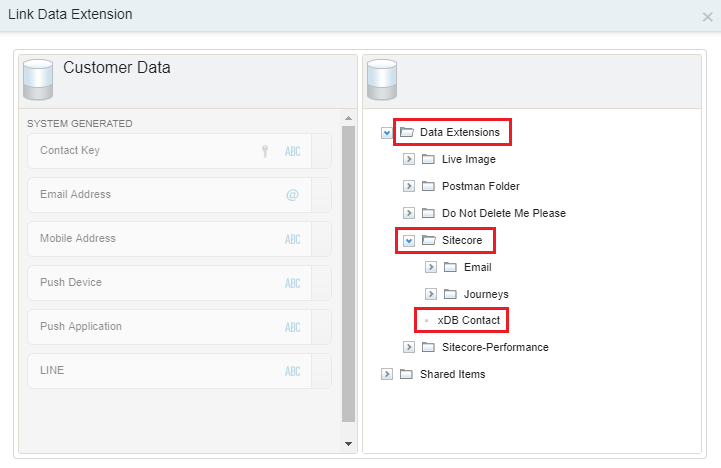
-
Create a link from Customer Data to xDB Contact. For example, you can link the
Contact Keyattribute from Customer Data to thecontactKeyattribute from xDB Contact. Make the link a one-to-one link by clicking One in the drop-down box on the right side.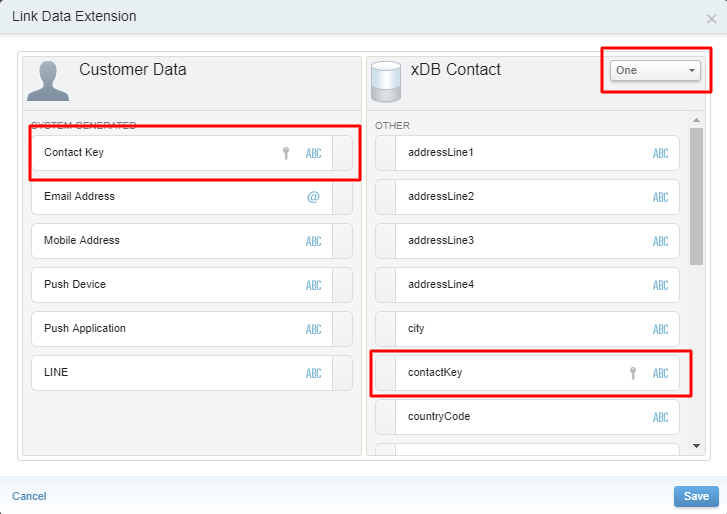
-
Click Save.
Extend the contact data to the membership data
Extend the contact data to the membership data
To extend the contact data from Sitecore to the marketing lists:
-
In SFMC, open the Sitecore attribute group.
-
On the Contacts link definition, on the xDB Contact table, click the Extend icon to add an extension.
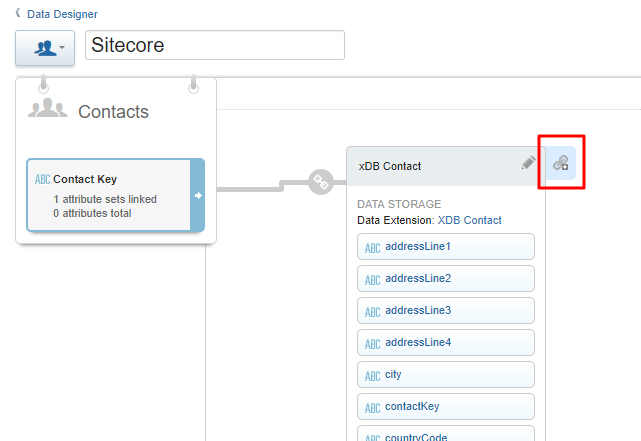
-
In the Link Data Extension dialogue, on the right side, go to
/Data Extensions/Sitecore/Journeysand select the Audience Membership extension.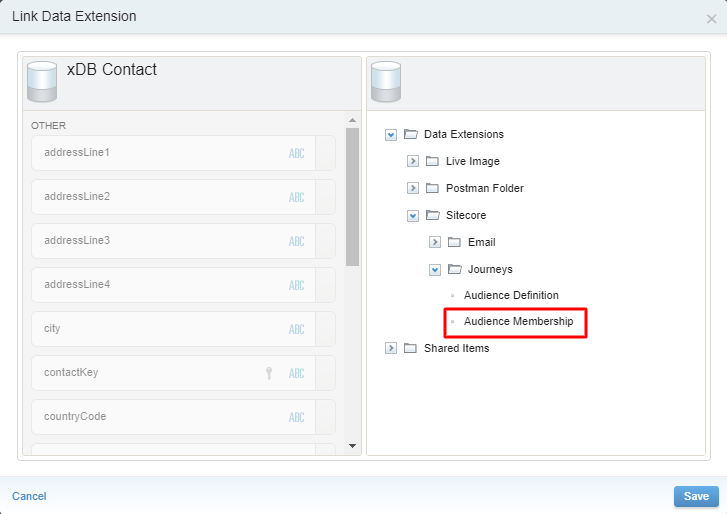
-
Create a link from xDB Contact to Audience Membership. For example, you can link the
contactkeyattribute from xDB Contact to theContact Keyattribute from Audience Membership. Make the link a one-to-many link by clicking Many in the drop-down box on the right side. Click Save.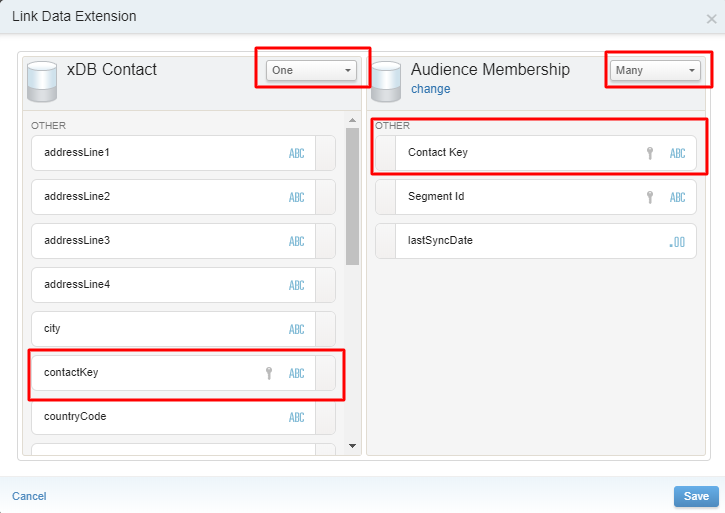
-
On the Audience membership table, click the Extend icon to add an extension.
-
In the Link Data Extension dialogue, on the right side, go to
/Data Extensions/Sitecore/Journeysand select the Audience Definition extension. -
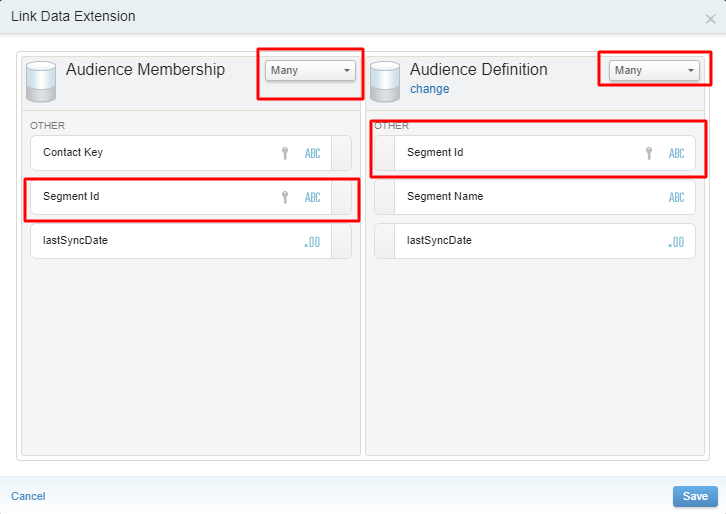
Create a link from Audience Membership to Audience Definition. For example, you can link the
Segment Idattribute from Audience Membership to theSegment Idattribute from Audience Definition. Make the link a many-to-many link by clicking Many in the drop-down boxes on both sides. Click Save.