ウォークスルー
このページの翻訳はAIによって自動的に行われました。可能な限り正確な翻訳を心掛けていますが、原文と異なる表現や解釈が含まれる場合があります。正確で公式な情報については、必ず英語の原文をご参照ください。
ナビゲーションには送信ボタン(前回・次回ボタン)を使い、フォームの提出や送信アクションのトリガーにできます。すべての送信ボタン(ナビゲーション用またはフォーム送信用)には、送信アクションを追加できます。例えば、「送信アクション「次のボタンに追加されたデータを保存」は、連絡先が「次へ」をクリックしてフォームの次のページに進 む際にフォーム データベースに保存されるようにします。
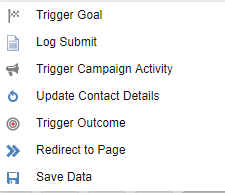
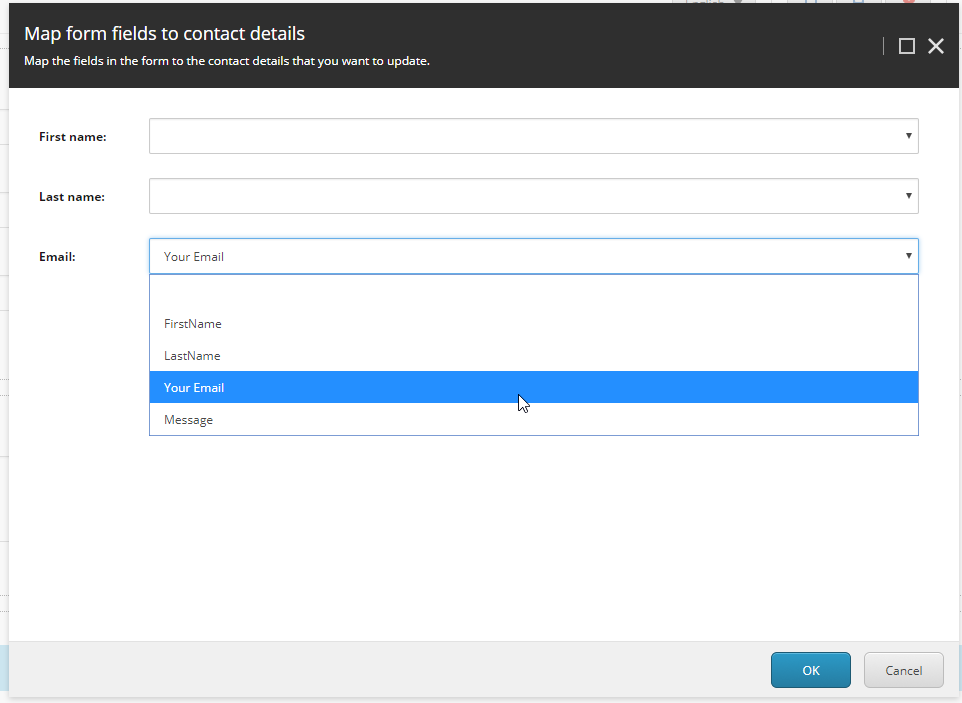
デフォルトでは、トリガー目標、トリガーキャンペーンアクティビティ、トリガーアウトカム、ページへのリダイレクト、データ送信アイテムの保存などを追加できます。このウォークスルーでは、連絡先情報を更新するために使うフォームフィールドを選択するカスタム送信アクションの作成方法を説明しています。
!注このウォークスルーでは、カスタム送信アクションを作成する一例を紹介します。あなたの経験や好みによっては、異なるやり方を望むかもしれません。
サブミッション・アクションクラスを作成する
フォーム(ページ)を提出するには、連絡先が「送信」ボタンをクリックする必要があります。ユーザーが「送信」をクリックした際に行うさまざまなアクションを追加できます。例えば、「データを送信」アクションはデータがデータベースに保存されるようにし、「トリガーキャンペーンアクティビティ提出」アクションはあらかじめ設定されたキャンペーンアクティビティを選択します。
このウォークスルーでは、Contactを更新する送信アクションを作成します。
送信アクションは、アクションに渡されるJSONオブジェクトのパラメータを格納します。JSONオブジェクトはTParametersDataクラスで指定された型のインスタンスに解析されます。この場合はUpdateContactDataクラスです。したがって、この例ではUpdateContactDataパラメータを使ってSubmitActionBaseから継承する派生クラスUpdateContactを作成します。
アクションクラスを提出するには:
-
UpdateContactDataクラスを作成する:
using System;
namespace Sitecore.ExperienceForms.Samples.SubmitActions { ///
/// Data structure of the parameters for executing the update contact submit action. /// public class UpdateContactData { ////// Gets or sets the email field identifier. /// public Guid EmailFieldId { get; set; }///
/// Gets or sets the first name field identifier. /// public Guid FirstNameFieldId { get; set; }///
/// Gets or sets the last name field identifier. /// public Guid LastNameFieldId { get; set; } } } -
UpdateContactクラスを作成する:
using System; using System.Collections.Generic; using System.Linq; using Sitecore.Analytics; using Sitecore.Diagnostics; using Sitecore.ExperienceForms.Models; using Sitecore.ExperienceForms.Processing; using Sitecore.ExperienceForms.Processing.Actions; using Sitecore.XConnect; using Sitecore.XConnect.Client; using Sitecore.XConnect.Client.Configuration; using Sitecore.XConnect.Collection.Model; namespace Sitecore.ExperienceForms.Samples.SubmitActions { ///
/// Submit action for updating ///and facets of a . /// public class UpdateContact : SubmitActionBase { /// /// Initializes a new instance of the /// The submit action data. public UpdateContact(ISubmitActionData submitActionData) : base(submitActionData) { } ///class. /// /// Gets the current tracker. /// protected virtual ITracker CurrentTracker => Tracker.Current; ////// Executes the action with the specified /// The data. /// The form submit context. ///. /// true if the action is executed correctly; otherwisefalse (); IdentificationResult result = identificationManager.IdentifyAs(new KnownContactIdentifier (source, id)); if (!result.Success) { throw new Exception ($"{result.ErrorCode}: {result.ErrorMessage}"); } CurrentTracker.Session.IdentifyAs(source, id); var trackerIdentifier = new IdentifiedContactReference(source, id); var expandOptions = new ContactExpandOptions( CollectionModel.FacetKeys.PersonalInformation, CollectionModel.FacetKeys.EmailAddressList); Contact contact = client.Get(trackerIdentifier, expandOptions); SetPersonalInformation(GetValue(firstNameField), GetValue(lastNameField), contact, client); SetEmail(GetValue(emailField), contact, client); client.Submit(); return true; } catch (Exception ex) { Logger.LogError(ex.Message, ex); return false; } } } /// /// Creates the client. /// ///The protected virtual IXdbContext CreateClient() { return SitecoreXConnectClientConfiguration.GetClient(); } ///instance. /// Gets the field by /// The identifier. /// The fields. ///. /// The field with the specified private static IViewModel GetFieldById(Guid id, IList. fields) { return fields.FirstOrDefault(f => Guid.Parse(f.ItemId) == id); } /// /// Gets the /// The field. ///value. /// The field value. private static string GetValue(object field) { return field?.GetType().GetProperty("Value")?.GetValue(field, null)?.ToString() ?? string.Empty; } ////// Sets the /// The first name. /// The last name. /// The contact. /// The client. private static void SetPersonalInformation(string firstName, string lastName, Contact contact, IXdbContext client) { if (string.IsNullOrEmpty(firstName) && string.IsNullOrEmpty(lastName)) { return; } PersonalInformation personalInfoFacet = contact.Personal() ?? new PersonalInformation(); if (personalInfoFacet.FirstName == firstName && personalInfoFacet.LastName == lastName) { return; } personalInfoFacet.FirstName = firstName; personalInfoFacet.LastName = lastName; client.SetPersonal(contact, personalInfoFacet); } ///facet of the specified . /// /// Sets the /// The email address. /// The contact. /// The client. private static void SetEmail(string email, Contact contact, IXdbContext client) { if (string.IsNullOrEmpty(email)) { return; } EmailAddressList emailFacet = contact.Emails(); if (emailFacet == null) { emailFacet = new EmailAddressList(new EmailAddress(email, false), "Preferred"); } else { if (emailFacet.PreferredEmail?.SmtpAddress == email) { return; } emailFacet.PreferredEmail = new EmailAddress(email, false); } client.SetEmails(contact, emailFacet); } } }facet of the specified . /// -
DLLをビルドして、Sitecoreインスタンスの
/binディレクトリにコピーしてください。
SPEAKエディターコントロールを作成する
次のステップは、フォームフィールドを連絡先情報フィールドにマッピングできるUIを作成することです。Sitecoreフォームの場合、送信アクションエディタは コア データベース内にあります:
/sitecore/client/Applications/FormsBuilder/Components/Layouts/Actions
!注この例では、Sitecore Rocks Visual Studioプラグインが必要です。このプラグインはVisual Studio 2019以前のバージョンと互換性があります。
コントロールを作成するには:
-
コアデータベース内で、次のサイトへ移動します。 /sitecore/client/Applications/FormsBuilder/Components/Layouts/Actions
-
右クリックでアクションを選び、追加をクリックしてから新しいアイテムをクリックします。
-
/sitecore/client/Speak/Templates/Pages/Speak-BasePageテンプレートを選択し、「新しいアイテム名を入力し」フィールドで「Entering the new item name」欄にUpdateContactを入力し、「**OK」**をクリックします。
-
BrowserTitleと**__Display名前**をUpdate contactに設定してください。
-
作成したUpdateContactアイテムを右クリックし、「 タスク」をクリックし、「 デザインレイアウト」をクリックしてください。
-
Layoutダイアログボックスで*/sitecore/client/Speak/Layouts/Layouts*に移動し、Speak-FlexLayoutレイアウトを選択してOKをクリックします。
-
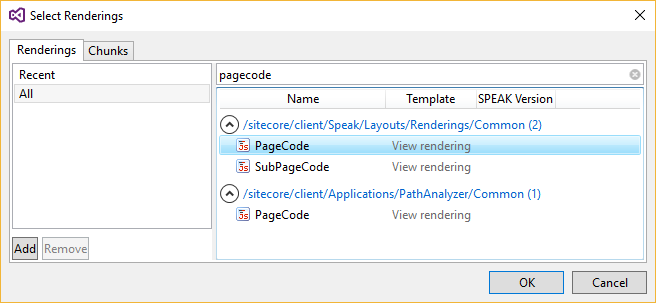
左上で**「レンダリングを追加**」をクリックし、Select Renderingsダイアログボックスで「すべて」をクリックして「PageCode(/sitecore/client/Speak/Layouts/Renderings/Common/PageCode)を検索してください。」
-
PageCodeを選択してOKをクリックします。
-
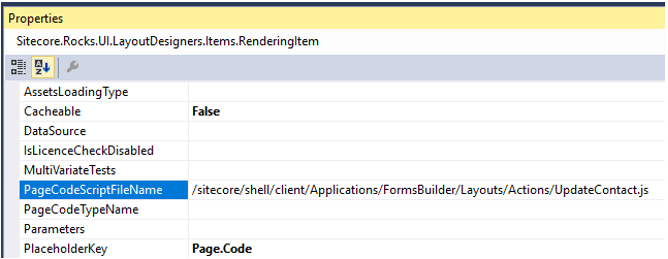
PageCodeプロパティで、PageCodeScriptFileNameプロパティをページコードスクリプトを含むJavaScriptパスに設定します: /sitecore/shell/client/Applications/FormsBuilder/Layouts/Actions/UpdateContact.js
-
SpeakCoreVersionプロパティをSpeak 2-xに設定してください。
-
SearchしてTextを選択してください。レンダリング(/sitecore/client/Business Component Library/version 2/Layouts/Renderings/Common/Text)を表示し、「追加」をクリックして、各レンダリングプロパティのIDフィールドにHeaderTitle、HeaderSubtitle、ValueNotInListText項目を追加してください。
-
3つの項目については、Propertiesセクションで以下のIDプロパティを設定します。
-
IsVisible – False
-
プレースホルダーキー – Page.Body
!注これらのアイテムは、アクションエディターのダイアログタイトル、サブタイトル、未発見値を設定するテキストとして使われます。ここでテキストプロパティを入力すると、テキストはすべての言語で表示されますが、ローカライズはできません。
-
-
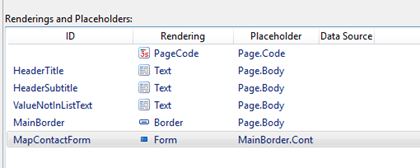
以下のレンダリングを追加してください:
- Borderのメインボーダー/sitecore/client/Business Component Library/version 2/Layouts/Renderings/Containers/Border
- FormのMapContactForm/sitecore/client/Business Component Library/version 2/Layouts/Renderings/Forms/FormFieldsLayoutプロパティを1-1-1-1PlaceholderKey**プロパティをMainBorder.Contentに設定します。
レンダリングリストは以下のようになります:
エディター用のパラメータを含むフォルダを追加してください
次に、エディターのパラメータを含むフォルダを追加する必要があります。 PageSettingsフォルダを追加するには:
-
コアデータベースで /sitecore/client/Applications/FormsBuilder/Components/Layouts/Actionsに移動し、先に作成したUpdateContactアイテムを右クリックして「 追加」をクリックし、「 新しいアイテム」をクリックします。
-
SearchしてPageSettingsテンプレート(/sitecore/client/Speak/Templates/Pages/PageSettings)を選択し、名前PageSettingsを入力してOKをクリックします。
-
作成したPageSettingsアイテムを右クリックして「 追加、新しいアイテム」をクリックします。
-
/sitecore/client/Business Component Library/version 2/Layouts/Renderings/Common/Text/Text Parametersテンプレートを選択し、追加を3回クリックして、以前作成したレイアウトのIDと全く同じ名前で項目名を付けます:
- HeaderTitle – ダブルクリックして テキスト 欄に「 Mapフォーム欄」を入力して連絡先情報を入力してください。
- ヘッダーサブタイトル – ダブルクリックして テキスト 欄で入力: フォーム内のフィールドを更新したい連絡先情報にマッピングしてください。
- ValueNotInListText – ダブルクリックして テキスト 欄に「 Enter: value not in select list」を入力してください。
-
/sitecore/client/Applications/FormsBuilder/Components/Layouts/Actions/UpdateContactに移動し、作成したPageSettings項目を右クリックします。
-
「新しいフォルダ」をクリックして「MapContactForm」と名付けてください。
-
MapContactFormフォルダをクリックし、以下のフィールド値を持つ3つのFormDropListパラメータテンプレート(/sitecore/client/Business Component Library/version 2/Layouts/Renderings/Forms/Form/Templates/FormDropList Parameters)を追加します。
FormDropList パラメータ
ValueFieldName
ディスプレイフィールドネーム
フォームラベル
BindingConfiguration
FirstName
itemId
名称
First name
firstNameFieldId/SelectedValue
LastName
itemId
名称
Last name
lastNameFieldId/SelectedValue
Email
itemId
名称
Email
emailFieldId/SelectedValue
-
UpdateContact項目を右クリックし、デザインレイアウト>タスクをクリックすると、UpdateContactレイアウトに移動します。Form rendering ConfigurationItemプロパティをFormDropListパラメータを含むMapContactFormフォルダのIDに設定します。
!注エディタUIでDropListフィールドを埋めるには、パラメータテンプレートのDataSourceプロパティを /sitecore/system/Marketing Control Panel/Automation Plansやキャンペーンアイテムを含むフォルダのようなパスに設定してください。
-
/sitecore/client/Applications/FormsBuilder/Components/Layouts/Actions/UpdateContactに移動し、先ほど作成したPageSettings項目を右クリックしてください。
-
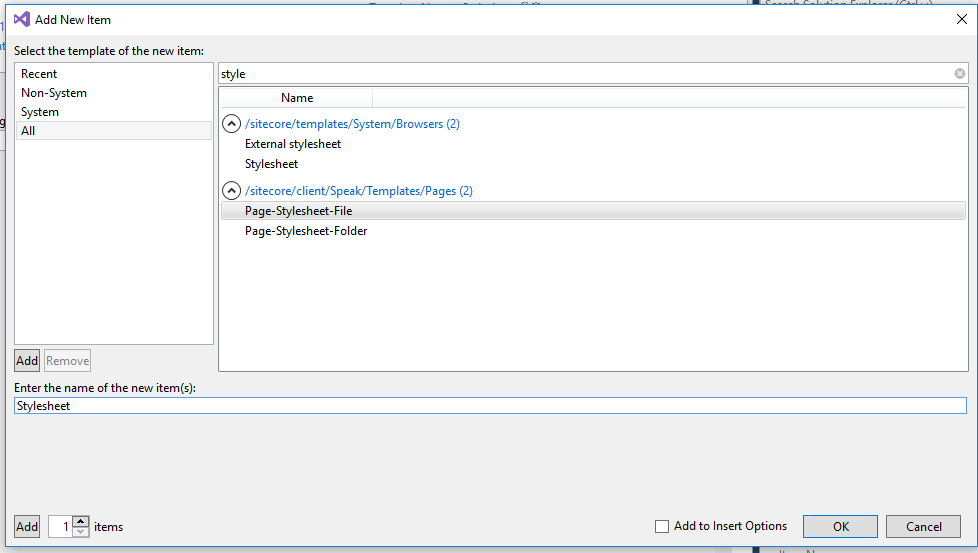
Page-Stylesheet-File (/sitecore/client/Speak/Templates/Pages/Page-Stylesheet-Fileの型の新しいアイテムStylesheetを追加してください):
-
新しいスタイルシート項目をクリックし、スタイルシートの値を /sitecore/shell/client/Applications/FormsBuilder/Layouts/Actions/Actions.css に設定します。
編集者用のクライアントスクリプトを作成します
次にエディター用のクライアントスクリプトを作成しなければなりません。前のステップで、UpdateContact項目を作成する際にスクリプトへのパスを次のように設定しました。
/sitecore/shell/client/Applications/FormsBuilder/Layouts/Actions/UpdateContact.js
スクリプトを作成するには:
-
基本のSubmit Actions編集スクリプトを使用してください。Submit actions編集スクリプトは常に以下の基本を持っています:
(function (speak) { var parentApp = window.parent.Sitecore.Speak.app.findApplication('EditActionSubAppRenderer');
speak.pageCode("underscore", function (_) { return { initialized: function () { this.on({ "loaded": this.loadDone }, this);
if (parentApp) { parentApp.loadDone(this, this.HeaderTitle.Text, this.HeaderSubtitle.Text); parentApp.setSelectability(this, true); } },
loadDone: function (parameters) { this.Parameters = parameters || {}; },
getData: function () { return this.Parameters; } }; }); })(Sitecore.Speak);
-
EditActionSubAppRendererコンポーネントを使いましょう。編集者は、EditActionSubAppRendererコンポーネントによってSpeakダイアログのフレーム内に読み込まれます。ダイアログヘッダーのタイトルとサブタイトルを親に渡し、送信ボタンが有効になったときに設定しなければなりません。
この例では、連絡先情報を更新する送信アクションを作成するために、キャンバスコンポーネントFormDesignBoardを見つけ、フォームキャンバスのフィールドからデータを取得し、それらを単純な配列に変換します
、その後にitemIdとnameプロパティを持つアイテムです。そのため、FormDropList ParametersアイテムのValueFieldNameとDisplayFieldNameのフィールドにitemIdとnameを入力したのです。スクリプトの動作は以下の通りです:- initializedIsSelectionRequired**プロパティをfalseに設定します
- loadDone – フォームコントロールを反復し、動的データをフィールド配列に設定します。現在の送信アクション Parameters プロパティ値がフィールドリストに含まれていない場合(例えばフィールドが削除されたりフォームがコピーされた場合)、配列内の選択リスト項目に含まれていないid - 値が含まれます。その後、SPEAKフォームをパラメータオブジェクトにバインドします。
- getData – 送信ボタンをクリックすると、 getData 関数が呼び出されます。フォームデータを反復して新しいパラメータオブジェクトを収集します。空の選択(フィールドマッピング)は省略されます。
最終的なスクリプトは次のようになります:
(function (speak) { var parentApp = window.parent.Sitecore.Speak.app.findApplication('EditActionSubAppRenderer'), designBoardApp = window.parent.Sitecore.Speak.app.findComponent('FormDesignBoard');
var getFields = function () { var fields = designBoardApp.getFieldsData();
return _.reduce(fields, function (memo, item) { if (item && item.model && item.model.hasOwnProperty("value")) { memo.push({ itemId: item.itemId, name: item.model.name }); } return memo; },
{ itemId: '', name: '' } , this); };
speak.pageCode("underscore", function (_) { return { initialized: function () { this.on({ "loaded": this.loadDone }, this);
this.Fields = getFields();
this.MapContactForm.children.forEach(function (control) { if (control.deps && control.deps.indexOf("bclSelection") !== -1) { control.IsSelectionRequired = false; } });
if (parentApp) { parentApp.loadDone(this, this.HeaderTitle.Text, this.HeaderSubtitle.Text); parentApp.setSelectability(this, true); } },
setDynamicData: function (propKey) { var componentName = this.MapContactForm.bindingConfigObjectpropKey.split(".")0; var component = this.MapContactFormcomponentName;
var items = this.Fields.slice(0);
if (this.ParameterspropKey && !_.findWhere(items, { itemId: this.ParameterspropKey })) { var currentField = { itemId: this.ParameterspropKey, name: this.ParameterspropKey + " - " + (this.ValueNotInListText.Text || "value not in the selection list") };
items.splice(1, 0, currentField);
component.DynamicData = items; $(component.el).find('option').eq(1).css("font-style", "italic"); } else { component.DynamicData = items; } },
loadDone: function (parameters) { this.Parameters = parameters || {}; _.keys(this.MapContactForm.bindingConfigObject).forEach(this.setDynamicData.bind(this)); this.MapContactForm.BindingTarget = this.Parameters; },
getData: function () { var formData = this.MapContactForm.getFormData(), keys = _.keys(formData);
keys.forEach(function (propKey) { if (formDatapropKey == null || formDatapropKey.length === 0) { if (this.Parameters.hasOwnProperty(propKey)) { delete this.ParameterspropKey; } } else { this.ParameterspropKey = formDatapropKey; } }.bind(this));
return this.Parameters; } }; }); })(Sitecore.Speak);
アクションアイテムを提出する
アクションアイテムを提出するには:
- Masterデータベースで、次のサイトへ移動します*/sitecore/system/Settings/Forms/Submit Actions*
- 右クリックで 「アクションを送信」をクリックし、「 挿入」をクリックし、「 テンプレートから挿入」をクリックします。
- /System/Forms/Submit Actionテンプレートを選択し、アイテム名欄で名前Update Contact Detailsを入力し、「挿入」をクリックします。
- 作成したアイテムに移動し、 Settings セクションの Model Type フィールドで値をクラスタイプ名に設定します。例えば、 Sitecore.ExperienceForms.Samples.SubmitActions.UpdateContact.
- Error Message欄にエラーメッセージを入力してください。例えば、「連絡更新に失敗しました!」などです。
- エディターフィールドで、今作成したエディターを選択してください。例えばUpdate contact。
- Appearanceセクションで、フォーム要素ペインで表示したいアイコンを選択します。
フォーム要素のペインで「 **送信を追加」**アクションをクリックすると、「 連絡先情報の更新 」アクションを選択できます。