Create a site and a page
This is part two of the getting started walkthrough series. Before you can complete the steps here, you must have created your first project and environment.
This topic explains how to use the SitecoreAI interface to create the first site and page. The steps described here differ slightly depending on whether you are using Next.js with the Content SDK or the ASP.NET Core SDK.
To create your site and page:
-
If you're still in the Deploy app, after the first project creation and deployment are complete, click Open switcher
 > your SitecoreAI environment > Open app to open SitecoreAI in a new browser tab. Alternatively, you can navigate directly to
 https://app.sitecorecloud.io. -
In the navigation menu, click Channels.
-
Select the empty site template.
-
Name the site, for example, Getting Started, and, optionally, enter a description.
-
Assuming there are no existing collections, enter the name for a collection to which this site belongs and then click Create [name of collection]. Collections help organize your sites according to a theme.
NoteA headless module with the same name as the collection is created automatically when you create a new collection. You'll use this module when you build the first component.
-
Select the languages your site will support, and the default language.
-
Click Create. Wait up to two minutes until the site is created.
-
If you are using the Content SDK, to add an initial component to the page, do the following:
NoteIf you are using the ASP.Net Core SDK, you'll be creating a component at a later stage.
-
When the site is available in Channels, hover over it and click Page builder
 for the newly created site tile to open the Page builder.
 -
In the left-hand pane, click Components
 to find the list of components available in your environment. Locate the Page Content component and drag it onto the plus sign in the middle of the page.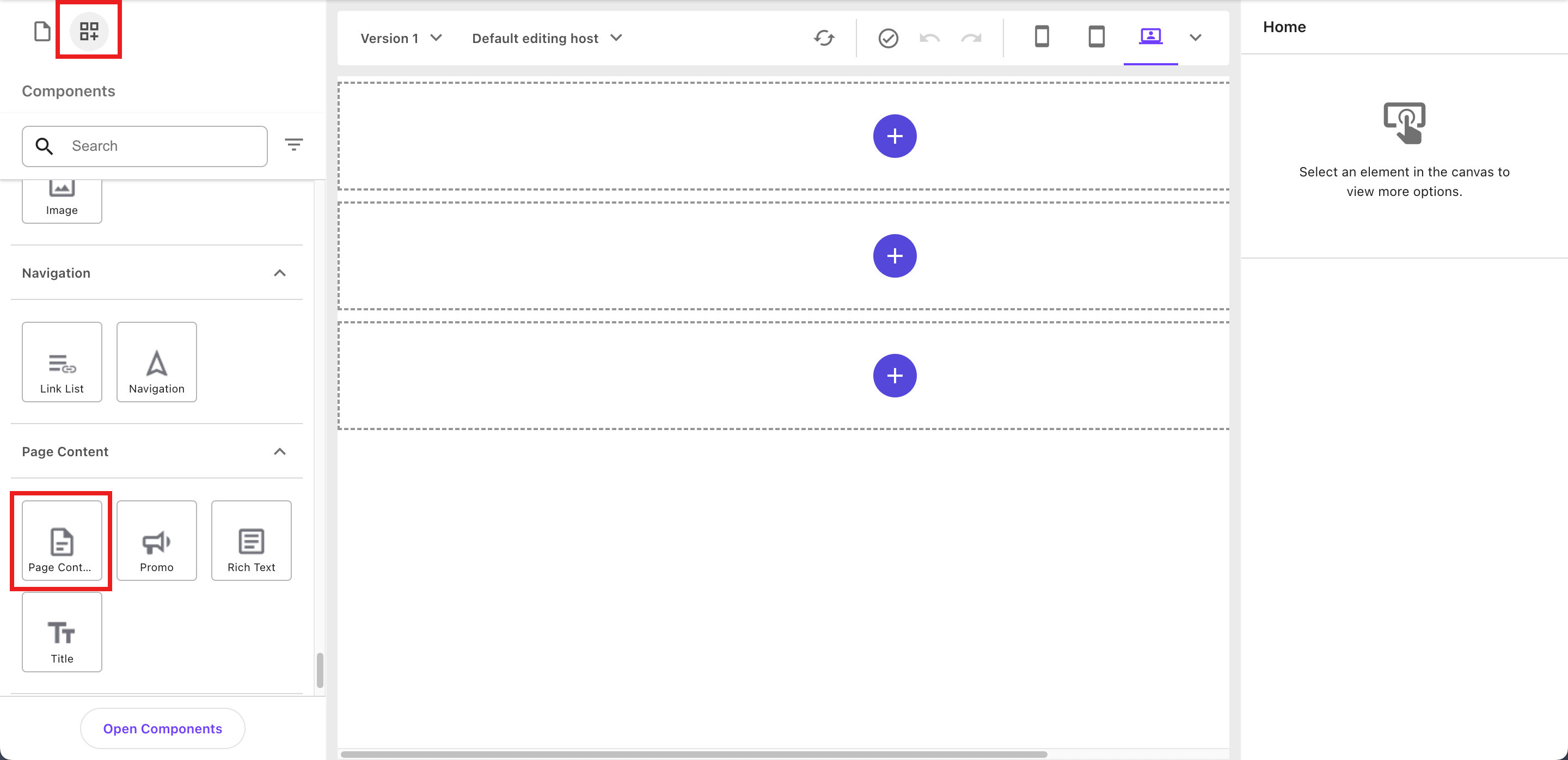
-
In the textbox that appears, enter the text to display in the component, for example, Hello world - inbuilt component. Your changes are saved automatically.
-
You've finished creating your first site with a page. Now, you can set up your local development environment.