Build your first component
This is part four of the getting started walkthrough series. Before you can complete the steps here, make sure you have created a project and environment, created a site and page, and set up your local development environment.
In this example, you'll be adding a code component that includes a title and text. To create the component, you will clone one of the existing components that are included out of the box in SitecoreAI. Cloning an existing component saves development time by creating the boilerplate items and configurations that your component requires, and makes sure that the required base templates are configured to support the content authoring features in the Page builder.
This walkthrough describes how to:
- Create and deploy the new component
- Create the rendering definition
- Add the component to your site page
Create and deploy the new component
In the first step, you create the component structure in your local project.
Content SDK (Next.js)
If you're using Content SDK, you create a React component. The component accepts the following properties:
rendering– contains information about the component's presentation (rendering).params– an object containing parameters passed to the component from Sitecore.
The component uses the following Sitecore parameters:
| Parameter | Description |
|---|---|
Styles | CSS classes for the container. |
GridParameters | CSS classes for the grid system (for example, Bootstrap). |
RenderingIdentifier | A unique identifier for the component, used for analytics. |
In addition, if you create a component that includes styles that can be configured in the right-hand side in Pages, you can use the data-class-change attribute in the relevant HTML element. In Pages, when the content author changes styles in the styling menu, those changes will be reflected in the preview canvas.
To create the new component:
-
Ensure you still have the cloned repository open in your code editor.
-
In the
/examples/kit-nextjs-skate-park/src/componentsfolder, create a new file and name itTitleAndText.tsx. -
Paste the following code into the new file:
NoteEnsure the root element of your component includes the component class, as in the code example above (
container-default component ${styles}). This allows the Pages editor to locate the component in the canvas and apply styling changes in real time. Without this class, style updates from the right-hand panel only take effect after a page refresh. -
Save the file.
ImportantEnsure the file ends on a single new line or it will not compile.
-
Add the change to a commit and push the change to your repo. This will automatically kick off a deployment to SitecoreAI. You can follow its progress in the Deploy app. Proceed to the next step after the deployment is complete.
ASP.NET Core SDK
If you're using the ASP.NET Core SDK, you create a C# component. The component uses the following Sitecore parameters:
| Parameter | Description |
|---|---|
Styles | CSS classes for the container. |
GridParameters | CSS classes for the grid system (for example, Bootstrap). |
RenderingIdentifier | A unique identifier for the component, used for analytics. |
In addition, if you create a component that includes styles that can be configured in the right-hand side in Pages, you can use the data-class-change attribute in the relevant HTML element. In Page builder, when the content author changes styles in the styling menu, those changes will be reflected in the preview canvas.
To create a new component:
-
Return to the Sites dashboard, where you created your site earlier. Click the Options
 menu, and click Edit in Page builder to open Pages. You will initially see an error, because you need to connect Page builder to your local running developer instance.
 -
Click the Default editing host menu and select Local host.
-
Enter the value to connect to your locally running instance,
https://localhost:5001, and save. Page builder is now connected to your local development environment, and displays three empty placeholders.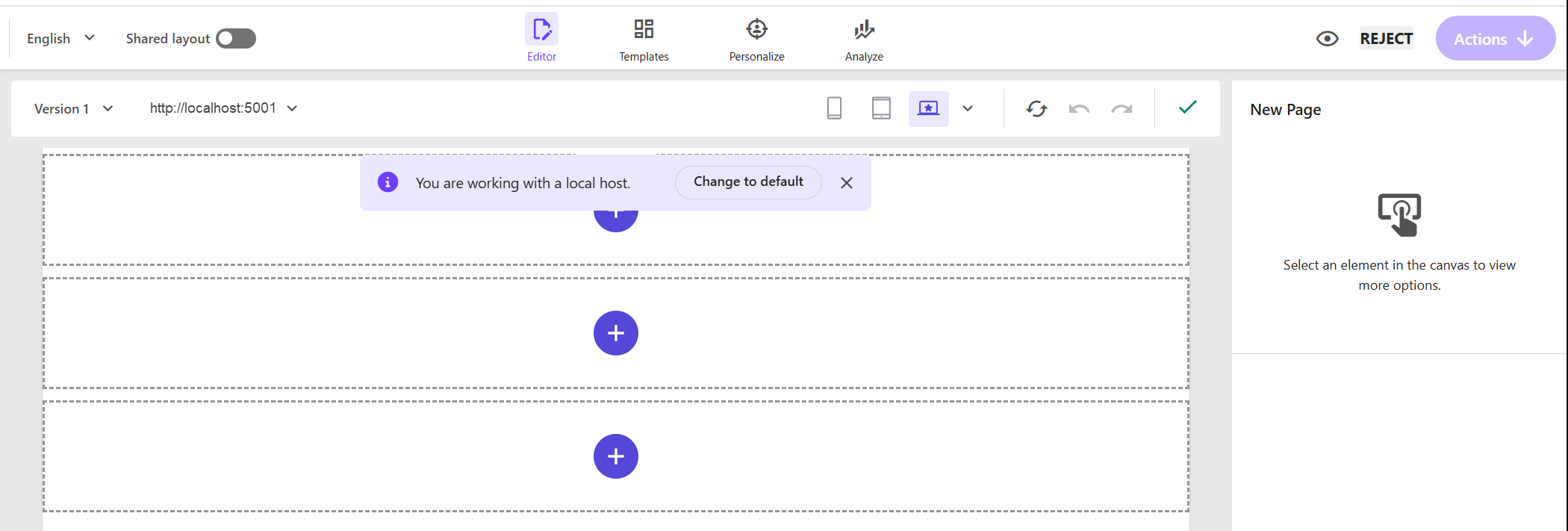
-
In the left-hand pane, click Components
 , locate the Title component, and drag it onto the plus sign in the middle of your page.
 -
The initial page title is shown in the canvas. On the right, on the Content tab, click Open Page content to edit the field value.
-
Ensure you still have the cloned repository open in your code editor.
-
In the
/headapps/aspnet-core-starter/modelsfolder, create a new file calledTitleAndText.cs. -
Paste the following code into the new file:
-
In the
/headapps/aspnet-core-starter/Views/Shared/Components/SitecoreComponentfolder, create a new file calledTitleAndText.cshtml. -
Paste the following code into the new file:
-
Open the
/headapps/aspnet-core-starter/Extensions/ServiceCollectionExtensions.csfile, and add a call to theAddModelBoundViewmethod to register your new component and its model. The class should now look like this (note the extra line registering theTitleAndTextcomponent that you added): -
Add the change to a commit and push the change to your repo. This will automatically kick off a deployment to SitecoreAI. You can follow its progress in the Deploy app. Proceed to the next step after the deployment is complete.
Create the rendering definition
Now you can create the rendering definition for the component. Rendering definitions are used to tell SitecoreAI where in the project the component's .tsx file is, and what data it needs to render correctly. You'll do this by cloning an existing rendering, thereby automatically generating all the required items, instead of having to do it manually. Then, you'll add the rendering to the headless module that was created when you created the site collection. You can find the module in /sitecore/system/Settings/Project.
To clone the component:
-
In the Cloud Portal, click the tile for the environment you created earlier, for example, Getting Started.
-
In the pane on the right, click Open app.
-
On the top menu bar, click Content, then click Content Editor.
-
In the Content Editor, navigate to
/sitecore/layout/Renderings/Feature/Headless Experience Accelerator/Page Content/Rich Text. On the Content tab, scroll down to the Customize Page section and, to ensure the component is visible in Pages, make sure the Editable check box is selected.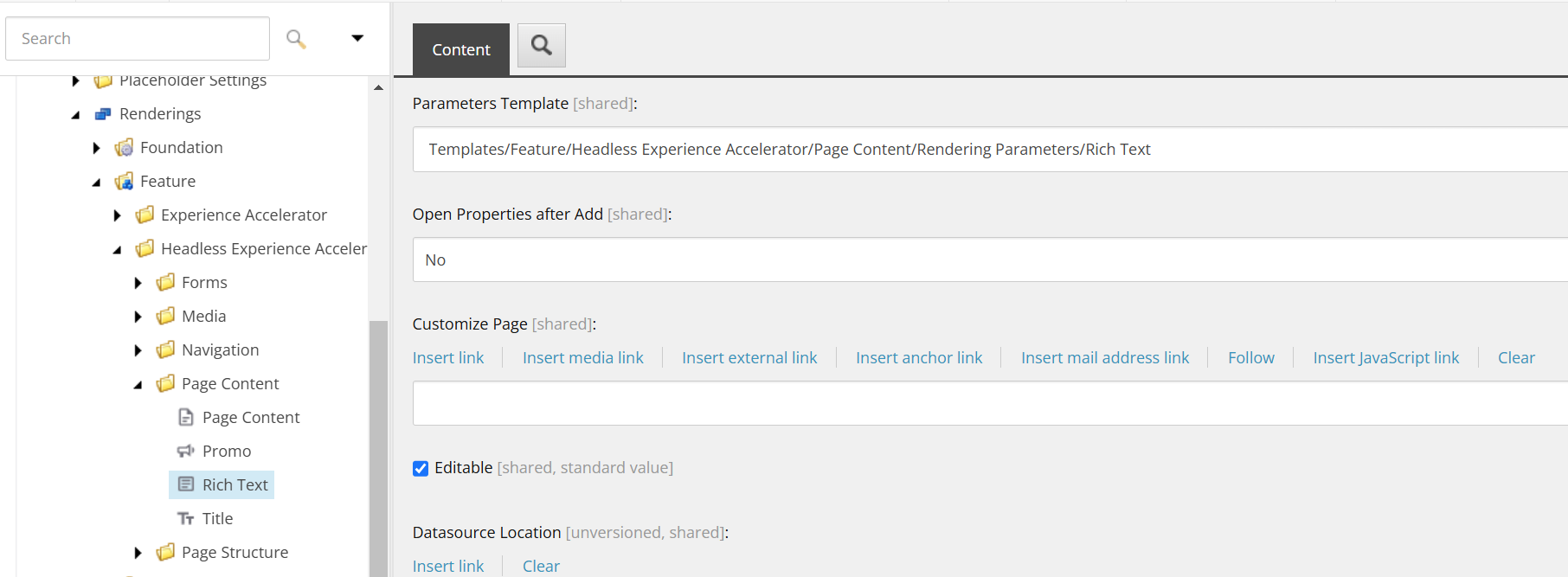
-
Right-click the rendering named Rich Text and click Scripts > Clone Rendering.
-
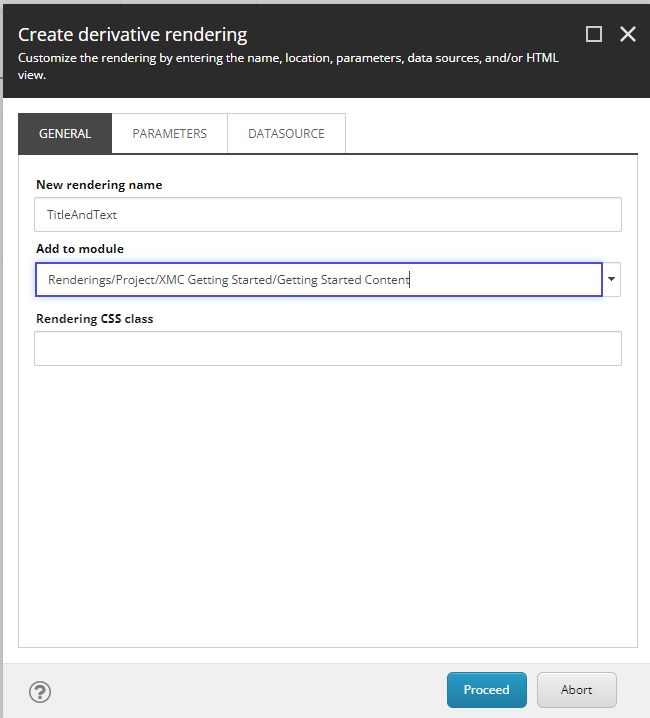
In the Create derivative rendering window, specify the following:
- On the General tab, enter the name TitleAndText.
- On the General tab, in the Add to module field, select Renderings/Project/Getting Started/Getting Started Content.
- On the Parameters tab, select Make a copy of original rendering parameters. This decouples the rendering from the original component and reduces dependencies.
- On the Datasource tab, in the Datasource field, select Make a copy of original datasource.
-
Click Proceed, and close the window when the process is finished.
-
Navigate to
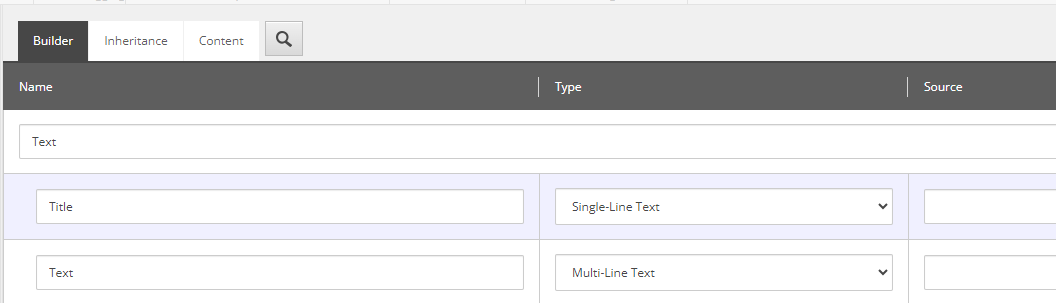
/sitecore/templates/Project/Getting Started/Getting Started Content/Text, and on the Builder tab, change the values for the fields you created:- Title - select Single-Line Text.
- Text - select Multi-Line Text.
-
Make sure the Source column is empty for both fields.
-
In the upper-left corner, click Save.
-
Navigate to
/sitecore/content/Getting Started/Getting Started/Presentation/Available Renderings. -
Right-click the Available Renderings item and click Insert > Available Renderings.
-
Name the new item Getting Started Content and click OK. The new item opens automatically.
-
In the Renderings field, click Edit.
-
In the tree on the left, locate and select the rendering item you created previously at
/Layout/Renderings/Project/Getting Started/Getting Started Content/TitleAndText. Click the arrow to move it to the list on the right, then click OK.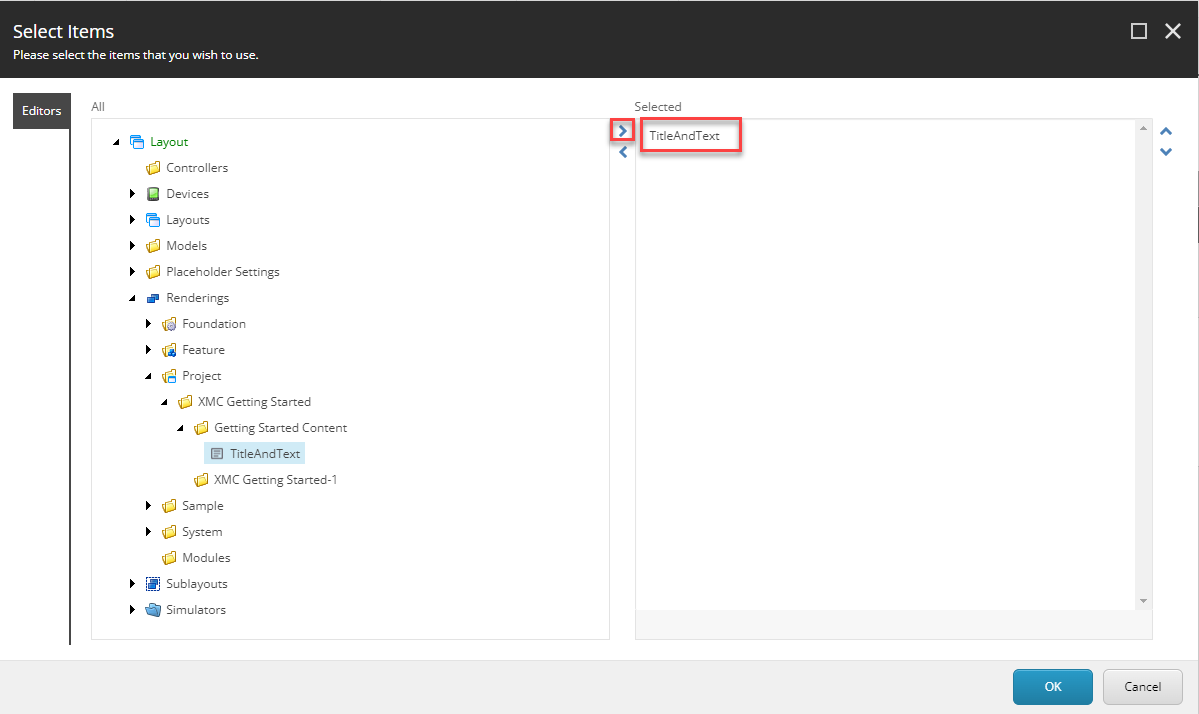
-
In the upper-left corner, click Save.
-
To navigate back to the main SitecoreAI dashboard, click the Launchpad
 .
.
Add the component to your site page
At this stage, you've completed the required configuration for the new component and it's available to use on your site. In this step, you can return to Page builder and add the component to the page you created earlier, after which you'll be able to see it on your local development instance.
To add the component to your site page:
- On the main Channels dashboard, hover over the new site tile, click Page builder. Alternatively, in a new browser tab, open
https://pages.sitecorecloud.io/. - On the Components tab, in the Getting Started Content section, you can now see the TitleAndText component. Drag it onto one of the plus icons on the page. You should now see the component rendered on the page, with a No text in field indicator for the title and text fields.
- Enter some text for the title and text fields.
- In your browser, navigate to your local host to see the new component rendered with the text you entered (for Content SDK, this is
http://localhost:3000/; for .NET, this ishttp://localhost/5001/).
You've completed the walkthrough series! You can now continue to create new components, test your changes locally, and push to your source control provider - this kicks off a deployment in SitecoreAI and makes new components available in the Page builder.