Enable and set up language fallback
In a multilanguage solution, you can use the language fallback functionality to display content in a different language if the content does not exist in the current language.
Language fallback in SitecoreAI is configured at two levels:
-
Environment-level configuration - enables language fallback for GraphQL delivery (Experience Edge and Preview endpoints) used by headless applications. Required for language fallback to work in headless scenarios.
-
Site-level configuration - controls whether fallback items are visible in the Page builder. This setting does not affect GraphQL delivery but is necessary for content editors to see and select fallback datasource items in the Page builder user interface.
Depending on your use case, you may need to configure both levels. For headless-only sites, only environment-level configuration is required. For sites using the Page builder, both configurations are typically needed.
This walkthrough describes how to:
- Define the language fallback rules
- Enable language fallback for the environment
- Enable language fallback for a site - if using the Page builder
- (Alternative) Enable language fallback on an item or item template
- (Alternative) Enable language fallback on the field definition item of an item template
- (Alternative) Use the Sitecore Powershell Extensions module
This topic describes how to manage language fallback in the Content Editor, but it can also be done in the Settings Languages table.
Define the language fallback rules
For each language in your environment that you want to use for language fallback, you need to specify the language that you want it to fall back to. The fallback language specified on a language definition item applies to all the fields and items that have language fallback enabled.
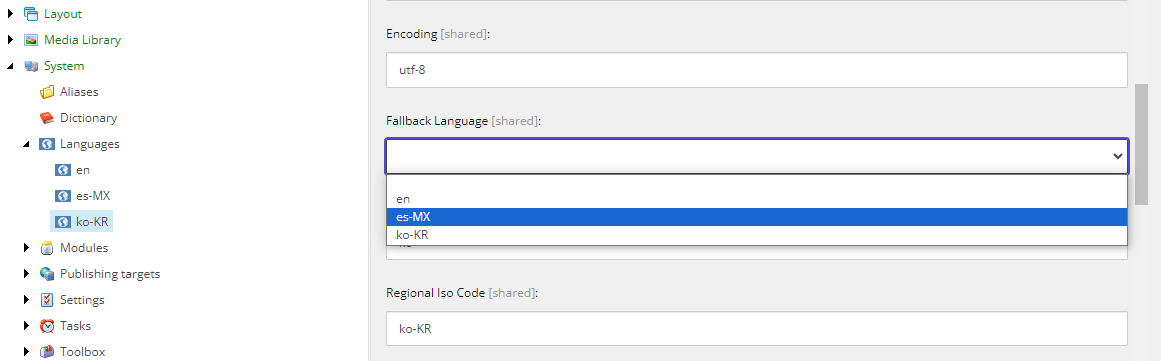
You can set up a chain of language fallback. For example, as illustrated in the picture, Korean falls back to Spanish, and Spanish falls back to English. Suppose there is no Korean nor Spanish versions, then the English version of the item or field is shown.
To define the language fallback rules:
-
In the Content Editor, in the content tree, navigate to sitecore/System/Languages and click the language item that you want to specify the fallback language for.
NoteIf any languages are missing, you can add more languages to your environment.
-
In the Data section, in the Fallback Language field, select the relevant language.
-
Save your changes.
Enable language fallback for the entire environment
If not already enabled, you can enable language fallback for all the sites in your environment by creating a patch file to override the relevant settings in Sitecore.Services.GraphQL.EdgeContent.config. The patch file can have any name and must be placed in the /platform/ folder of your source code. These changes also affect existing sites.
You can enable language fallback for items or fields, or both.
There is no way to enable language fallback for individual sites in an environment. Language fallback is enabled at an environment level and not at a site level and therefore it applies to all sites in an environment.
This environment-level configuration controls GraphQL delivery behavior but does not affect the Page builder user interface. If you are using the Page builder, you must also enable language fallback for a site.
To enable language fallback for an environment:
- Create a patch file that sets either (or both) of the following configuration settings to
true:
Enable language fallback for a site
If you are using the Page builder, you must enable language fallback for a site after enabling it for the entire environment. This is to ensure that the Page builder user interface displays language fallback options for datasource items.
To enable language fallback for a site:
- In the Content Editor, navigate to the site's site grouping settings: /sitecore/content/
<tenant>/<site>/Settings/Site Grouping/<siteGrouping> - In the Settings section, select the Enable item language fallback check box.
- Save your changes.
Enable language fallback on an item or item template
Do not use both item- and field-level fallback on the same item because it makes it difficult to maintain an overview of the versions that different items and fields fall back to.
On all the individual items or item templates where you want to use language fallback, you need to enable item-level fallback. Enabling language fallback on an item template affects all items that are based on the template.
Check that, in Content Editor, on the View tab, the Standard fields check box is selected.
To enable item-level fallback:
-
In the Content Editor, in the content tree, navigate to the relevant item.
-
To enable language fallback on individual items, in the Advanced section, select the Enable Item Fallback check box.
-
To enable language fallback on an item template:
-
In the Quick Info section, click the link in the Template field.
-
In the Template Manager dialog, expand the template item and, in the Advanced section, click the
__Standard Valuesitem.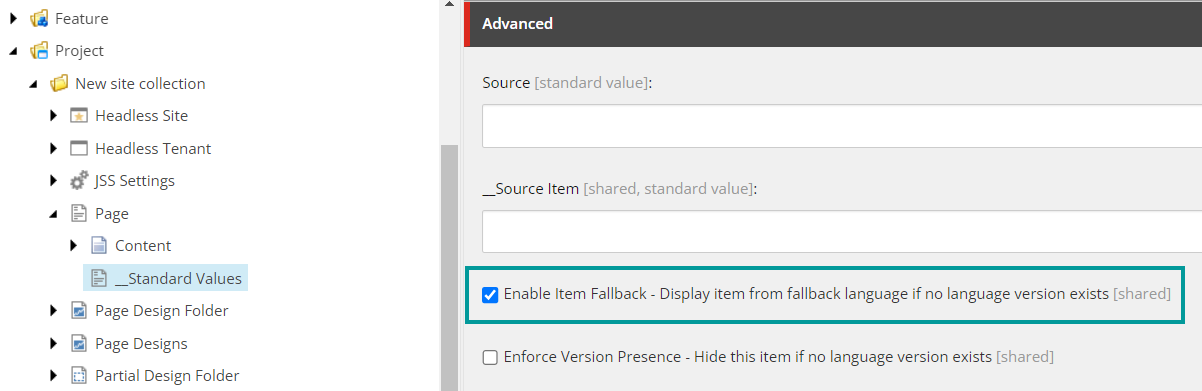
-
-
Select the Enable Item Fallback check box.
-
Save your changes.
Enable language fallback on the field definition item of an item template
Do not use both item- and field-level fallback on the same item because it makes it difficult to maintain an overview of the versions that different items and fields fall back to.
If you want to use field-level language fallback, you need to enable field-level language fallback on every relevant field definition of an item template. You can do this for a specific language version of a field, or for all language versions of the field.
Check that, in the Content Editor, on the View tab, the Standard fields check box is selected.
To enable language fallback on a field definition item:
-
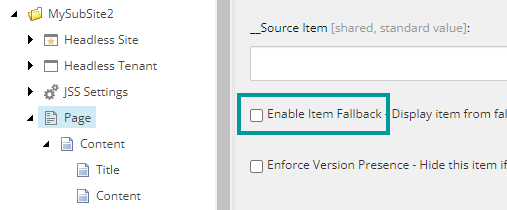
In the Content Editor, in the content tree, navigate to the relevant item template and, in the Advanced section, make sure that the Enable item fallback check box is cleared.
-
Click the field definition item that you want to enable field-level fallback for.
-
In the Data section of the item, select one or both of the following:
-
Enable field level fallback – select to enable language fallback for all the language versions of the current field. This applies to all the currently available language versions of the field and any new language versions that you create.
-
Enable versioned field level fallback – select to enable language fallback for only the currently selected language version of the field.
By default, this setting is deactivated. To activate it, in the
Sitecore.LanguageFallback.configfile, set the configuration settingLanguageFieldFallback.AllowVaryFallbackSettingsPerLanguageto true. However, this reduces performance considerably.
 Note
NoteSome field values might be inherited from another template, in which case you must enable them on the individual templates as well.
-
-
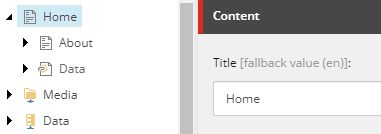
Save your changes. If you select an item that has the field you selected in step 2 and then select a language configured to fallback to, for example, English, you'll see that the field value falls back to English.
Use the Sitecore Powershell Extensions module
Manually enabling field-level fallback can be time-consuming, so to automate this process and perform a batch update of the field-level fallback settings, you can use the Sitecore Powershell Extensions module with the following sample script: