Environment variables
Modifying environment variables requires a rebuild/redeploy of your environment for the changes to take effect.
In SitecoreAI Deploy, you can manage settings that apply to an individual environment by creating environment variables directly in the Deploy app.
Environment variables are key-value pairs created outside your environment source code so that each value can change depending on the environment. When you create an environment variable, it is available for reference in your environment source code.
Environment variables simplify configuration changes because you do not have to modify source code.
For example, in your SitecoreAI production environment, you can create environment variables with production API URLs and authentication keys to connect to your production product catalog in OrderCloud. While in your SitecoreAI staging environment, you can change the values of the environment variables to connect to your staging product catalog instead.
You can also use the Sitecore Command Line Interface (CLI) with the plugins to create, update, and delete environment variables.
SitecoreAI environments come with the following predefined environment variables:
SITECORE_SPE_ELEVATION- specifies the user account control action for the Sitecore PowerShell Extension (SPE) module.Sitecore_GraphQL_ExposePlayground- enables/disables access to the Sitecore Authoring and Management GraphQL API playground.LOG_LEVEL_VALUE- sets the log level for the general log.PUBLISHING_LOG_LEVEL_VALUE- sets the log level for the publishing process.PAGES_PERSONALIZE_SCOPE- allows applying different personalization rules for different environments on the same tenant.
SitecoreAI environments also support other special variables:
PAGES_ENABLE_NEW_RTE_EDITOR- enables the improved rich text editor in the Page builder.Sitecore_dot_HtmlEditor_dot_WrapVideoTag- strips zero-width space characters that are added to HTML video tags.
SITECORE_SPE_ELEVATION
The SITECORE_SPE_ELEVATION environment variable specifies how the system responds to your attempts at using the SPE module for activities such as running Powershell scripts inside your instance.
For security purposes, the default value of the session elevation action value for SPE is Blocked. Therefore, the following applications and activities are blocked:
- The scripting environment (ISE).
- The command line (CLI).
- Item saving.
By changing the value of the SITECORE_SPE_ELEVATION environment variable, you override the default blocking behavior when you want to elevate the permissions to complete an otherwise blocked task.
The available values are:
| Value | Description |
|---|---|
Block | The default value. Always blocks the session from running elevated without prompting the user for permission. |
Confirm | Prompts the user for a confirmation before running the session elevated. |
Allow | Always allow the session to run without prompting the user for permission. Danger Only set the SITECORE_SPE_ELEVATION value to Allow for a local environment. |
The values are case-sensitive.
Sitecore_GraphQL_ExposePlayground
When using the Sitecore Authoring and Management GraphQL API, you can expose the GraphQL playground with the help of the Sitecore_GraphQL_ExposePlayground environment variable. The GraphQL playground is disabled by default. You must enable and authorize the Authoring and Management API GraphQL playground before you can use it.
LOG_LEVEL_VALUE
You can use this variable to set a log level for the general log, which you can access in the Deploy app in the Projects tab by selecting the relevant project, then the environment.
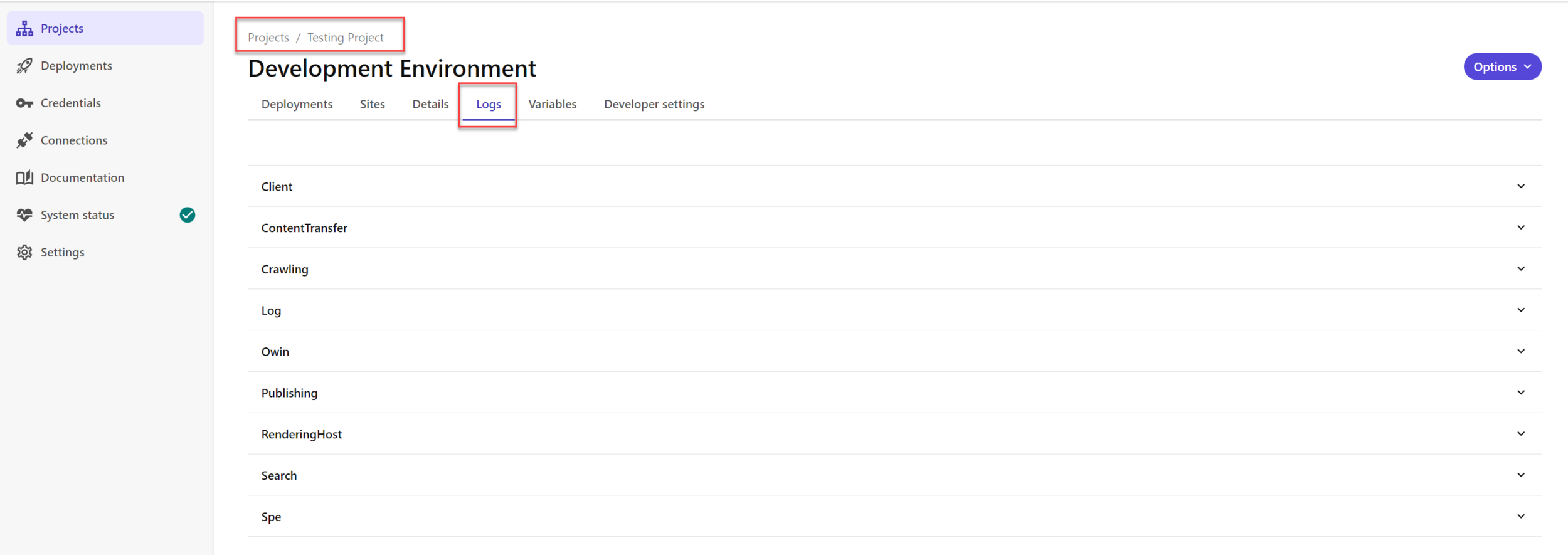
The available values, in descending order of detail, are:
| Value | Description |
|---|---|
ALL | All available information. |
DEBUG | Highly detailed event information. |
INFO | Default value. General event information. |
WARN | Potentially harmful or unsuccessful events. |
ERROR | Error events. |
FATAL | Fatal events. |
OFF | No logging. |
PUBLISHING_LOG_LEVEL_VALUE
You can use this variable to set a log level for the publishing process.
The available values, in descending order of detail, are:
| Value | Description |
|---|---|
ALL | All available information. |
DEBUG | Highly detailed event information. |
INFO | Default value. General information about the progression of the publishing process. |
WARN | Potentially harmful or unsuccessful events. |
ERROR | Error events. |
FATAL | Fatal events that stop the publishing process. |
OFF | No logging. |
PAGES_PERSONALIZE_SCOPE
When you use SitecoreAI Personalize, unique page identifiers are used to run personalization flows and analytics. In some cases, identical page identifiers might be created across different environments, for example, if pages are created through site serialization.
To isolate personalization data between such environments, use the PAGES_PERSONALIZE_SCOPE environment variable. It creates a unique identifier for a personalized page in the current environment.
If you don't use the variable, the default structure for identifying a page using Personalize is:
After adding the PAGES_PERSONALIZE_SCOPE variable with a value of myEnv, for example, that ID is changed to:
Personalization and analytics are based on the page identifier. If you change or add the PAGES_PERSONALIZE_SCOPE value after personalization rules have been created, those existing rules stop working and are no longer visible in the Page builder. This is because the page identifiers are recalculated, and the earlier identifiers won't match the new values. Therefore, we recommend that you apply this variable in the early stages of your implementation and not change the configuration afterwards.
Only alphanumeric characters are allowed (letters and numbers). The value is case-sensitive.
PAGES_ENABLE_NEW_RTE_EDITOR
Check that your app has JSS v21.5.2 or later. You can check the JSS version that is used in your Next.js application in the package.json and package-lock.json files.
If using an earlier JSS version, you must upgrade JSS 21.5 Next.js apps to version 21.6 first.
CKEditor, available within Rich Text components in the Page builder, offers several new features, including the ability to add tables, find and replace text, and style images in a variety of new ways.
To enable the new editor in a non-local environment, create an environment variable named PAGES_ENABLE_NEW_RTE_EDITOR. This variable is a flag variable; regardless of its assigned value, it will enable the new editor. To go back to the old editor, delete the variable.
To enable the new CKEditor in the Page builder connected to a local instance, add the PAGES_ENABLE_NEW_RTE_EDITOR environment variable to the CM container.
Sitecore_dot_HtmlEditor_dot_WrapVideoTag
If you add a <video> tag using the rich text field in the Content Editor, a zero-width space character ​ is automatically added to the page markup before and after the tag. You can disable this behavior by setting the Sitecore_dot_HtmlEditor_dot_WrapVideoTag environment variable to true, with a CM target.