Manage a project
In the Deploy app, a project is a collection of environments. Each environment contains its own Content Management (CM) instance. You can create a project using a foundation template, existing source code, or using the Sitecore CLI.
You can change the repository associated with a project, convert a project to decoupled deployment architecture, delete a project or change the project name.
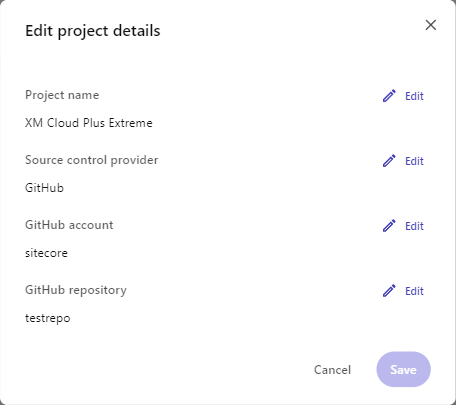
Change the project repository
A project is linked to a single repository. You can change your project to use a different repository in the same source control account, a different account, or a different source control provider. For example, maybe your company is migrating from Azure DevOps to GitHub or you developed a Sitecore solution on your GitHub account and need to transfer code ownership to your customer.
A project is always deployed to the same region as its organization. You cannot change a project's deployment region.
To change the project repository:
- In the navigation pane of the Deploy app, click Projects.
- On the Projects page, click the project where you want to change its repository.
- On the Project page, click Options > Edit project.
- Choose the repository that you want to link to the project.
- To choose a repository in a different source control provider, click Edit next to Source control provider.
- To choose a repository in a different source control account, click Edit next to GitHub account or Azure DevOps account.
- To choose a different repository in the same account, click Edit next to GitHub repository or Azure DevOps repository. If using Azure DevOps, you can also choose a different Azure DevOps organization or project.
- After choosing the repository you want to link, select the branch that you want to link to each environment.
- If you want to trigger an automatic deployment every time you push to the linked repository branch, select the Auto deploy on push to repository check box.
- Click Yes, make the change.
When you change the project repository, the new repository code is not automatically deployed to the related environments. You'll need to create a build and deploy it to your environment.
Change a project name
To change the name of a project:
- In the navigation pane of the Deploy app, click Projects.
- On the Projects page, click the project you want to edit.
- On the Project page, click Options > Edit project.
- In the Edit project details dialog, change the project name, then click Save.
Delete a project
You can delete a project if it is not needed. You can only delete a project that has no environments.
The Component builder's styles and components libraries are linked to a specific project; if you delete your project, the libraries are also deleted. To save your styles and components libraries, make sure you are sharing them with your other projects before deleting the project.
To delete a project:
- On the Projects page, click the project you want to delete.
- On the Project page, if there are environments in the project, delete the environments.
- When the project has no environments, click Options > Delete project.
- In the Delete project dialog, enter the name of the project, then click Delete.
Convert a project to Decoupled Deployments architecture
This feature helps teams align current project setups with the latest architectural standards introduced in recent platform updates. It may not be available in all environments.
The Convert functionality enables teams to transition existing SitecoreAI projects to the decoupled deployment strategy, where authoring environments and editing hosts are deployed independently.
This feature provides several key benefits:
- Brings legacy projects in line with the latest deployment model, supporting separate repositories for each authoring environment and editing host.
- Enables more granular control over deployments and environment configurations.
- Automates the conversion process, reducing manual effort and risk.
To convert a project to Decoupled Deployment architecture:
- Open the Deploy app.
- Click the project you want to convert.
- Click Options > Convert project, then click Confirm.
This will start a new deployment of all authoring environments and editing hosts.
If you need to undo your project conversion, contact Sitecore Support.