Manage client credentials for a SitecoreAI organization or environment
From the Deploy app, you can create and manage the client credentials of your organization and its environments.
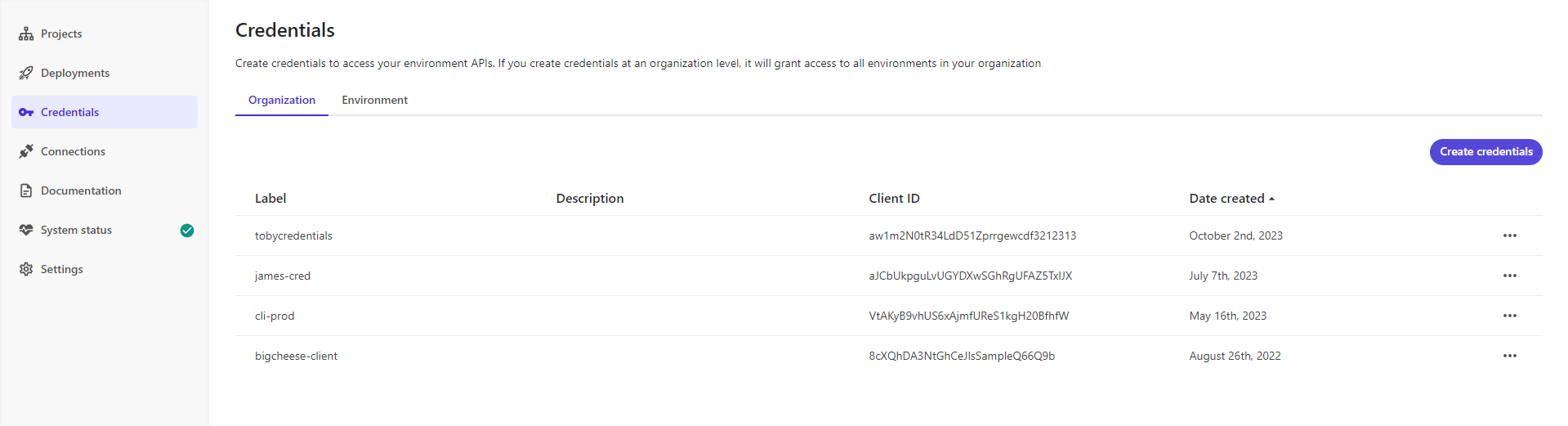
If you want your application to access SitecoreAI APIs, you must issue client credentials for your app.
Depending on what you want to access, you can create different types of clients:
-
To access the Deploy API and the CM instance APIs of all environments in an organization, create an automation client for an organization.
-
To access the CM instance APIs of a specific environment or the Sitecore XM Apps REST API, create an automation client for an environment.
XM Cloud is now SitecoreAISome code examples, images, and UI labels may still use XM Cloud while engineering assets are being updated.
-
To access the Experience Edge APIs of a specific environment, create an Edge administration client for an environment.
-
To enable code extraction in the Design studio when using an external editing host, create an external editing host client for the relevant environment.
When you create credentials, the Deploy app creates a client ID and a client secret for your app. The client ID and client secret are essentially equivalent to a username and password.
You can use the credentials to request a JSON Web Token for your CM instance or request a JWT for Experience Edge XM.
Create an automation client for a SitecoreAI organization
If your app needs to access the Deploy API or the CM instance APIs of all environments in an organization, create an automation client for the organization.
To create an automation client for the organization:
-
In the navigation pane of the Deploy app, click Credentials.
-
On the Credentials page, click the Organization tab, then click Create credentials.
-
In the Automation client dialog, in the Label field, enter a label for the client.
NoteYou cannot use the following characters in the Label and Description fields: # @ " + & >
-
Optionally, in the Description field, enter a description for your client.
-
Click Create.
-
Save the client ID and client secret.
NoteThe client secret is generated only one time and cannot be retrieved from the system or regenerated. If you lose the client secret, you must generate a new authentication client.
Create an automation client for an environment
If your app needs to access the CM instance APIs of a specific environment or the XM Apps REST API, create an automation client for an environment.
To create an automation client for an environment:
-
In the navigation pane of the Deploy app, click Credentials.
-
On the Credentials page, click the Environment tab, then click Create credentials > Automation.
-
In the Automation client dialog, in the Label field, enter a label for the automation client.
NoteYou cannot use the following characters in the Label and Description fields: # @ " + & >
-
Optionally, in the Description field, enter a description for the automation client.
-
In the Project drop-down menu, click or enter the project that contains the environment where you want to create an automation client.
-
In the Environment drop-down menu, click or enter the environment that you want.
-
Click Create.
-
Save the client ID and client secret.
NoteThe client secret is generated only one time and cannot be retrieved from the system or regenerated. If you lose the client secret, you must generate a new authentication client.
Create an Edge administration client for an environment
If your app needs to manage the Experience Edge settings of an environment, create an Edge administration client.
To create an Edge administration client for an environment:
-
In the navigation pane of the Deploy app, click Credentials.
-
On the Credentials page, click the Environment tab, then click Create credentials > Edge administration.
-
In the Edge administration client dialog, in the Label field, enter a label for the Edge administration client.
NoteYou cannot use the following characters in the Label and Description fields: # @ " + & >
-
Optionally, in the Description field, enter a description for the Edge administration client.
-
In the Project drop-down menu, click or enter the project that contains the environment where you want to create an Edge administration client.
-
In the Environment drop-down menu, click or enter the environment that you want.
-
Click Create.
-
Save the client ID and client secret.
NoteThe client secret is generated only one time and cannot be retrieved from the system or regenerated. If you lose the client secret, you must generate a new authentication client.
Create an external editing host client for an environment
If you want to enable code extraction in the Design studio when using an external editing host, you'll need to create external editing host credentials and add them during your deployment setup.
To create an external editing host client for an environment:
-
In the navigation pane of the Deploy app, click Credentials.
-
On the Credentials page, click the Environment tab, then click Create credentials > External editing host.
-
In the External editing host dialog, in the Label field, enter a label for the external editing host client.
NoteYou cannot use the following characters in the Label and Description fields: # @ " + & >
-
Optionally, in the Description field, enter a description for the external editing host client.
-
In the Project drop-down menu, click or enter the project that contains the environment you are using with your external editing host.
-
In the Environment drop-down menu, click or enter the environment that you want.
-
Click Create.
-
Save the client ID and client secret.
NoteThe client secret is generated only one time and cannot be retrieved from the system or regenerated. If you lose the client secret, you must generate a new authentication client.
Revoke a client
You can remove application access to your organization or environment by revoking its client credentials. This action deletes the client, revoking the associated access token. When you revoke a client, it cannot be restored.
To revoke a client:
- In the navigation pane of the Deploy app, click Credentials.
- On the Credentials page, click the tab that contains the client you want to revoke.
- Locate the client you want to revoke, click its Actions menu , then click Revoke client.
- In the Revoke client dialog, click Revoke.