Manage environment variables in the Deploy app
You can manage settings that change by environment by declaring environment variables.
Modifying environment variables requires a rebuild/redeploy of your environment for the changes to take effect.
Environment variables created in the Deploy app are applied only to the Content Management (authoring) environment and the Editing host. They are not propagated to externally hosted rendering hosts (for example, Vercel, Netlify, or Azure App Services).
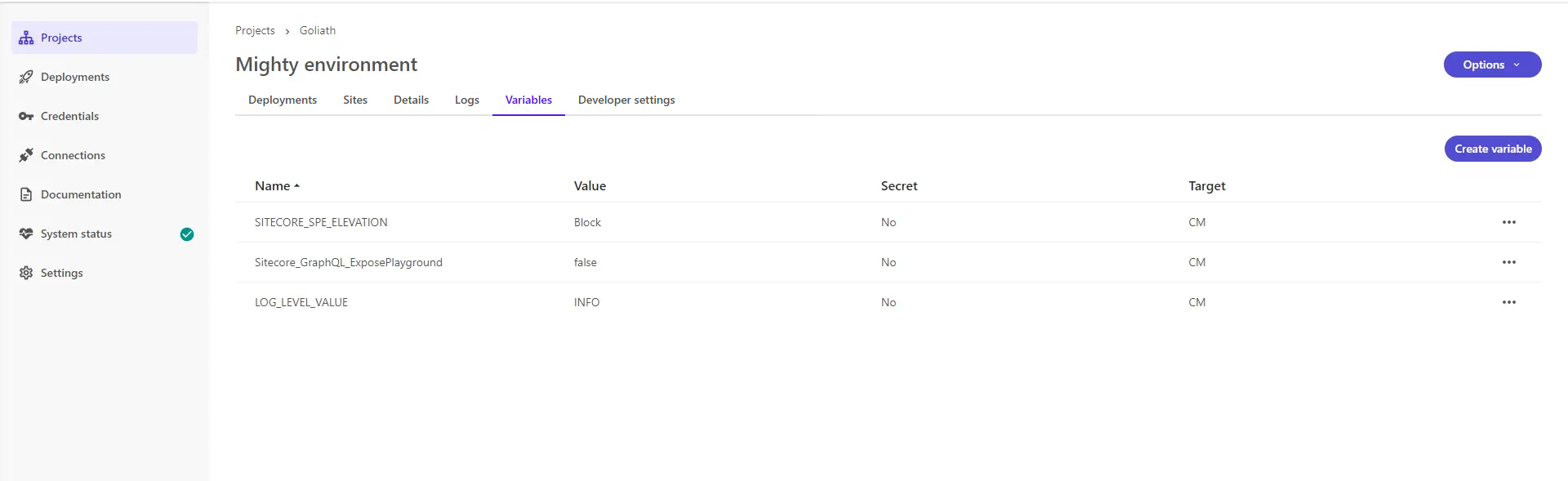
Create an environment variable
If you've enabled the beta feature that lets you separately deploy your authoring environments and editing hosts, you can also create environment variables when you create a project, add an authoring environment, or add an editing host.
To create an environment variable:
-
On the navigation pane of the Deploy app, click Projects.
-
On the Projects page, click the project that contains the environment where you want to create an environment variable.
-
On the project page, click the environment where you want to create a variable.
-
On the environment page, click Variables, then click Create variable.
-
In the Create variable dialog, in the Name field, enter a name for your environment variable.
-
In the Value field, enter a value for your variable.
-
If you want to encrypt your variable and hide its value, turn on the Secret toggle.
-
In the Target field, choose the target for your environment variable.
NoteIf the target is an editing host, the rendering host name must match one of the editing/rendering hosts defined in the the
xmcloud.build.jsonfile.This applies only to the Sitecore-managed editing host used for authoring and WYSIWYG editing. Environment variables are not injected into externally hosted rendering hosts.
For example, in the following
xmcloud.build.jsonfile code snippet,nextjsstarteris a rendering host name.{ "renderingHosts": { "nextjsstarter": { // Rendering host name "path": "./headapps/nextjs-starter", ...
XM Cloud is now SitecoreAISome code examples, images, and UI labels may still use XM Cloud while engineering assets are being updated.
-
Click Save.
Edit an environment variable
To edit an environment variable:
- On the navigation pane of the Deploy app, click Projects.
- On the Projects page, click the project that contains the environment where you want to edit an environment variable.
- On the project page, click the environment where you want to edit a variable.
- On the environment page, click Variables.
- On the Variables tab, locate the variable you want to edit, then click Actions
 > Edit variable.
 - In the Edit variable dialog, edit your variable, then click Save.
Delete an environment variable
To delete an environment variable:
- On the navigation pane of the Deploy app, click Projects.
- On the Projects page, click the project that contains the environment where you want to delete an environment variable.
- On the project page, click the environment where you want to delete a variable.
- On the environment page, click Variables.
- On the Variables tab, locate the variable you want to delete, then click Actions > Delete variable.
- In the Delete variable dialog, click Delete.