Set up your local development environment
This is part three of the getting started walkthrough series. Before you can complete the steps here, you must have created a project and environment, and created a site and page.
This topic describes how to set up your local development environment by cloning the GitHub or Azure DevOps repo to your local machine, installing its packages, and connecting your local host to the preview endpoint, allowing you to visualize your work.
This walkthrough series applies a front-end-development (FED) first approach, removing any minimum machine-specific requirements that would apply in a Docker-based development approach; though a performant machine is always recommended for a better developer experience.
Content SDK (Next.js)
To set up your local environment using the Content SDK:
-
Make sure you have the latest Node.js LTS version installed on your machine.
-
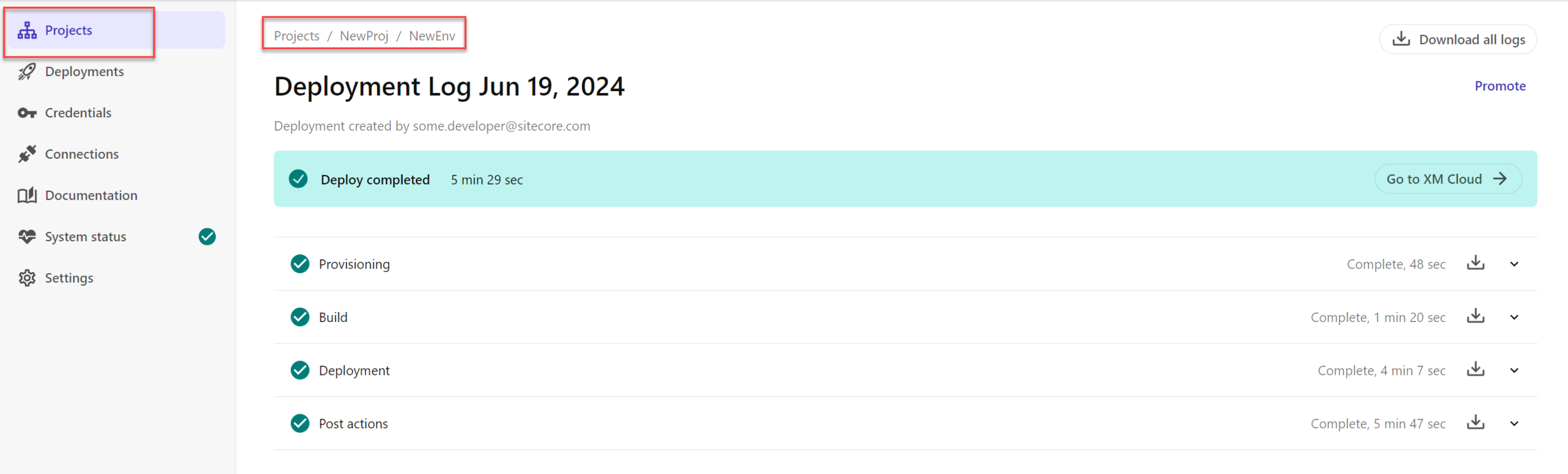
In the Deploy app, open the environment you created earlier. If you're still on the deployment log screen, you can use the breadcrumbs, or navigate from the Projects tab.
-
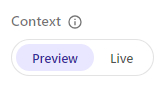
On the Developer settings tab, make sure the context switcher is set to Preview.
-
Copy the command for cloning the environment repository to your local machine and run it in a terminal. When it's cloned, open the repository in a code editor.
-
Back in the Deploy app, copy the environment variables from the on-screen code block.
-
In the
/examples/kit-nextjs-skate-parkfolder, create a new.env.localfile and paste in the variables you just copied.NoteWe're using the Skate Park sample in the starter repository for this walkthrough as it contains a few components out-of-the-box. For a real project, you'll most likely start from an empty project like
examples/basic-nextjs(for Next.js projects) orexamples/basic-spa(for Angular projects). -
In your terminal, change directory (CD) to the
examples/kit-nextjs-skate-parkfolder. -
To install the required packages, run
npm install. -
To run the application head locally and connect it to the preview endpoint, run
npm run dev. -
In your browser, go to
http://localhost:3000/. You should see the text you entered when you added a component to your page, for example, Hello World - inbuilt component.
ASP.NET Core SDK
To set up your local environment using the ASP.NET Core SDK:
-
In the Deploy app, open the environment you created earlier. If you're still on the deployment log screen, you can use the breadcrumbs, or navigate from the Projects tab.
-
On the Developer settings tab, make sure the context switcher is set to Preview.
-
Copy the command for cloning the environment repository to your local machine and run it in a terminal. When it's cloned, open the repository in a code editor.
-
Duplicate the
./headapps/aspnet-core-starter/appsettings.jsonfile and rename it to./headapps/aspnet-core-starter/appsettings.Development.json. -
Back in the Deploy app, copy the environment variables from the on-screen code block, and paste them into the newly created
appsettings.Development.jsonfile. -
If you're using Visual Studio Code, press F5 to build and run the solution. If you're using a command line interface, navigate to the
/headapps/aspnet-core-starter folderand executedotnet restore && dotnet run. -
In your browser, go to
http://localhost:5001/. You should see a blank page, which you'll use to test components you'll be adding in the next step.
You now have your local development instance linked to your SitecoreAI Environment. Next, you're going to build your first component.