Create an activity type
This topic describes how to create and configure a custom Marketing Automation activity type named SymposiumReminder. The SymposiumReminder is responsible for moving a contact along a “true” or “false” path depending on whether they have opted out of receiving marketing e-mails.
Activity types must define a single default path or true/false paths. You cannot define additional custom paths.
If you use custom facets in your activity type, you must deploy the model to the automation engine.
The SymposiumReminder activity type also:
-
Uses an external service to determine a contact’s role based on their job title.
-
Uses an external service to send an e-mail to the contact’s preferred e-mail address. The ‘from’ e-mail address is configurable via the
NoReplyAddressparameter.
Create a class that implements IActivity
Create a class that implements IActivity
To implement a custom SymposiumReminder activity and two custom services:
-
Create a class named
SymposiumReminderthat implementsIActivity: -
Create the custom services that the
SymposiumReminderactivity type relies on -IJobServiceandIEmailService. You can skip this step if your activity type does not rely on custom services.
SymposiumReminder paths
The SymposiumReminder defines two paths:
-
true -
false
Each path has a matching path item under the activity type’s descriptor in Sitecore. See also:
SymposiumReminder services
The SymposiumReminder relies on two custom services:
-
IJobServiceis responsible for matching a contact’s job title to entries in a list. -
IEmailServiceis responsible for sending e-mails - for example, if your brand is not using the Email Experience Manager.
Both services are injected via the constructor, and must be part of the activity type’s configuration in the Automation Engine. See also:
SymposiumReminder parameters
The SymposiumReminder defines a single custom parameter:
-
NoReplyAddress
This parameter has a matching parameter item in the activity type’s descriptor, and is set by the Automation Plan Defintion Manager when an activity with that uses the SymposiumReminder type is added to a plan. See also:
SymposiumReminder results
The SymposiumReminder returns SuccessMove("true") or SuccessMove("false") depending on whether the contact has opted out of receiving marketing e-mails.
See also:
Create an activity descriptor in Sitecore
Create an activity descriptor in Sitecore
You must create an activity descriptor in Sitecore for each activity type. Activity descriptors are used by the Marketing Automation UI, and are accessed using the Activity Type Descriptor Locator API.
-
Open the Content Editor and navigate to /sitecore/system/Settings/Analytics/Marketing Automation/Activity Types.
-
Right-click on Activity Types item and Insert > Activity Type.
-
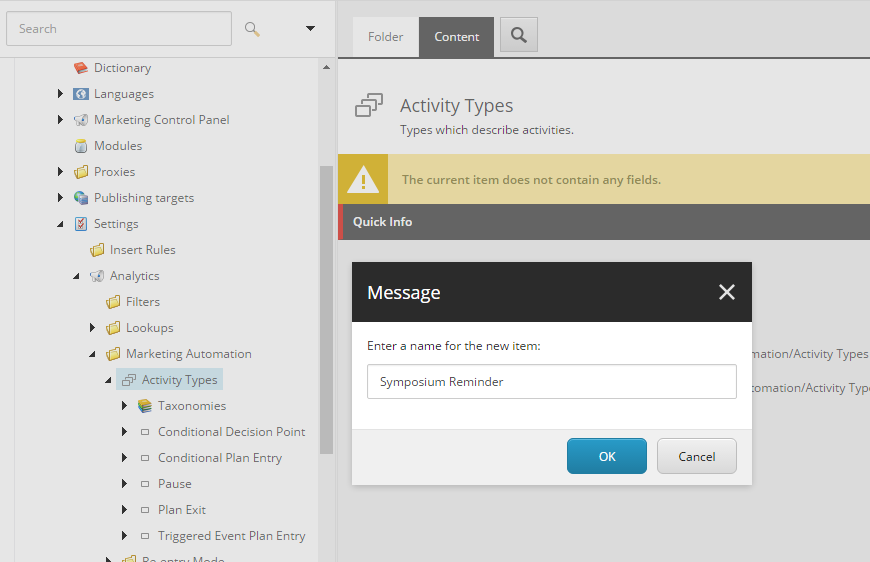
Give the new activity type a name that corresponds to the activity type class, such as Symposium Reminder:
-
Specify the Implementation Type (the value of this field should match the value of the
implementationTypeparameter in the automation engine configuration):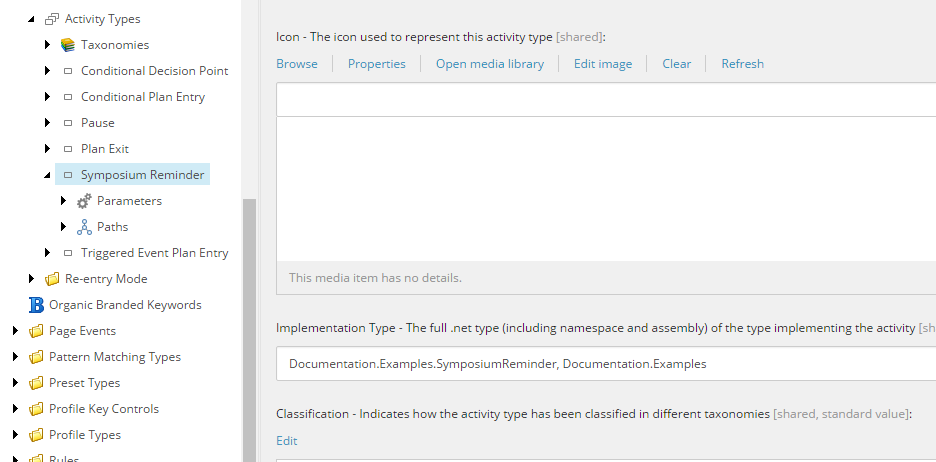
-
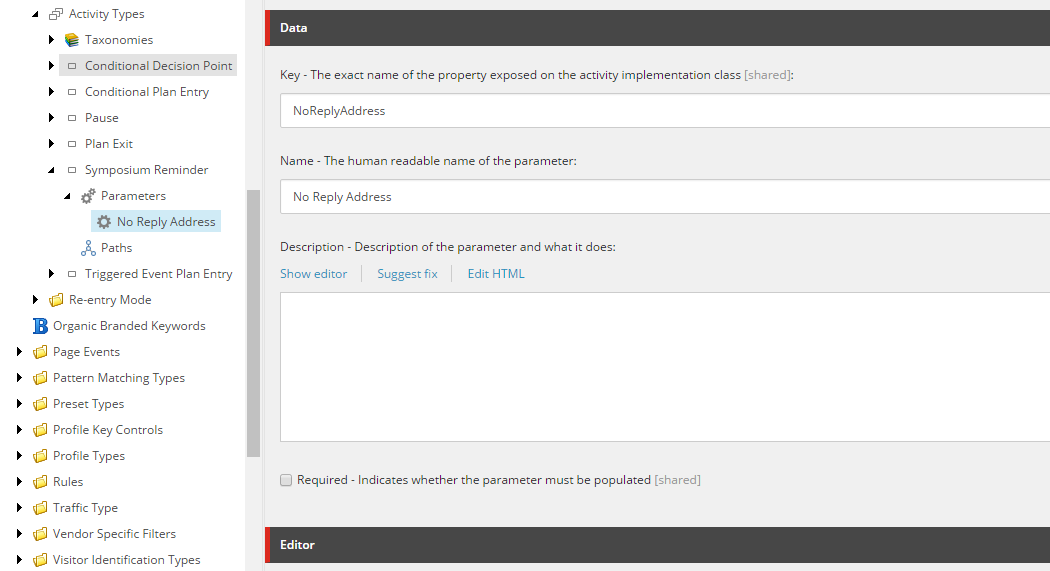
Right-click on the Parameters sub-item and insert a parameter item named No Reply Address. In our case, the parameter will fall back to a default and is not required.
-
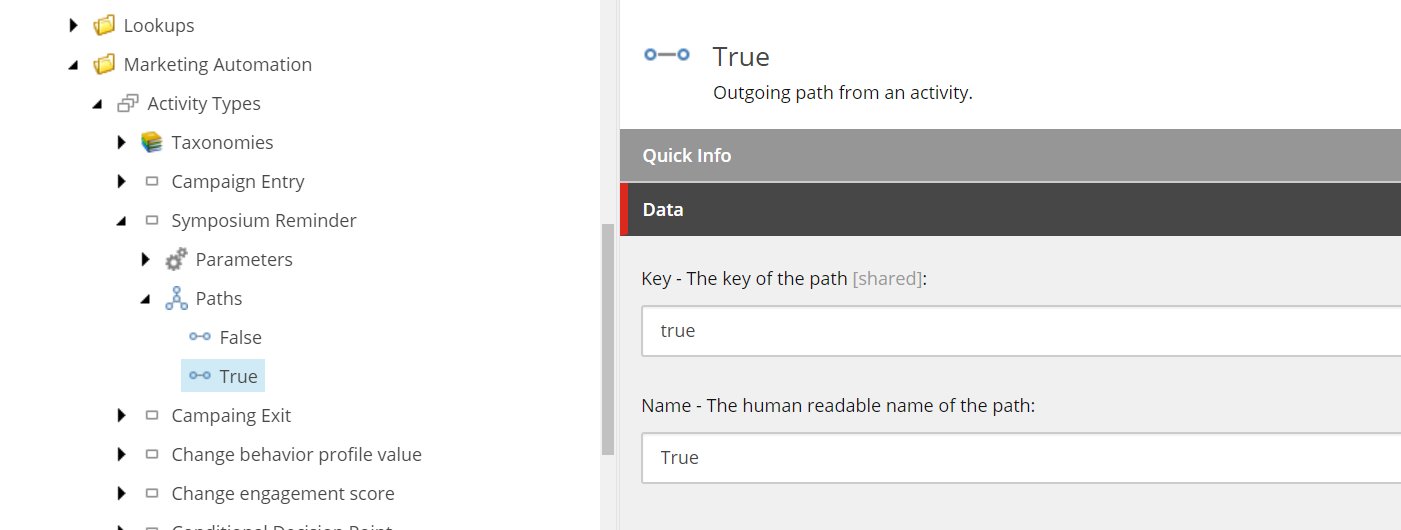
Right-click on the Paths sub-item and insert two path items. Each path item must define the same Key that is used in the activity type:
Add an activity type to the Marketing Automation Engine
Add an activity type to the Marketing Automation Engine
Activities must be registered in configuration in the Marketing Automation engine.
-
Navigate to the following folder in the Automation Engine root:
\App_Data\Config\sitecore\MarketingAutomationTipIn a local instance, the Automation Engine is at
C:\path\to\xconnect\App_data\jobs\continuous\AutomationEngine -
Create a new XML file that extends
sc.MarketingAutomation.ActivityTypes.xmland registers your custom activity:NoteThe Id node is the ID of the activity descriptor item in Sitecore.
-
Deploy the activity DLL (in this case,
Documentation.Examples.dll) to the Marketing Automation Engine root.
Add activity type services to the Marketing Automation Engine
Add activity type services to the Marketing Automation Engine
The SymposiumReminder activity relies on two external services. These services must be registered in the automation engine.
-
Navigate to the following folder in the Automation Engine root:
\App_Data\Config\sitecore\MarketingAutomationTipIn a local instance, the Automation Engine is located under C:\path\to\xconnect\App_data\jobs\continuous\AutomationEngine
-
Create a new XML file that extends
sc.MarketingAutomation.ActivityServices.xmland registers your custom services. If you are not using custom services, you can skip this step.NoteNode names must be unique. For example, there can only be one
Documentation.EmailServicenode. The node name is up to you - it does not need to be the full namespace of the service. -
Deploy the activity service DLL (in this case,
Documentation.Examples.dll) to the Marketing Automation Engine root.
Ensure facets are loaded
The following facets must be available when the contact is evaluated within the activity. Patch facet keys into the IncludeFacetNames section of the C:\path\to\xconnect\App_data\jobs\continuous\AutomationEngine\App_Data\Config\sitecore\MarketingAutomation\sc.MarketingAutomation.ContactLoader.xml configuration file: