Create an anchor and link to it
An anchor is an HTML code that is used as a bookmark to create a link to a particular section within a page. For example, it could be a Back to top link that takes the user to the top of the current page, or it could be a link to a section in the middle of another page.
In Content, you can use the HTML editor to create an anchor in a rich text field, and then you can include the anchor ID when you create a link.
Create an anchor in a rich text field
To create an anchor:
-
In Content, navigate to the item where you want to insert an anchor.
-
Click Edit content for the rich text field where you want to insert an anchor.
-
Click the HTML editor tab.
-
In the HTML code, insert the anchor using the format
id=“anchor-name”. For example, the following HTML code assigns the anchor nameto a paragraph: -
Click Save and close.
Link to an anchor on the current page
To link to an anchor on the same page as the link:
-
In Content, in the rich text editor, select the text that you want to format as a link.
-
In the rich text editor panel, click the Create or edit hyperlink icon
 .
. -
In the Add link panel, in the Link type field, select External URL.
-
In the URL field, enter #
. 
-
Click Close
 to close the Add link panel.
Link to an anchor on another page
To link to an anchor on another page:
-
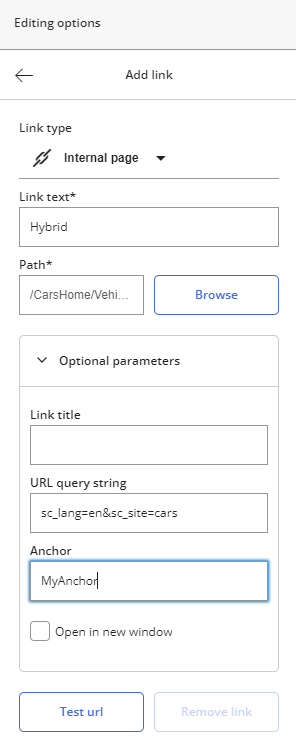
Follow the procedure to create an internal link.
-
Expand Optional parameters. In the Anchor field, enter the anchor name.
-
Click Close
to close the Add link panel.