Identify the template that an item is based on
You need to know which template an item is based on, for example, when you want to set up a template as bucketable.
Identify the template that an item is based on
In the Content Editor, in the Quick Info section, you can quickly identify the template that an item is based on.
To identify the template that an item is based on:
-
In the content tree, click the relevant item.
-
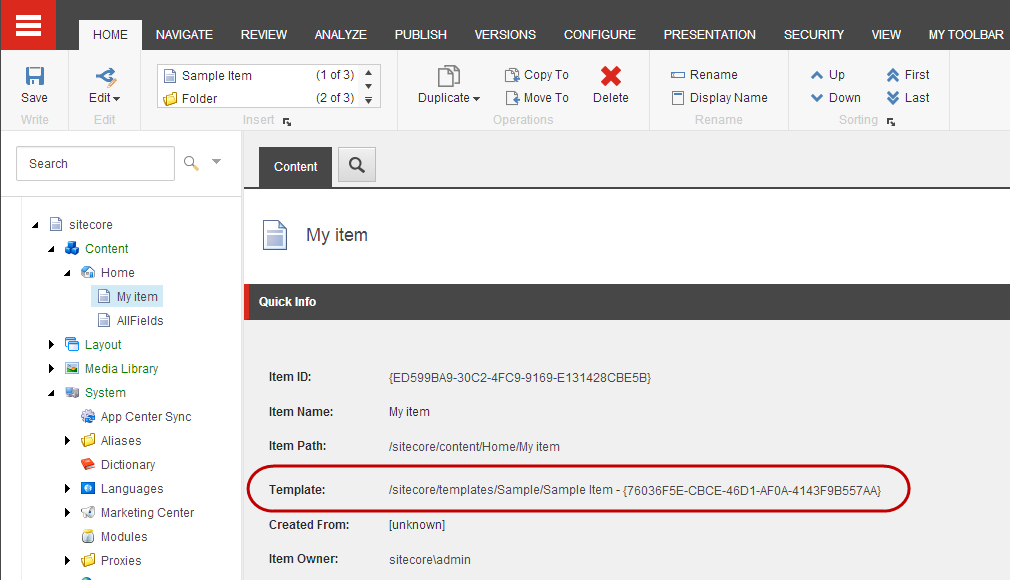
In the content area, on the Content tab, expand the Quick Info section at the top. The Template field tells you which template the item is based on.
-
To open the template item, click the template link.
Enable the Quick Info section
If the Quick Info section is not visible, you can enable the section from the Application Options.
-
In the Content Editor, click the System menu
 , and then click Application Options.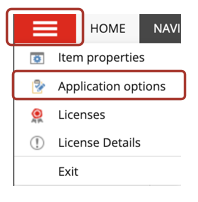
-
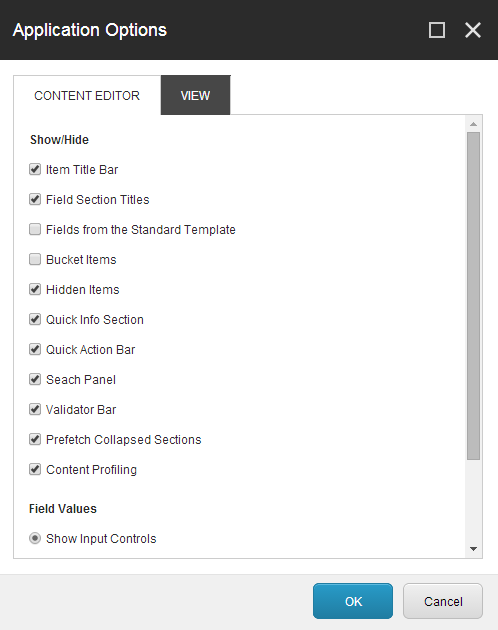
In the Application Options dialog box, in the Show/Hide section, select the Quick Info Section check box and click OK.