- Understanding audience export
JavaScript in the export
When creating an audience export, you can use JavaScript to compute data in addition to what's already in the guest profile. This lets you enrich the data you export from Sitecore CDP.
For example, if the guest's date of birth is in the guest profile, you can include it in the output as ${guest.dateOfBirth}, without additional coding required. If the guest's age, however, isn't in the guest profile, you can compute it with JavaScript and then include it in the output.
To use JavaScript in an audience export, you can:
- Enter functions in the JavaScript code editor. You can write the code manually, or generate it with the Code Assistant using natural language. See code snippets for example functions.
- Call a utility function in a field on the Output structure tab.
Here's a video that introduces you to using JavaScript in audience exports:
Advanced mode
Example 2. Return nested session data
Here's an example JavaScript function in Advanced mode. It returns the guest's session data from the previous 30 days. An audience export with this data helps you find and re-engage inactive guests:
After writing the function, make sure to Save your changes. Then, test the audience export to verify that the JavaScript computation is successful.
::::
Including the computed data in the output
If you write JavaScript in Basic mode, you need to include the computed data on the Output structure tab, in the Attribute value field of a string or number field.
When referencing a key from the object that the JavaScript returns, use the ${jsResult.objectKeyName} notation. For example, if the JavaScript contains the age attribute in the returned object, include that in the Attribute value field as ${jsResult.age}:
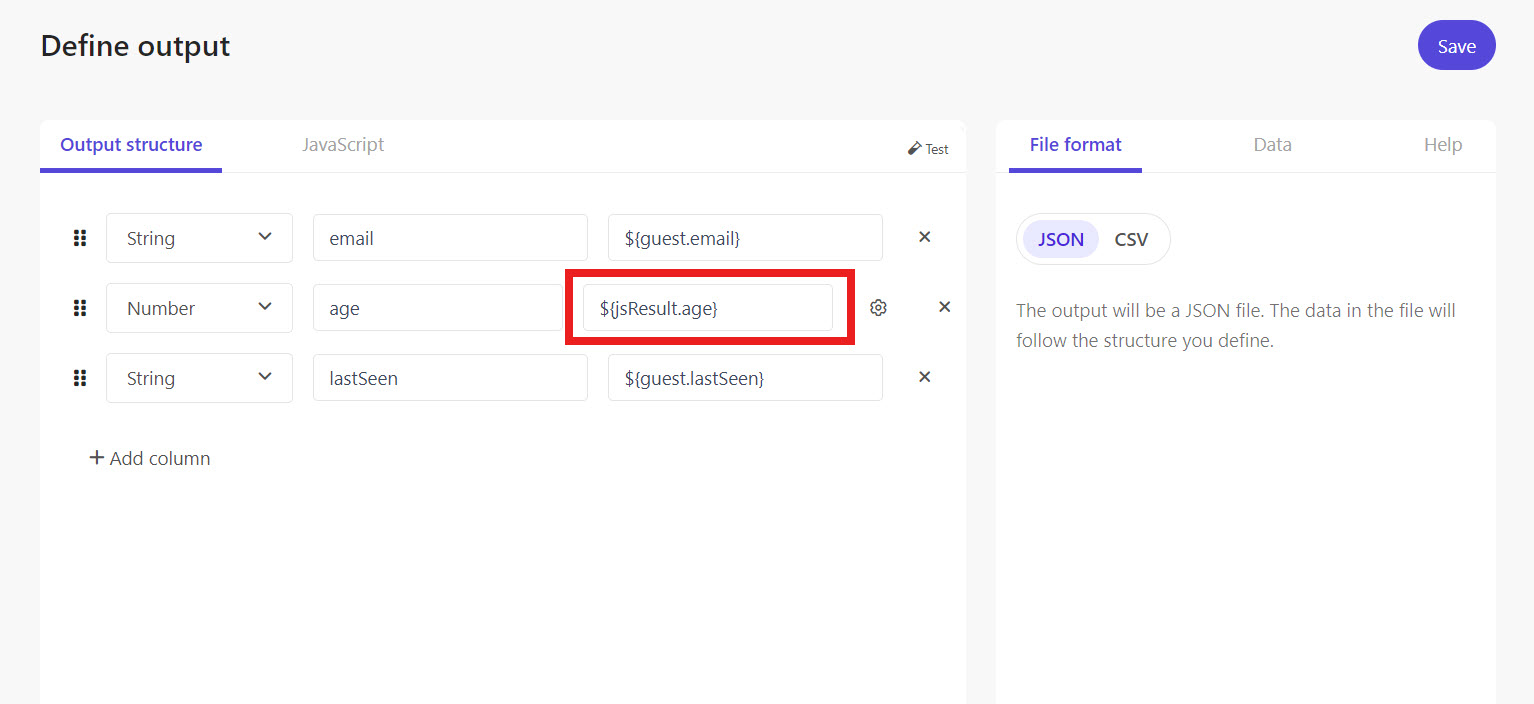
After updating the fields, make sure to Save your changes. Then, test the audience export to verify that the JavaScript computation is successful.
Calling utility functions
Utility functions help you access data in the guest profile and make data transformations. For example, you can join strings, transform dates, or hash sensitive data so it is securely exported.
You can call these functions in an audience export if you're in Basic mode on the Define output screen, by clicking Output structure > Add column, then entering the utility function in the Attribute value field of a string or number field. Make sure to replace the function parameters with values of your choice.
Here's an example of calling the ${sha256()} utility function to securely export a guest's email address:
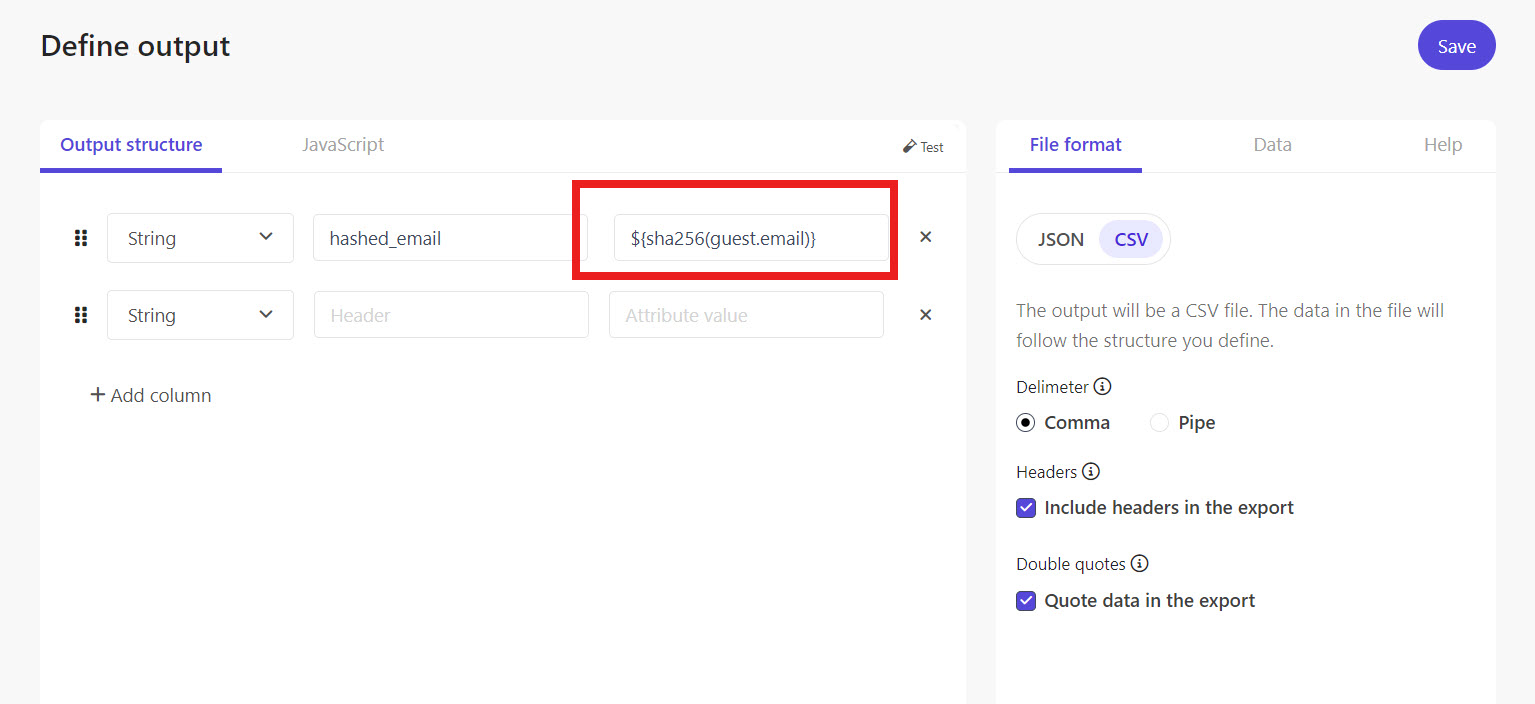
Or consider a guest profile with the following data extension object:
You can call ${getDataExtension(guest.dataExtensions, "ext1", "MemberCardCategory", "not-available")} in the Attribute value field to access the value for MemberCardCategory and include it in the output.
After updating the fields, make sure to Save your changes. Then, test the audience export to verify that the JavaScript computation is successful.