View a guest profile in Sitecore CDP
Sitecore CDP creates a guest profile for every person that interacts with your brand, regardless of the channel they use. Guest profiles have the potential to be very robust, populated with behavioral and transactional data.
If your organization passes Personally Identifiable Information (PII) data to Sitecore CDP, the guest profile contains personal information about the guest such as first name and last name.
To view a guest profile:
- Search for the guest.
- Click the name of the guest or Unique Universal Identifier (UUID). The Guest Profile screen displays. Depending on the guest type, the Timeline, Orders, and Properties tabs display for you to view additional information on the guest.
For ease of use when reading this topic, the Guest Profile screen is separated into two images.
The following image shows the upper half of the Guest Profile screen for organizations that pass PII data to Sitecore CDP. The accompanying table contains a description of each numbered screen item.
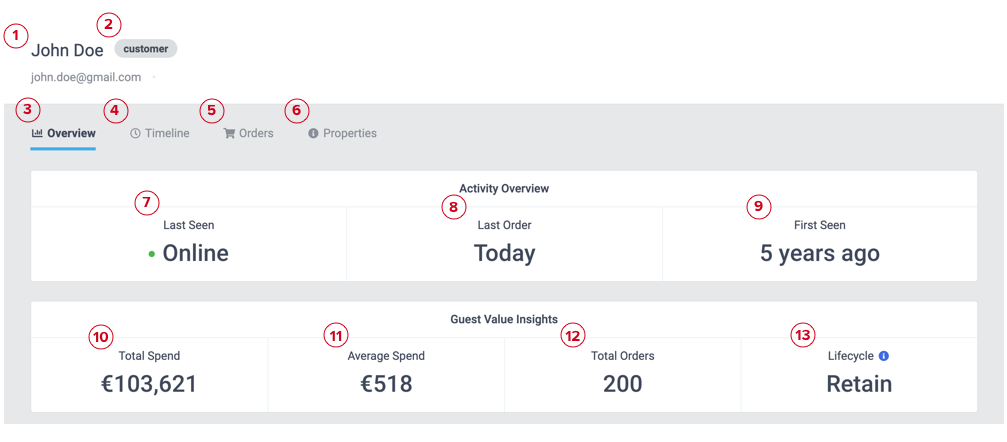
The upper half of the Guest Profile screen provides the following data:
| Screen Item | Definition |
|---|---|
| 1. Guest name or identifier | If your organization passes PII data to Sitecore CDP, the proper name of the guest displays. The guest's email address displays underneath their name, along with their city and country, if available. Alternatively, if your organization does not pass PII data to Sitecore CDP, a UUID displays instead of a name and email address, for example, ABC123. Regardless of whether your organization passes PII data to Sitecore CDP, Anonymous displays for unidentified guests. |
| 2. Guest type | The guest type which represents the level of identity Sitecore CDP established for the guest. Only organizations that pass PII data to Sitecore CDP use guest types. |
| 3. Overview tab | A high-level view of the guest's transactional data, channel and device preferences, usage times, and segment membership. This is the default tab that displays when you view a guest profile. |
| 4. Timeline tab | Click to view sessions and events that take place over specific channels on a vertical timeline. |
| 5. Orders tab | Click the Orders tab to view an unlimited list of all orders associated with the guest. |
| 6. Properties tab | Click the Properties tab to access any additional attributes associated with the guest including data extensions, subscriptions, and additional data associated with the guest. |
| 7. Last seen | The number of days, weeks, months, or years ago the guest last interacted with your organization. If the guest is currently online, this field displays Online. |
| 8. Last Order | Number of days, weeks, months, or years ago the guest last made an order. |
| 9. First Seen | Number of days, weeks, months, or years ago the guest was first identified as interacting with your organization. |
| 10. Total Spend | Total monetary amount of the most recent 200 orders the guest has purchased. |
| 11. Average Spend | Amount on the Total Spend tile divided by the number on the Total Orders tile. The Average Spend only includes the guest's most recent 200 orders. |
| 12. Total Orders | Total number of orders the guest has purchased, up to a maximum of 200 orders. |
| 13. Lifecycle | Current lifecycle stage of the guest: Acquire - a guest who has never visited the site and has never been listed as a traveller on another guest's order. This could also be a guest who has visited your site as anonymous. Convert - a guest with no orders on the system but who has searched at least once, or the guest is listed as a traveller on another guest's order. Retain - a guest with at least one order or who is a member of a loyalty program or similar. |
The following image displays the lower half of the Guest Profile screen for organizations that pass PII data to Sitecore CDP.
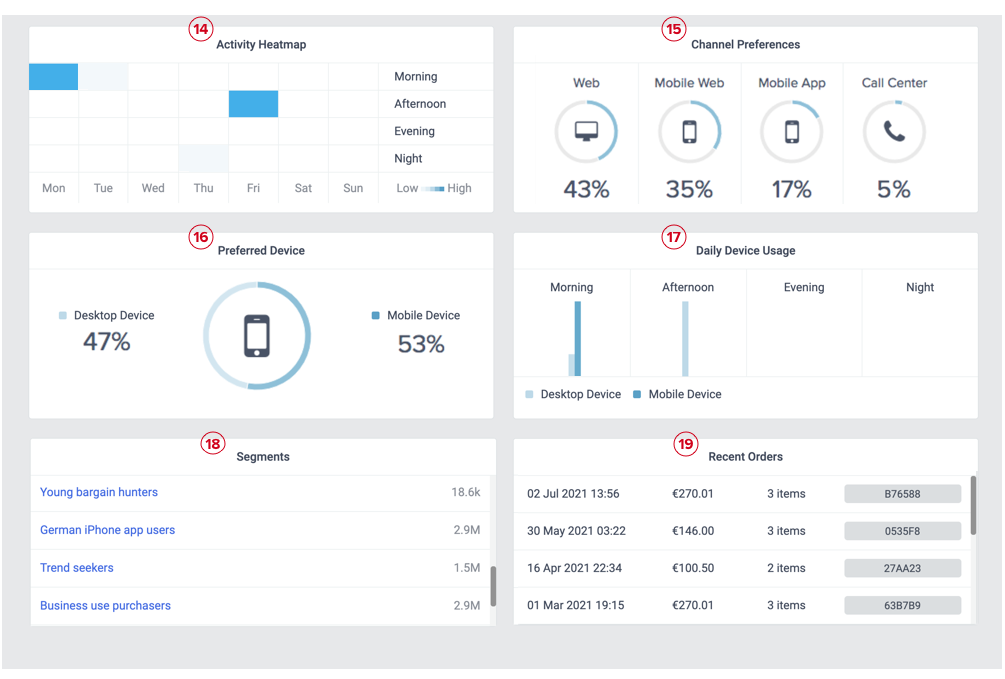
The lower half of the Guest Profile screen provides the following data:
| Screen item | Definition |
|---|---|
| 14. Activity Heatmap | A grid that you can use to identify patterns of low to high usage, shown in your organization's timezone. The time periods represent the following durations: Morning: 06:00 - 11:59Afternoon: 12:00 - 17:59Evening: 18:00 - 23:59Night: 00:00 - 05:59 |
| 15. Channel Preferences | The percentage of the channels the guest uses to interact with your organization. Web - represents guest interactions with your organization's website. Mobile Web - represents guest interactions with your organization's website, over a mobile device. Mobile App - represents guest interactions with your organization's mobile application. Call Center - represents guest interactions with your organization's call center. |
| 16. Preferred Device | The guest's preferred device while interacting with your organization. The device usage is displayed as a percentage between Desktop Device and Mobile Device usage. |
| 17. Daily Device Usage | A bar chart of the guest's daily device usage, in your organization's timezone. This is helpful when determining what time of day to target a guest, and whether to target them over a mobile or desktop device. The time periods represent the following durations: Morning: 06:00 - 11:59Afternoon: 12:00 - 17:59Evening: 18:00 - 23:59Night: 00:00 - 05:59 |
| 18. Segments | A scrollable list of all the segments that the guest belongs to. The total number of all guests within the segment displays next to the segment name. To view segment members, click the name of the segment. A list of all guests within the segment displays. |
| 19. Recent Orders | The guest's most recent orders. If you are viewing the guest profile of a traveller guest type, this section is titled Related Orders and displays any orders that the guest is listed as a passenger. |
The percentage that displays in the Channel Preferences tile for Web might also include guest interactions that take place over a mobile device, if your organization does not use Mobile Web to exclusively track mobile interactions.
Guest profile data limits
To ensure optimum performance, the following data limits are applicable to the Guest Profile screen:
| Guest data | Data limit |
|---|---|
| Total Orders on the Overview tab. | Last 200 orders, based on the orderedAt date. |
| Sessions on the Interaction Timeline. | Last 100 sessions |
| Events on the Interaction Timeline. | First 100 events per session |
| Data extensions on the Properties tab. | 100 |
| Orders on the Orders tab. | Unlimited |