View guest orders in Sitecore CDP
Sitecore CDP lets you view a guest's orders, including information such as the order's contact person and consumer, item details, and any data extensions that are specific to your organization.
You can only view orders for guests who have been identified as customers.
To view a guest's orders:
-
On the Guest Profile page, click the Orders tab. A list of the guest's orders displays, which includes each order's reference, date and time ordered, status, channel, items, and price.
-
Click the row of the order you want to view. The order information is displayed on the Order Details page. Details such as the order's reference, timestamp, and status appear at the top of the page.
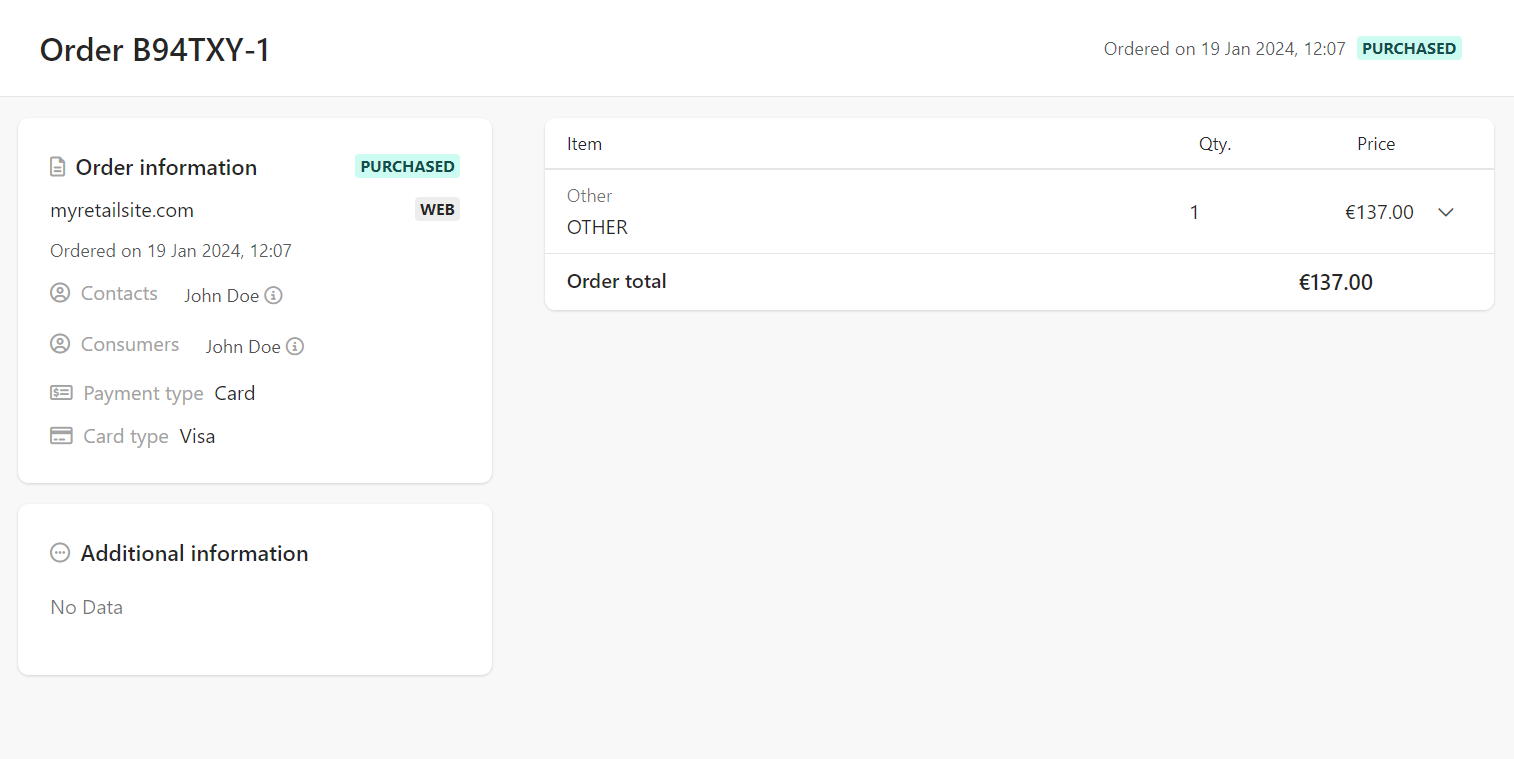
The Order Details page consists of several sections, namely Order information, Order item, and Additional information.
Order information
This section displays the main details of an order, such as point of sale (POS), status, order's contact and consumer, date ordered, and payment and card types.
| Attribute | Description |
|---|---|
| Status | The status of the order, like Purchased or Cancelled. |
| Point of sale | The point of sale used in the order, for example, myretailsite.com. |
| Channel | The channel used in the order, such as Web, Mobile, and Offline. |
| Ordered at | The date and time the order was made. |
| Contacts | The primary contact for an order. To view additional details about the order's contact person, click  . This displays a pane containing the contact's name, email address, and phone numbers. Click . This displays a pane containing the contact's name, email address, and phone numbers. Click  to view the contact's Guest profile page. to view the contact's Guest profile page. |
| Consumers | The person who is consuming an order item. For example, if the order item is a flight, the consumer is the traveler or passenger of the flight segment. To view the consumer's guest profile, click . This displays a pane where you can click to view the Guest profile page. |
| Payment type | The payment method for the order, such as Card, PayPal, and Cash. |
| Card type | The card type used to pay for the order, for example, Visa or Mastercard. |
Order item
This section displays the details of an order item, including item type, quantity, unit price, and the total order price. The order item prices are shown in your organization's currency.
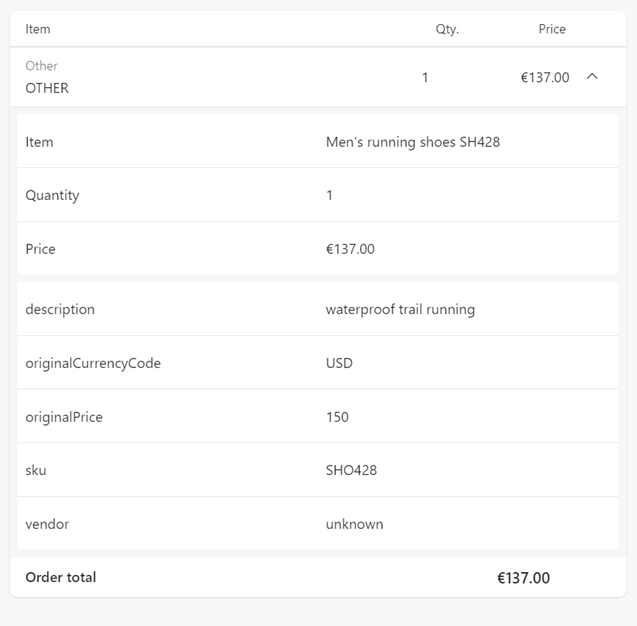
To expand or collapse an order item, click  . The additional details displayed depend on the type of order item. For retail products, order item details might include the the product name, price, and type of item. For airline industries, order item details might include information about one or more flight segments, and any additional items purchased with the flight like excess baggage or priority boarding. Additionally, you'll see other important attributes, such as the order item's description, original currency used for the item, the item's price in that currency, the item's SKU, and any data extension associated with the order item.
Additional information
This section displays any data extensions associated with the order. These are optional, but they enable your organization to capture additional information about your order items. For example, your organization might create a data extension to record an order's promotion details and discount applied to the product, or another data extension to capture flight insurance policies associated with a booking.
The data extension includes a list of all the order-specific fields associated with it. For example, a data extension for promotion details might include the item's promo code, promo description, discount percentage, original price, discounted price, and so on. Each order data extension can contain a maximum of 50 fields. To display all fields for a particular order data extension, click the Show all link underneath it.