Create a content type
Building a content model involves creating content types to represent how individual content is structured. Each type has a series of fields that determine what information the resulting content contains. You can create a content type manually or you can use the AI designer to create an initial content type using AI.
Example
In the following example, the Hotels content type contains a variety of fields (such as short text, long text, rich text, select, media, and so on):
The order of content type fields determines the order they are presented to content authors. It does not, however, determine how the content is rendered.
To create a content type:
- On the menu bar, click Content model > Content types.
- On the Content types page, click
 Create content type.
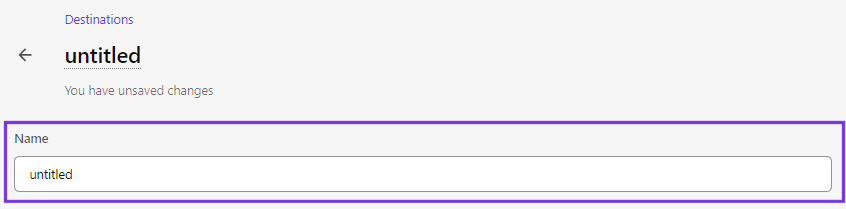
 - In the Create content type dialog, in the Name field, enter a name for the content type. By default, the ID is created using the name.
- Optionally, enter a different ID if required.
- In the Description field, enter a description of the purpose and use of the content type.
- Click Continue.
- To structure content, add fields to the content type template.
- To add media, add fragments to the content type template.
- To reposition any field, click and hold the
 icon while dragging it to a new position.
 - Click Save.
For a full list of fields, parameters, and technical limitations, see the data model.
You can see if the content type fulfills your requirements by creating a content item. At the top of a content item’s details page, you can click the name of the content type to access its details page and make changes to it as needed.