Manage content type fields
After you create a content type, you can add fields, remove fields, and reorder fields.
Add a content type field
Each field you add to a content type defines a piece of information that content authors must provide or select when creating content based on that type.
For a full list of fields, parameters, and technical limitations, see the data model.
To add a content type field:
-
On the menu bar, click Content model > Content types.
-
On the Content types page, click the title of the content type to which you want to add a field.
-
On the content type details page, do one of the following:
- To place the new field at the end of the current list, click
 Add field.
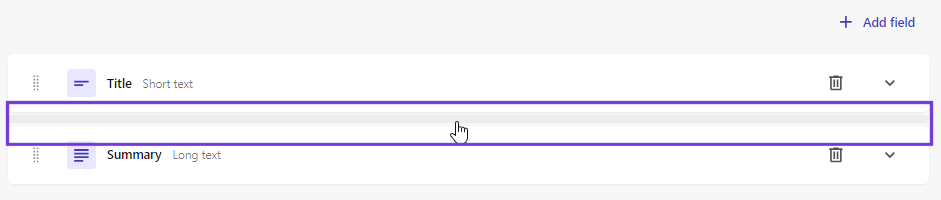
 - To place the new field before or after an existing field, hover the mouse over the empty space where you want it to appear.
- To place the new field at the end of the current list, click
-
In the Add field pane, select one of the following field types.
Field type Purpose Short text To allow input of short, unformatted text up to 1,000 characters. Long text To allow input of short, unformatted text up to 50,000 characters. Rich text To allow input of substantial text, with optional formatting and other features including hyperlinks. Number To request a numerical (integer) value. Boolean To provide exactly two options, such as the true or false states of a check box. JSON To allow the input of a JSON object for complex data structures. This is useful, for example, if you need to store data from other systems. The JSON syntax is validated when you save it. You also can use the Show me feature to highlight syntax errors, then use the Auto repair feature to automatically fix them. Date and time To allow selection of a date and time with a specialized interface. Reference To create relations between content types. This helps reduce duplication by letting you create content once and refer to it wherever it is needed. Media To allow selection of media items such as images, documents, spreadsheets, or presentations. Content Hub ONE supports a variety of media types. Select To allow selection of a taxonomy value from an associated taxonomy. When creating this field, you can create a new taxonomy if the one you need does not already exist. -
On the Settings tab, in the Name field, enter a name for the field. By default, the ID field is assigned a value based on the name you entered.
-
To modify the default ID, in the ID field, change the ID.
ImportantThe ID must be unique for each content type, and it cannot be changed after the content type has been saved.
-
Depending on the type of field chosen, configure the remaining settings and options:
{ .notintoc }
Setting Description Allowed content types Adds constraints on the types of content that can be added to a Reference field when the Only specific content types option is selected. Required Sets a field as mandatory. Content with empty required fields can be saved but not published. Limit number of items Adds constraints on the number of content or media items. You can set a minimum and maximum value (Between), a minimum value (At least), or a maximum value (No more than). If the constraints are not satisfied, the content item can be saved but not published. Limit character count Adds constraints on the number of characters for Short text or Long text fields. You can set a minimum and maximum value (Between), a minimum value (At least), or a maximum value (No more than). If the constraints are not satisfied, the content item can be saved but not published. { .notintoc }
Option Description Help text Text to describe the field or provide guidance on its use. -
Click Save.
Remove a content type field
After you add a field to a content type, you might decide that it is no longer needed and, as such, you can remove it.
Removing a content type field removes the field and its contents from all content items of that type.
To remove a content type field:
- On the content type details page, next to the field you want to delete, click Delete
 .
. - Click Delete to confirm the deletion.
Reorder a content type field
After you add a field to a content type, you can reorder it as required.
To reorder a content type field:
- On the content type details page, click
 , and move the field to its new location in the list.