Add the Manage items section to Pages for a custom component
Use the Content Editor for the steps described in this topic.
To enable content authors to add or remove items from a custom component in Pages, you make the Manage items section available in the right-hand pane. This involves doing the following:
- Add the
_HorizonDatasourceGroupingtemplate and the_PublishingGroupingTemplatetemplate to the data source template of the custom component. - To enable users to add items, create at least one insert option for the data source.
To support reliable publishing of child datasource content, the parent datasource item must inherit from _PublishingGroupingTemplate. The _PublishingGroupingTemplate base template ensures that when a child item is modified, the parent item’s revision is changed. This is essential for proper publishing behavior, especially when only child items are updated and the parent remains unchanged. Without this template, changes to child items may not be detected during publishing, resulting in content not being published to Experience Edge.
The _HorizonDatasourceGrouping template is intended to be used on a parent data source item that contains subitems, and not on child items.
For example, a Link List data source item has Link items as an insert option. Consequently, the /sitecore/templates/Feature/JSS Experience Accelerator/Navigation/Datasource/Link List item has the _HorizonDatasourceGrouping template, but the /sitecore/templates/Feature/JSS Experience Accelerator/Navigation/Datasource/Link does not.
When you insert a new child under the data source parent, a new version of the parent is created if the parent data source is in a final workflow state.
To add the Manage items section to Pages for your custom component:
-
In the content tree, navigate to sitecore/Templates/Feature and locate the data source template of your custom component.
-
In the content area, on the Content tab, in the Base template field, navigate to Templates/Foundation/Experience Accelerator and expand the Horizon folder.
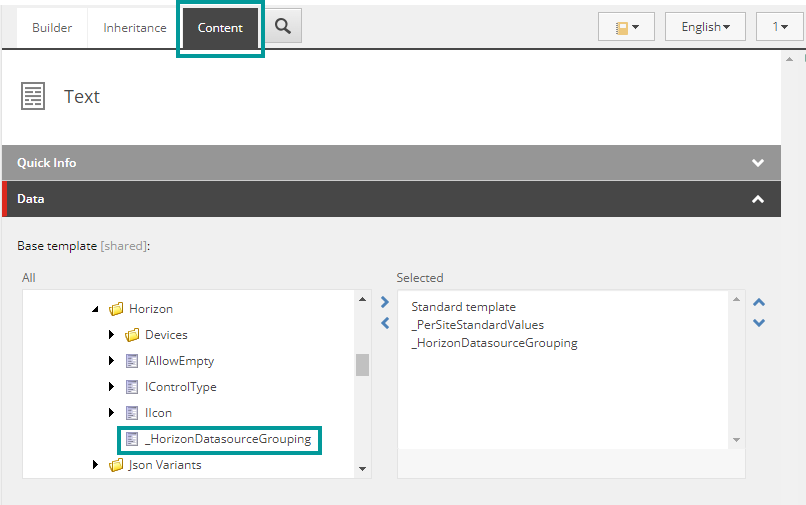
-
Double-click the
_HorizonDatasourceGroupingtemplate to add it to the data source template. -
Expand the Templates/Foundation/Experience Accelerator/Publishing folder.
-
Double-click the
_PublishingGroupingTemplatetemplate to add it to the data source template. -
In the data source template, create a Standard values item, unless it already exists.
-
In the content area, scroll down to the Insert options field and click Edit.
NoteIf the Insert options field is not visible, on the ribbon, on the View tab, select the Standard fields check box.
-
In the Select Items window, for each type of item that you want users to be able to add in Pages, add the required template.
-
Save your changes. Now you can open a page that uses the custom component in Pages and verify that the Manage items section has been added in the right-hand pane.