- 4. Map content
Map content
On the Map content page of the wizard, you can map source content components to SitecoreAI components.
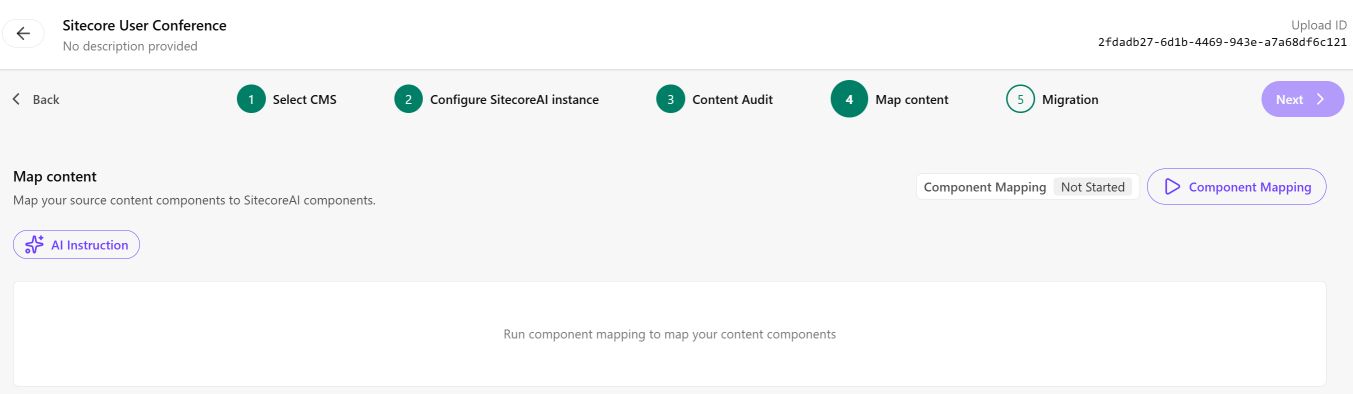
To group and map content:
-
On the Map content page, click AI Instructions and review the system prompt provided.
-
Add additional instructions if required. Keep them simple and concise. Avoid unnecessary words. Here are some examples to help you write instructions:
- On the "AboutUs" page, map "HeroBanner" to the "SponsorListing" target component.
- On the "Home" page, set the placeholder path for all components to "/headless-main/demo1".
- On the "Home" page, set the Dynamic Placeholder ID to "5" for the "SponsorListing" component.
-
When you are happy with the prompt, click Save.
-
Click
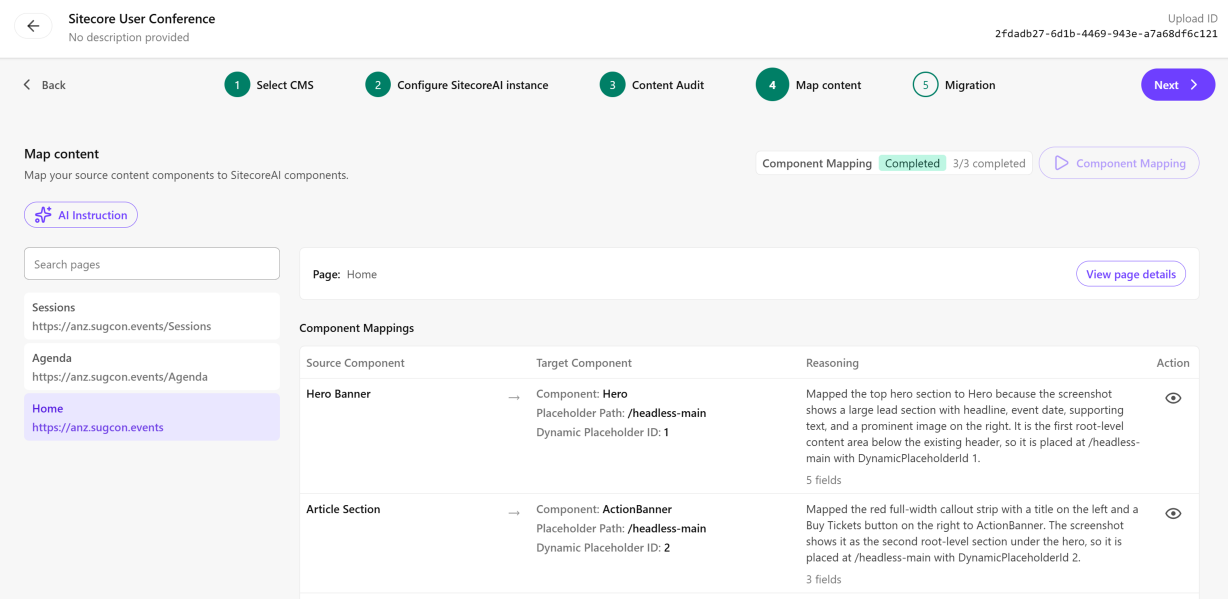
 Component Mapping to map site content to SitecoreAI components, based on the previously mapped templates. To refine component mapping results, you can add additional details to the AI instructions and rerun component mapping.
 -
To view page details, in the list of pages, click a page and then click View page details.
-
To view details about component mapping, including the target and source fields, in the Component Mappings list, in the Action column, click View
 .
. -
Click Next.
If, after reviewing the details of the content mapping, you decide to change the AI instructions, be sure to record any mapping information or results you want to retain because after you update the instructions and click Save, the Map content step of the migration process is reset to Not started and existing mapping results are deleted.