Queries for the multilist with search source field
Here are some common queries used when creating a multilist with search field.
Simple text search
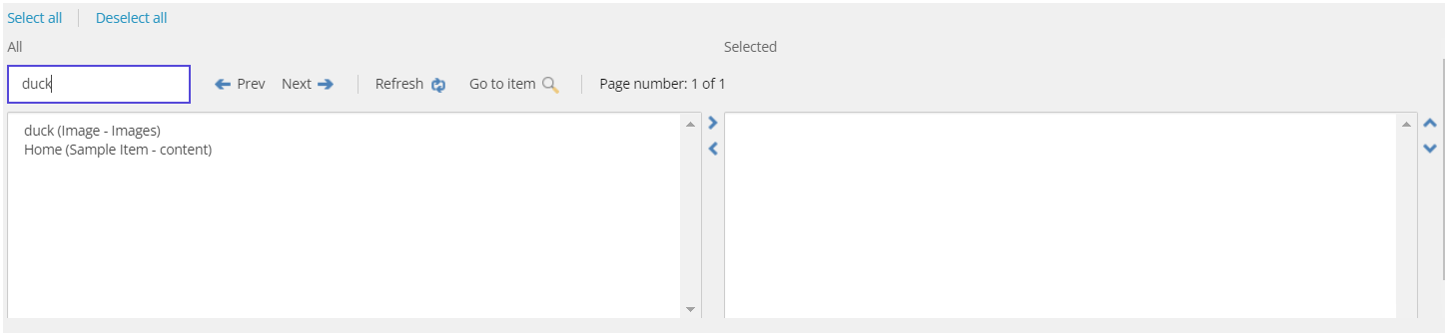
After a you create a content item based on a data template with a multilist with search field, you can search for a text that appears in any item field. This is enabled by default and doesn't require configuration. The following screenshot shows a text search in the Content Editor where the user is searching for all items that contain the text duck.
Root Filter
StartSearchLocation is a root filter that restricts the scope to a specific subtree within the content tree. To apply it, you specify the identifier of the subtree from which to start the search, in either of the following formats:
StartSearchLocation can only accept one item identifier. If you want to specify more than one root, use the template filter.
In the following example, the user copies the item identifier of the Coffee Brand folder, to limit the items displayed in the multilist field to the content items that are saved in that folder:
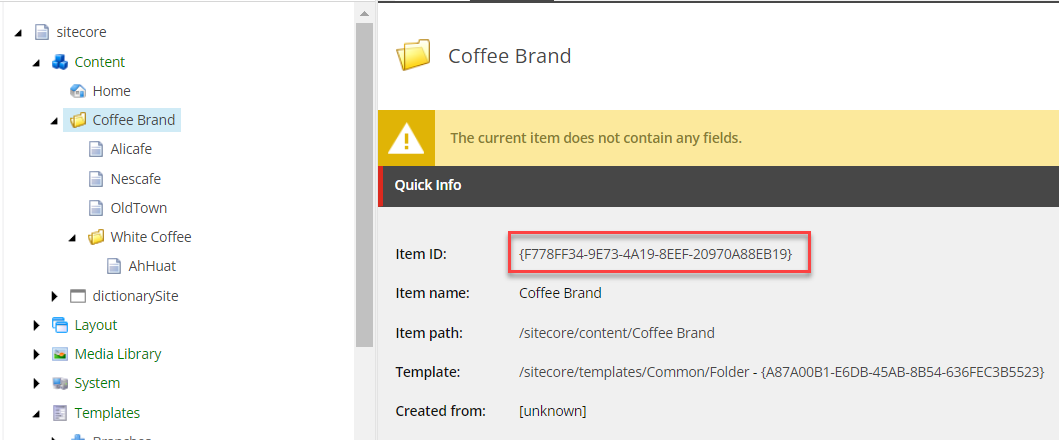
In the Source field, they enter StartSearchLocation={1C0685BF-FBF9-447B-8FC9-6758ECAE42CD}.
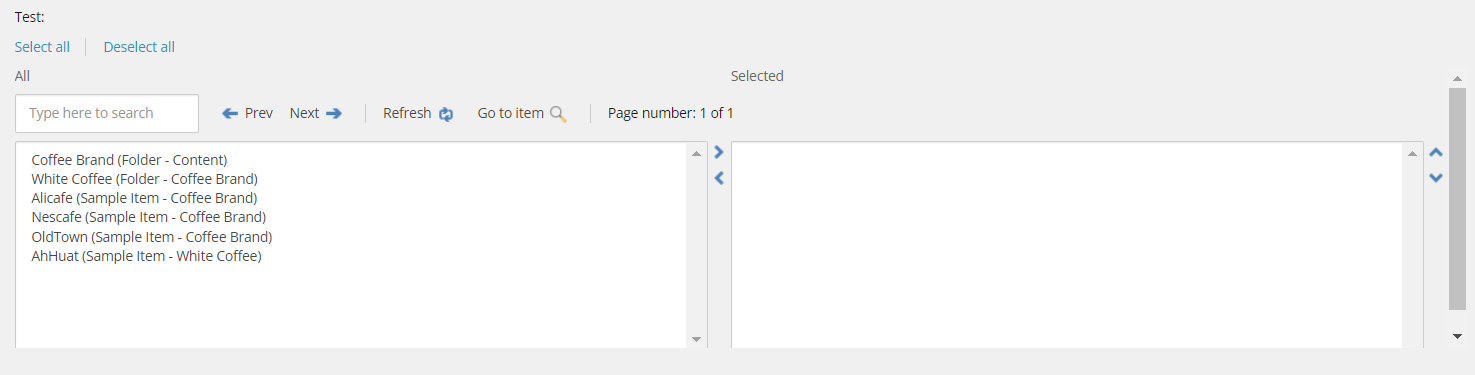
When you then search for content in the multilist field, the results are limited to the folder contents:
Sorting
By default, items in the multilist field are sorted based on the time they were updated in ascending order, with the most recently updated items appearing last in the search results. You can use a SortField query to define a different sorting order for the search results based on criteria such as item name, creation date, or custom fields.
For example, to sort items by their title in descending order, use the following format:
When you apply a SortField query, items that don't have a value in the specified field still appear in the search results, but aren't sorted by the specified criteria.
If the field specified in the SortField query is tokenized, the sorting might not work as expected. Custom fields and some system fields (such as _name) are tokenized.
To prevent such fields affecting the sorting functionality:
-
Ensure the relevant field is not tokenized by defining it with the
stringreturn type within thesitecore/contentSearch/indexConfigurations/defaultSolrIndexConfiguration/fieldMap/fieldNamesnode in the Sitecore configuration using a patch file as shown in the following example: -
Rebuild the sitecore_master_index.
Template filter
Limits the available items to items that are based on a specific template or set of templates. This ensures that only items of relevant types are displayed. The filter uses Lucene query syntax to include or exclude templates, for example:
You can specify multiple templates separated by a pipe character (|), for example:
Page size
Limits the number of items shown in a single page in the multilist field.
For example:
Custom query
Allows you to define custom queries using various item properties for filtering. This provides flexibility in defining complex search criteria, leveraging item fields and metadata directly within Sitecore.
Example:
This example combines the StartSearchLocation, TemplateFilter, and PageSize parameters into a single query.
Filter
To filter specific items from a big list, you can use the Filter parameter. You can combine filters by using the pipe symbol (|) in the query. There are various filters to refine the list of items available for selection. You can also use plus or minus signs before the filter to include or exclude the filtered content. For example, specifying Filter=-_name:*cafe filters out all items whose name contains cafe.
Here's a list of some common filters you can use, with examples:
-
Item name - filter items by their names. In the following example, asterisks are used as wildcards before and after the text string, so that items whose names contain cafe will appear in the multilist field.
-
Template name - filter items by the templates on which they are based. You can specify more than one template by using the pipe symbol:
-
Location - filter items by their location in the content tree. You can specify more than one location by using the pipe symbol:
-
Language - filter items by their language version. You can specify more than one language code by using the pipe symbol:
FullTextQuery
Specifies a full-text search query to match item content. For example:
Language
Restricts results to a specific language. For example:
SearchInCurrentLanguageOnly
A Boolean condition that determines whether to only return results in the current language. For example: