Create a SitecoreAI project using the Sitecore CLI
You can create projects, environments, and deployments with the Sitecore CLI commands provided by the XM Cloud plugin. Using the Sitecore CLI instead of the Deploy app for creating the SitecoreAI project is a matter of preference if your project repository is hosted on GitHub, but it is necessary if your organization hosts source-code repositories on other platforms.
Some code examples, images, and UI labels may still use XM Cloud while engineering assets are being updated.
This walkthrough demonstrates using the Sitecore CLI to deploy a Sitecore solution to a SitecoreAI environment.
-
Download .NET 8.0.
-
Prepare your credentials for logging into SitecoreAI.
-
Install the Sitecore CLI version 5.0 or later with the XM Cloud plugin.
This walkthrough describes how to:
- Log in to SitecoreAI.
- Create a project.
- Create an environment for the project.
- Deploy the solution to the environment.
SitecoreAI supports decoupled deployments, where authoring and editing hosts run as separate environments. When working with decoupled deployments, you must create and manage multiple environment types and explicitly target the correct environment when deploying changes.
Decoupled deployments are enabled by default for new projects, but you can disable this option during project setup to use the legacy coupled deployment model instead. You can find the option to use the legacy coupled deployments during project creation in the Deploy app.
Optional: Obtain the initial source code
If you do not have a SitecoreAI-compatible solution and do not want to host the source code in a GitHub repository, you can obtain an initial solution by cloning a foundation template.
To obtain the initial source code for your project:
- Clone sitecoreai-starter-js starter kit.
- Follow the walkthrough to set up your local development environment.
If you use GitHub to host your repositories, the fastest and easiest way to create a project is using the Deploy app. You can then follow the walkthrough to set up your local development environment.
Log in to SitecoreAI
To run CLI commands against the SaaS SitecoreAI platform, you must authorize your device and provide your SitecoreAI credentials. The login process described here performs the necessary device and user authorization and authentication.
You obtain your authentication credentials during the onboarding process.
To log in to SitecoreAI:
-
In the project working directory, in a command-line window, run the
cloud logincommand:The CLI immediately displays information about the
[DeviceLogin]process and opens a new browser window. -
In the browser window, if the device code displayed in the window matches the
User codevalue displayed in the CLI, click Confirm.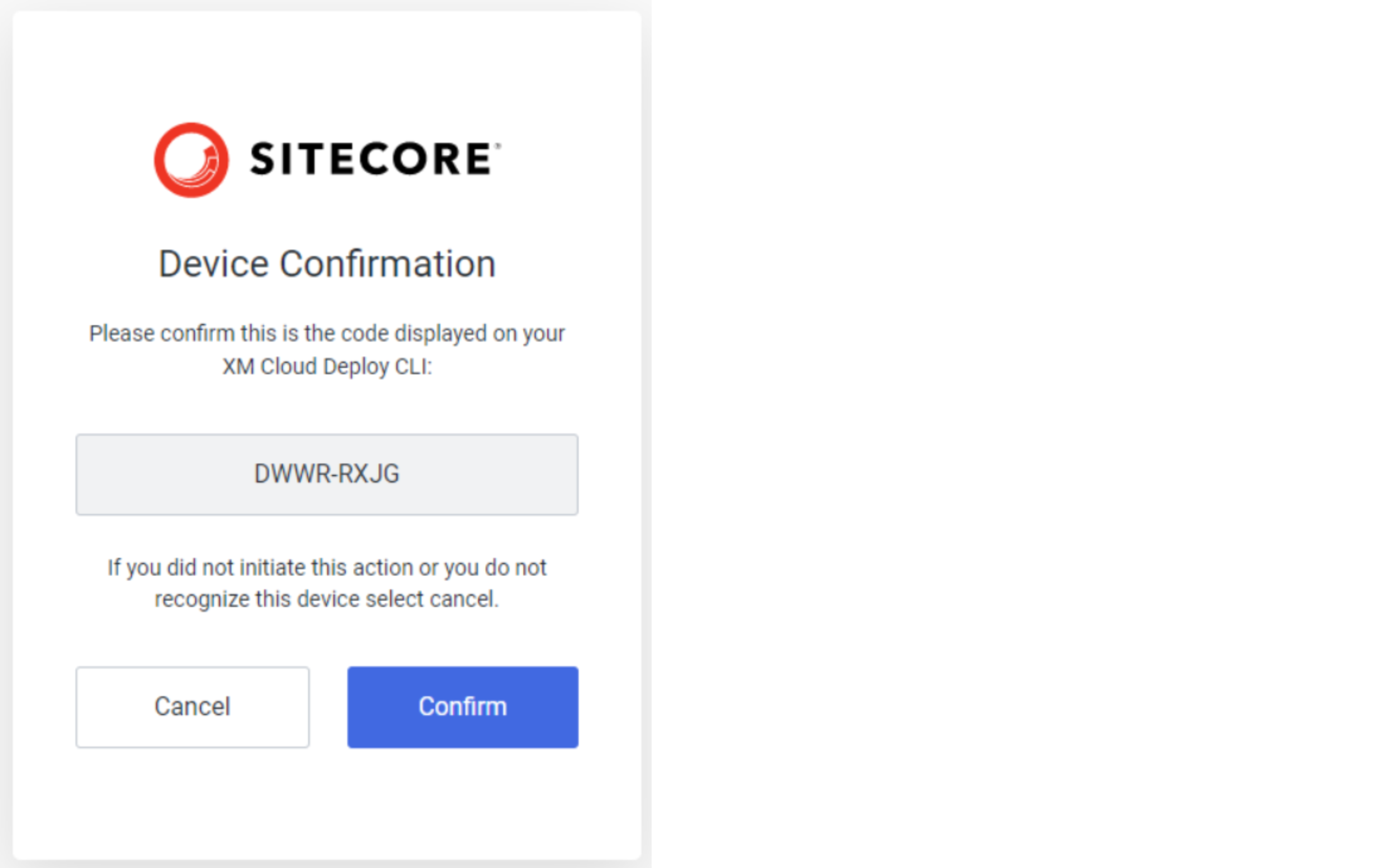 Note
NoteIf the device code and your command line code do not match, it indicates a severe error or potential security issue, and you must click Cancel. Attempt to log out and log in again.
-
In the Welcome dialog, in the Email address field, provide the email address associated with your SitecoreAI user account. Click Continue.
-
In the Password field, enter your user password. Click Continue.
On successful authentication, the page in the browser displays a success message, and the [DeviceLogin] process in the CLI exits.
You can implement a non-interactive login flow with an authentication/automation client in Deploy app. Use the resulting client credentials with the dotnet sitecore cloud login command. For ease of use, you can write the command with client credentials in an executable script file.
Create a SitecoreAI project
A project within represents a collection of one or more environments.
To create a SitecoreAI project :
-
In the project working directory, in a command-line window, run the
cloud project createcommand:For example,
dotnet sitecore cloud project create --name MyXMCloudProject -
Copy the
Project Idassigned to the project and store it for later use.TipYou can retrieve the project ID at any time by running the following command:
dotnet sitecore cloud project list
Create an environment for the project
A SitecoreAI environment represents a SaaS Sitecore Content Management (CM) tenant along with all the services and supporting tenants for hosting a Sitecore solution. Every environment belongs to a project.
Projects built before January 2026 were deployed using the legacy coupled deployment architecture. We recommend you to convert these projects to use the decoupled deployments architecture.
Decoupled architecture
When creating environments for decoupled deployments, the CLI requires an environment type to be specified for each environment created. Typically, you will need to create first an authoring environment (cm), followed by a linked editing host (eh). The exact parameter name to be used depends on your CLI version. Refer to the Sitecore CLI help output for the environment creation command to determine how to specify the environment type.
To create an authoring environment for a SitecoreAI project:
-
In the project working directory, in a command-line window, run the
cloud environment createcommand and enter the project ID:For example,
dotnet sitecore cloud environment create --name staging --project-id 6btMioN1QDVjSUvQkklkVR --cm-only --prod -
Copy the
Environment Idassigned to the environment and store it for later use.TipYou can retrieve the environment ID at any time by running the following command:
dotnet sitecore cloud environment list --project-id
An editing host is a separate application instance used exclusively for authoring experiences such as Page builder or Design studio. In decoupled deployments, editing hosts are separate from the authoring environment and can be created and deployed independently.
To create the editing host linked to the cm environment:
-
In the project working directory, in a command-line window, run the following command:
where
envIdis the authoring environment ID created previously.
Coupled architecture
To create an environment for a SitecoreAI project:
-
In the project working directory, in a command-line window, run the
cloud environment createcommand and enter the project ID:For example,
dotnet sitecore cloud environment create --name staging --project-id 6btMioN1QDVjSUvQkklkVR -
Copy the
Environment Idassigned to the environment and store it for later use.TipYou can retrieve the environment ID at any time by running the following command:
dotnet sitecore cloud environment list --project-id
Deploy the solution to the SitecoreAI environment
The SitecoreAI deployment process deploys an image of your solution to a specified environment. It provisions and configures the necessary infrastructure. This section describes using the --upload CLI command.
To deploy your solution:
-
In the project working directory, in a command-line window, run the
cloud deployment createcommand and enter the environment ID:The
--uploadparameter ensures the Server-side rendering engine endpoint URL and Server-side rendering engine application URL fields are populated with the necessary values. Without these settings, the rendering host will be empty and fail to work with Sitecore layout and page editors.The command creates a deployment that starts immediately and includes all the code in the current working directory.
TipYou can retrieve the deployment ID by running the following command:
dotnet sitecore cloud deployment list --environment-id
-
When the deployment completes, the CLI prints a URL to the SitecoreAI CM instance. Open the link to view the instance.
-
To navigate to the Sitecore Launchpad, in the browser address bar, append /sitecore to the root URL of the instance.
The default value for the --upload command parameter is the current working directory. When providing the argument, everything in the directory is packaged and deployed to SitecoreAI unless specified in a .gitignore file.
To use another folder, use the --upload parameter and provide the path to another directory with the --working-dir (-dir) parameter. For example:
Additional steps
After deploying your solution to the SitecoreAI platform, you can continue to develop locally and then deploy customizations to the environment. You can also synchronize items between your local development environment and the SitecoreAI CM instance.
See also how to deploy the client/front-end application.