Work with dictionaries
You use a dictionary to translate texts such as labels, tooltips, buttons, and other static text used in your multilingual sites. Each text, and its translation, is represented as an entry in the dictionary. The dictionary helps manage all localized content from one central place.
In a multisite solution, you create dictionary entries in a shared site and use a fallback domain option in other sites to refer to the dictionary in the shared site.
When you create a site, a dictionary is automatically created at the following path content/{COLLECTION_NAME}/{SITE_NAME}/:
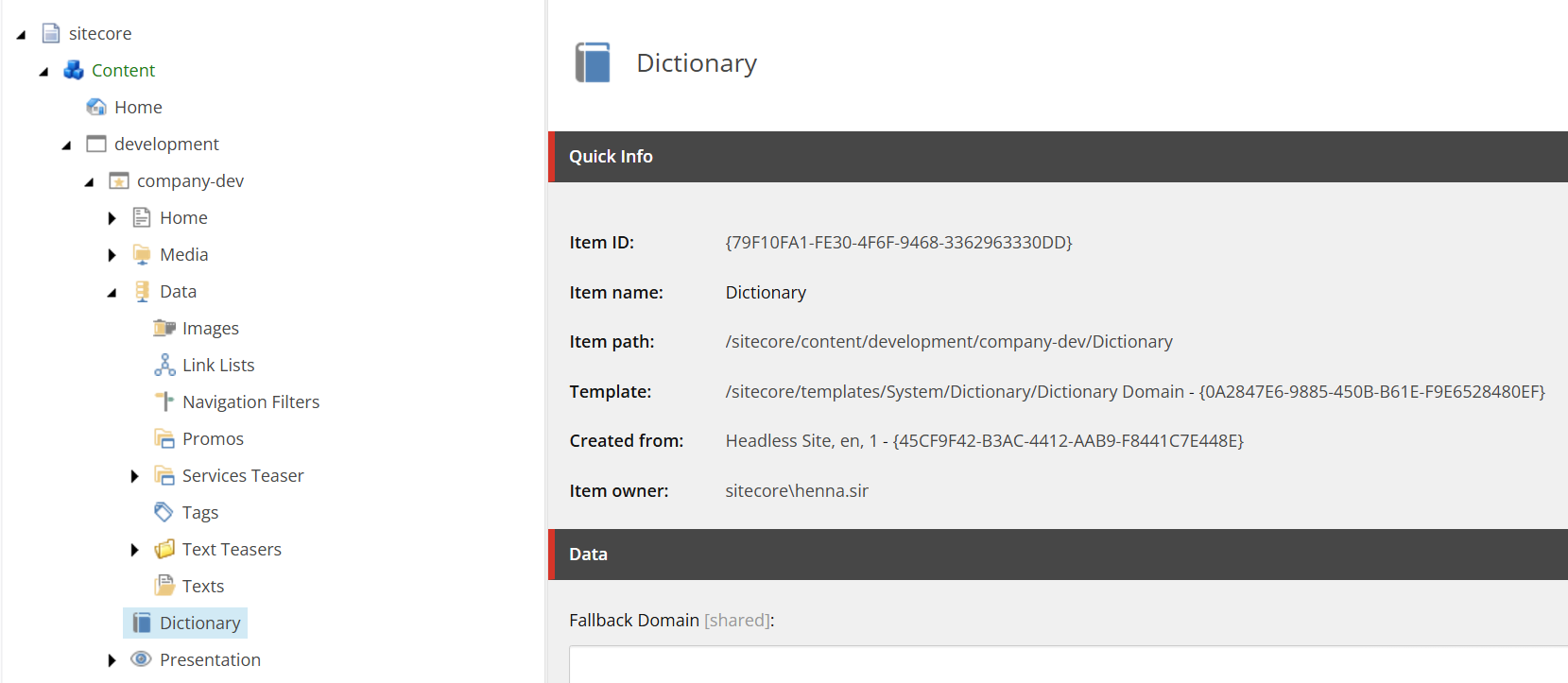
Each dictionary entry has two attributes:
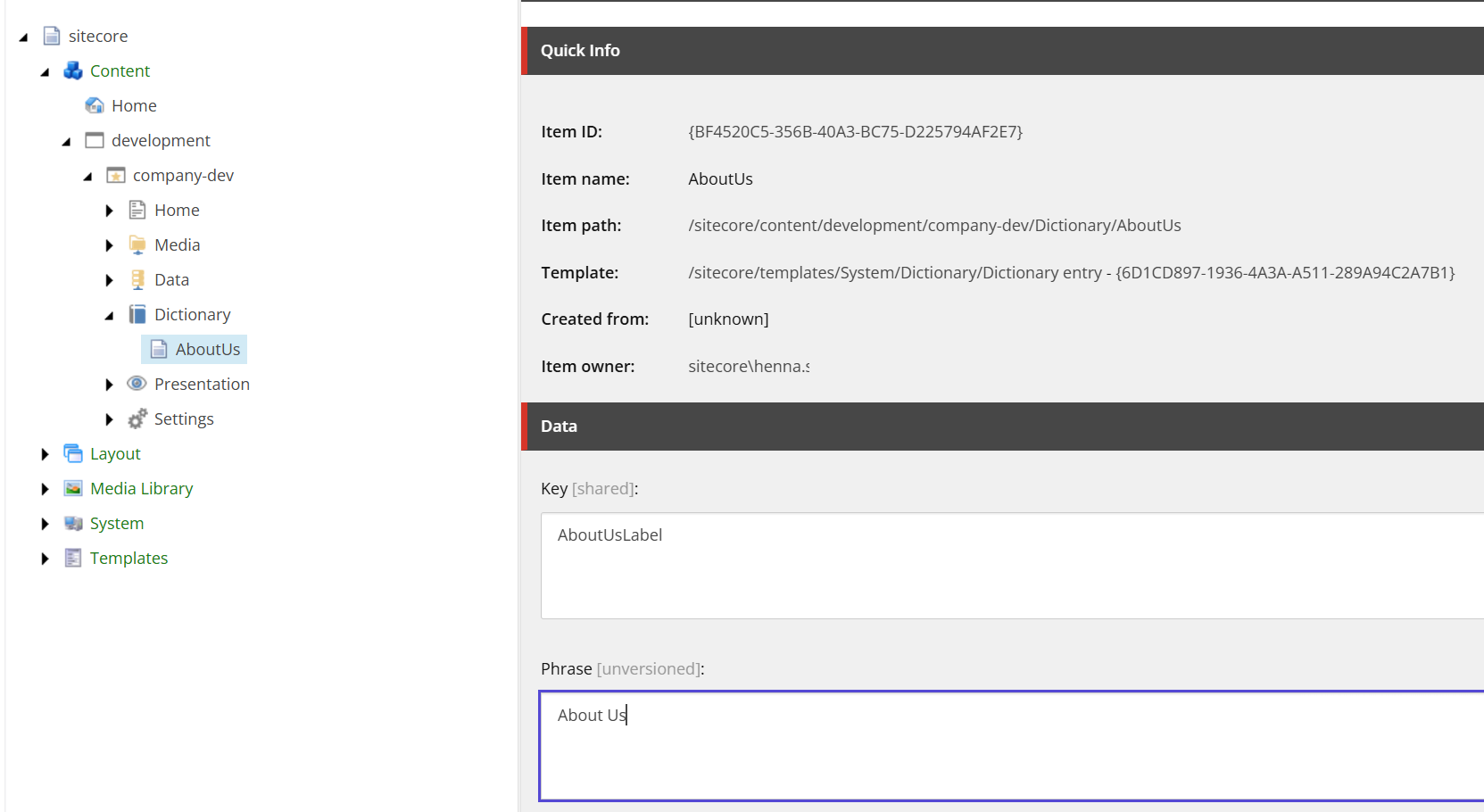
- Key - the identifier for the dictionary entry (for example, AboutUsLabel).
- Phrase - the localized text string for the language.
Create a dictionary entry
To create a dictionary entry:
- Open the Content Editor and navigate to
/sitecore/content/{COLLECTION_NAME}/{SITE_NAME}/Dictionary. - To add dictionary entries, do one of the following:
-
Right-click Dictionary then click Insert > Dictionary entry. You can define the name in relation to the text you are translating, for example, AboutUs. Then, define the key and phrase in the entry, for example, AboutUsLabel:
-
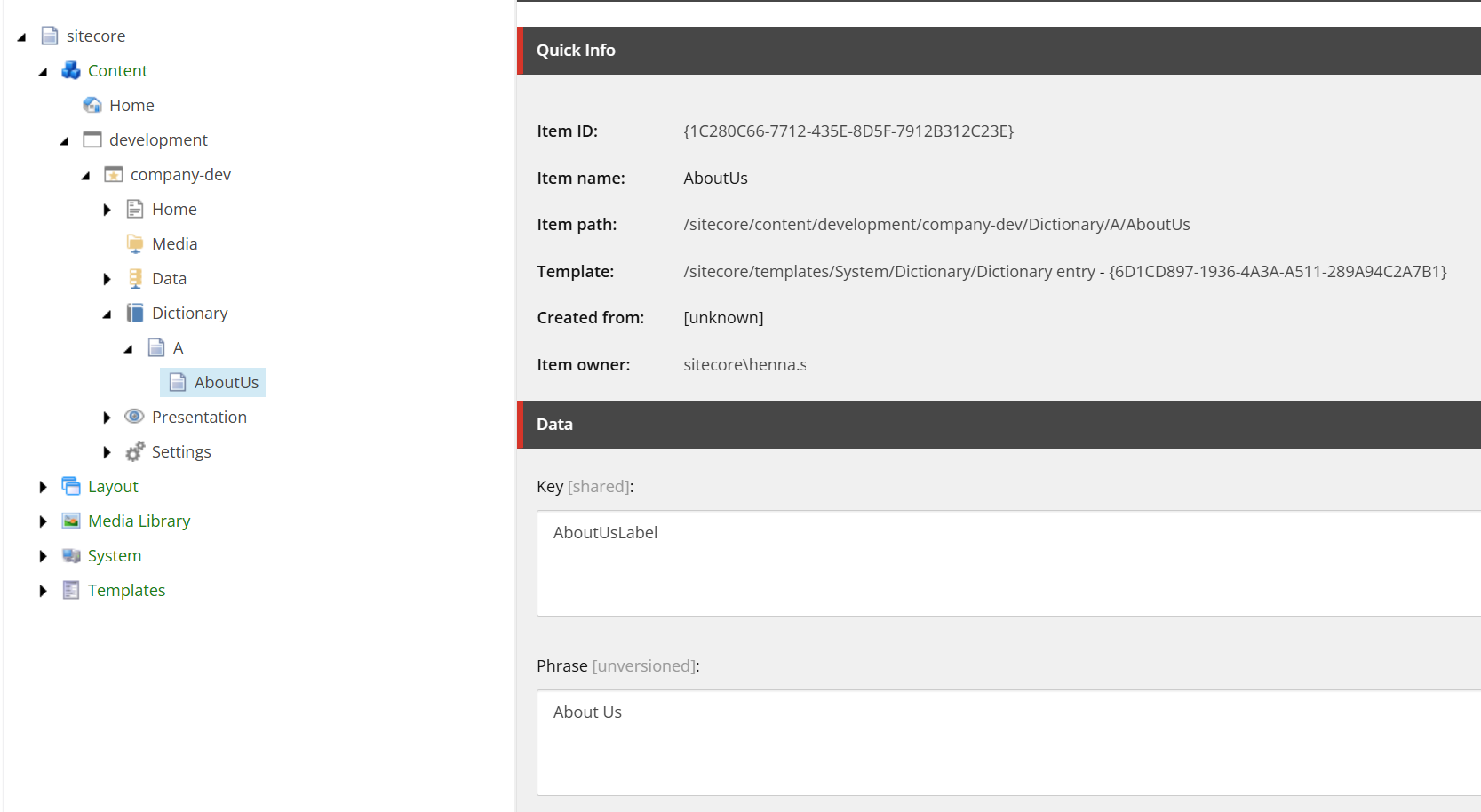
Alternatively, you can organize dictionary entries by creating them within alphabetical folders, so they are easier to find and manage. The following example shows a dictionary folder, labelled A, and an AboutUs entry, that starts with A, inside it.
-
You can define any number of entries within the root dictionary folder or within alphabetical folders. For different languages, the key value stays the same but you define the phrase value according to the language of the site. After you create the entries, you can retrieve application-specific dictionary data either via GraphQL queries or from within your code, with JSS GraphQL Dictionary Service.
After creating or updating dictionary entries, publishing an individual dictionary entry does not update the dictionary data in Experience Edge. To make dictionary changes available in Experience Edge, republish either:
-
The site root item (
/sitecore/content/<site-collection>/<site>), or -
The dictionary domain item (
/sitecore/content/<site-collection>/<site>/Dictionary).
A republish of either item is sufficient; you do not need to publish child or related items.
Dictionary data relies on the Sitecore Dictionary API. By default, if a phrase is empty, the API returns the dictionary key instead.
You cannot use dot notation in a dictionary key as it's interpreted as a path separator and not as part of the key. For example, a dictionary key like select.item won't resolve. This is a limitation of the underlying Next.js localization library.
Share a dictionary in a multisite solution
In a multisite solution, when you have a shared site and multiple other sites in a collection, dictionary entries are not shared with other sites by default. To share a dictionary, you need to use the Fallback Domain setting in the other site and point it to the dictionary you created in the shared site.
To share a dictionary:
-
Create a dictionary in the shared site as described previously, and publish the shared site.
-
In a different site in the collection that you want to share the dictionary with, open the Content Editor and navigate to
/sitecore/content/{COLLECTION_NAME}/{ANY_SITE_NAME}/Dictionary. -
In the Data section, point the Fallback Domain field to the shared site dictionary where you have created your dictionary entries:
/sitecore/content/{COLLECTION_NAME}/{SHARED_SITE_NAME}/Dictionary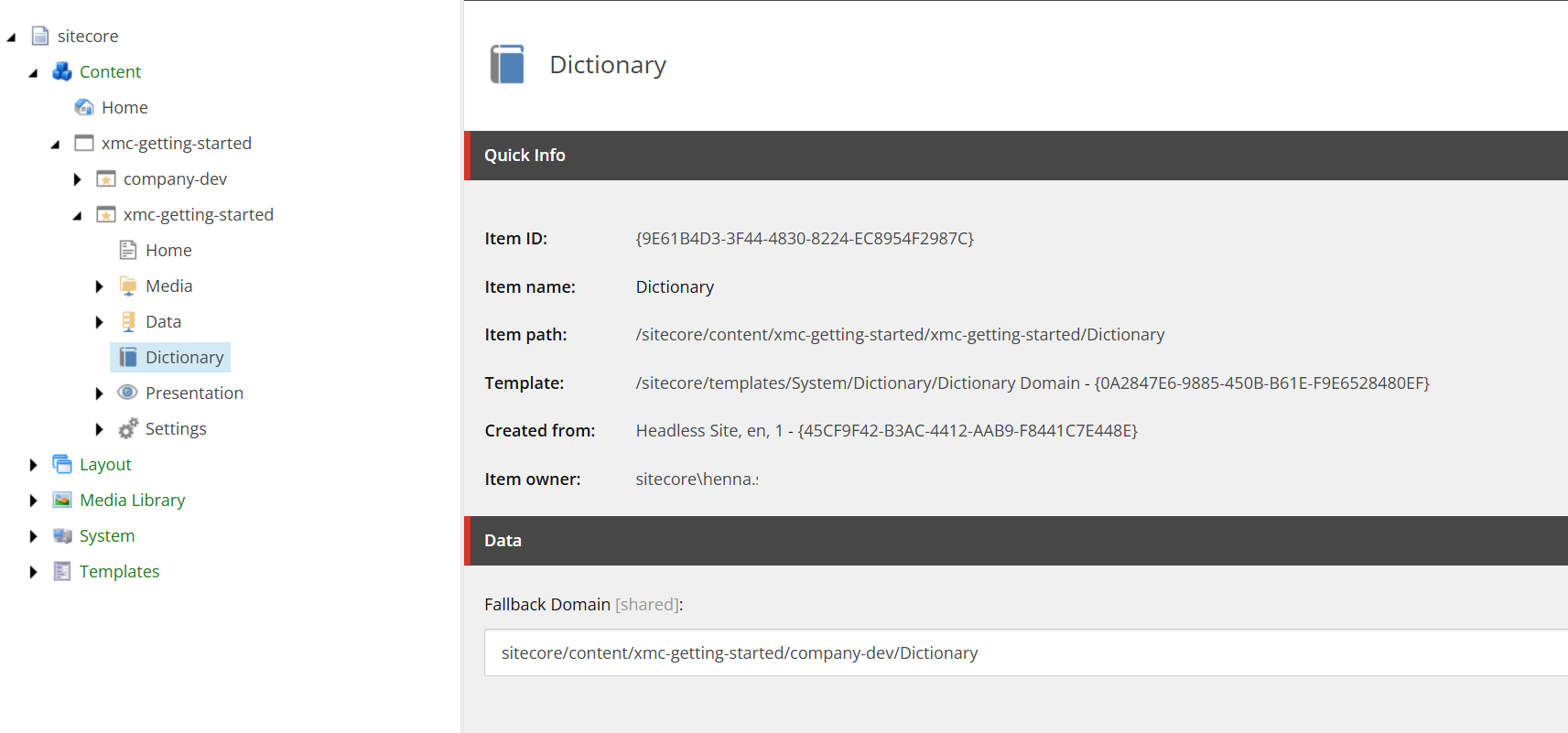
-
Repeat for all the sites in the collection that use the shared dictionary.