Create a standard agent
Agentic studio includes prebuilt agents that automate common marketing tasks. For more specialized needs, you can create a custom agent tailored to your use case.
A standard agent is a flexible, conversational type of custom agent. It determines how to perform tasks based on your instructions and selected tools, context, and skills. Standard agents are best suited for dynamic or less structured scenarios where a fixed workflow is not required. Use a standard agent when you need a simple, chat-style experience that can adapt to different requests. If your use case requires structured, repeatable, or multi-step execution, consider creating a workflow agent instead.
If you only need to make minor changes to an existing agent, consider duplicating it, adjusting its configuration, or reusing its exported JSON instead of creating a new agent from scratch.
-
Ensure you have a Builder license. This is required to create custom agents in Agentic studio.
-
Define what the agent should do and what the user wants to achieve.
To create a standard agent:
-
On the navigation menu, click Agentic and, in the left sidebar, click
 Agents.
 -
On the Agents page, click Create.
-
In the Create Agent dialog, click Agent.
-
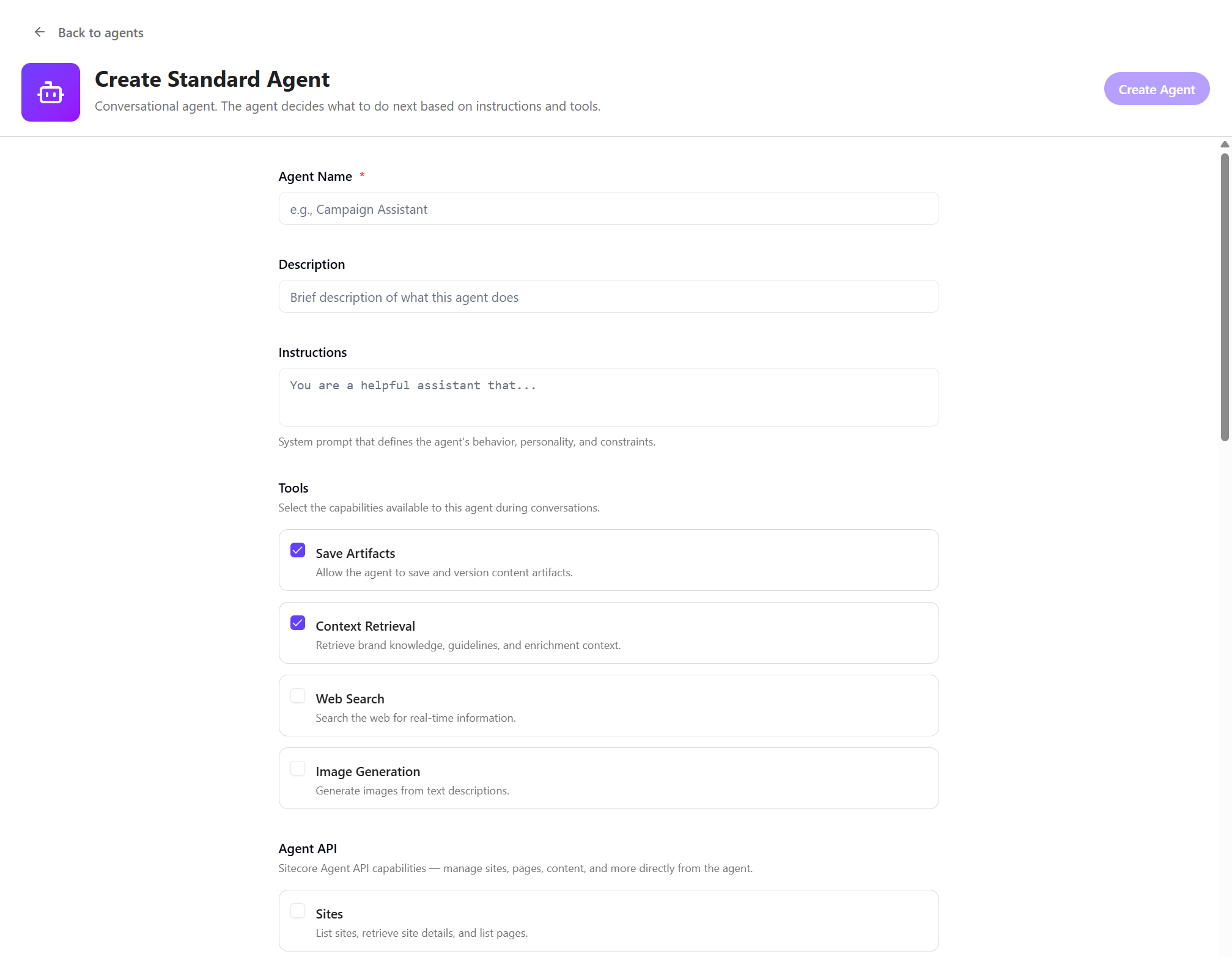
On the Create Standard Agent page, provide the following:
-
Agent Name - enter a clear, descriptive name.
-
Description - add a brief summary of what the agent does.
-
Tags - add a tag to make it easier to identify.
-
Instructions - define the agent’s behavior, personality, and constraints using a system prompt. The system prompt sets how the agent responds, including how it interprets inputs, what rules it follows, and how it structures its output.
-
-
To configure capabilities, in the Tools section, click the check box next to the tools that the agent can use when generating a response. The agent determines when to use them. Only tools enabled by an Admin in Settings are available for selection.
-
Save Artifacts - store generated content as artifacts.
-
Context Retrieval - use brand knowledge, guidelines, and other context.
-
Web Search - retrieve recent information from the internet.
-
Image Generation - create images from text.
-
-
In the Agent API section, click the check box next to the Agent API capabilities the agent can use. Only capabilities enabled by an admin in Settings are available for selection.
-
Sites - retrieve sites and site information.
-
Pages - create and update pages.
-
Content - manage content items.
-
Components - manage components and data sources.
-
Assets - upload and manage media.
-
Personalization - manage personalization variants and conditions.
-
Jobs - view and revert background tasks.
-
Briefs - list brief types, create and manage briefs.
-
Brand kits - list brand kits and retrieve brand kit details.
-
-
In the Default Context section, click the check box next to the sources that guide responses. Only sources enabled by an admin in Settings are available for selection.
-
Sitecore Documentation MCP - access official Sitecore documentation.
-
Marketer MCP - perform actions for managing sites, pages, content, and more through the Marketer MCP tools.
-
Brand Kit - apply brand kit guidelines to responses.
-
-
In the Allowed items section, click the check box next to the item types that the agent accepts:
-
Pages - selected Sitecore pages.
-
Artifacts - generated content artifacts.
-
External records - Excel worksheets (CSV) and structured records.
-
Content items - SitecoreAI content items without page renderings.
-
Briefs - SitecoreAI briefs.
-
-
In the Variants section, click the check box next to the variants you want the agent to account for and specify the language of the original page and that of the rendered page.
-
To ensure that the selected language and locale (culture) are in sync, click the Infer language variants from parameter names check box.
-
From the Default Conversion Guidance drop-down list, click the skill you want to use by default when converting an item or select No default guidance. Skills are defined in settings.
-
In the Skills section, select skills (custom and system) that the agent can use depending on the task. Only skills enabled by an admin in Settings are available for selection, for example:
ImportantIf you selected a skill and want to ensure the agent uses it, state this explicitly in the Instructions. For example, add a line Use the Competitive Analysis skill to analyze the user-provided site.
-
Campaign planning - plan and structure marketing campaigns by defining objectives, audiences, messaging, channels, and success metrics.
-
Competitive analysis - research competitors, compare positioning and messaging, and identify gaps and strategic opportunities.
-
CSV - analyze and manipulate CSV data, including filtering, sorting, and summarizing.
-
Text - search, extract, and analyze text data, including generating statistics and identifying patterns.
-
-
In the Primary Output section, choose how responses are returned. Only formats enabled by an admin in Settings are available for selection.
-
Text - standard conversational output.
-
Structured - formats the JSON response to match one of the following schema selection:
-
Select a schema. Available schemas are those created and enabled in Settings.
-
Click Create new schema to add a new JSON schema in Settings.
-
Select Auto-mode to let the agent automatically select the appropriate structure.
-
-
Image - generates an image artifact from a prompt.
-
Widget - generates a widget artifact.
-
Select Auto-generate widget to let the agent automatically build a new widget at runtime or to use an existing widget.
-
Click Create new widget to add a new widget to the Settings > Widgets page.
-
-
-
Click Create Agent.
Your agent is saved and opens on its run page, where you can provide inputs and run the agent.
Example: Content optimization agent
This is a simple example of a standard agent, including the required inputs and configuration.
Agent configuration
-
Agent name - Content optimization agent
-
Description - Analyzes draft marketing content (emails, ads, social posts, landing pages) and suggests improvements for clarity, engagement, and conversion.
-
Instructions - You are a marketing copy expert focused on improving content performance. Analyze the provided content and suggest specific improvements.
Focus on:
-
Clarity and readability
-
Strength of headline/hook
-
Call-to-action effectiveness
-
Tone and audience alignment
-
Conciseness and structure
Provide:
-
A short summary of issues
-
Specific rewrite suggestions
-
An improved version of the content
Avoid generic advice. Be specific and actionable. Do not change the core message unless necessary.
-
-
Tools - Context retrieval, Save artifacts
-
Skills - none selected
-
Output format - Text
Test the agent
After creating the agent, run it using the sample prompt:
Prompt - Analyze this draft content.
You can either paste the content directly or upload a draft file.
Review the output. If the results are not satisfactory, refine the agent by updating its instructions, tools, skills, or context, and test again.