Create and find content
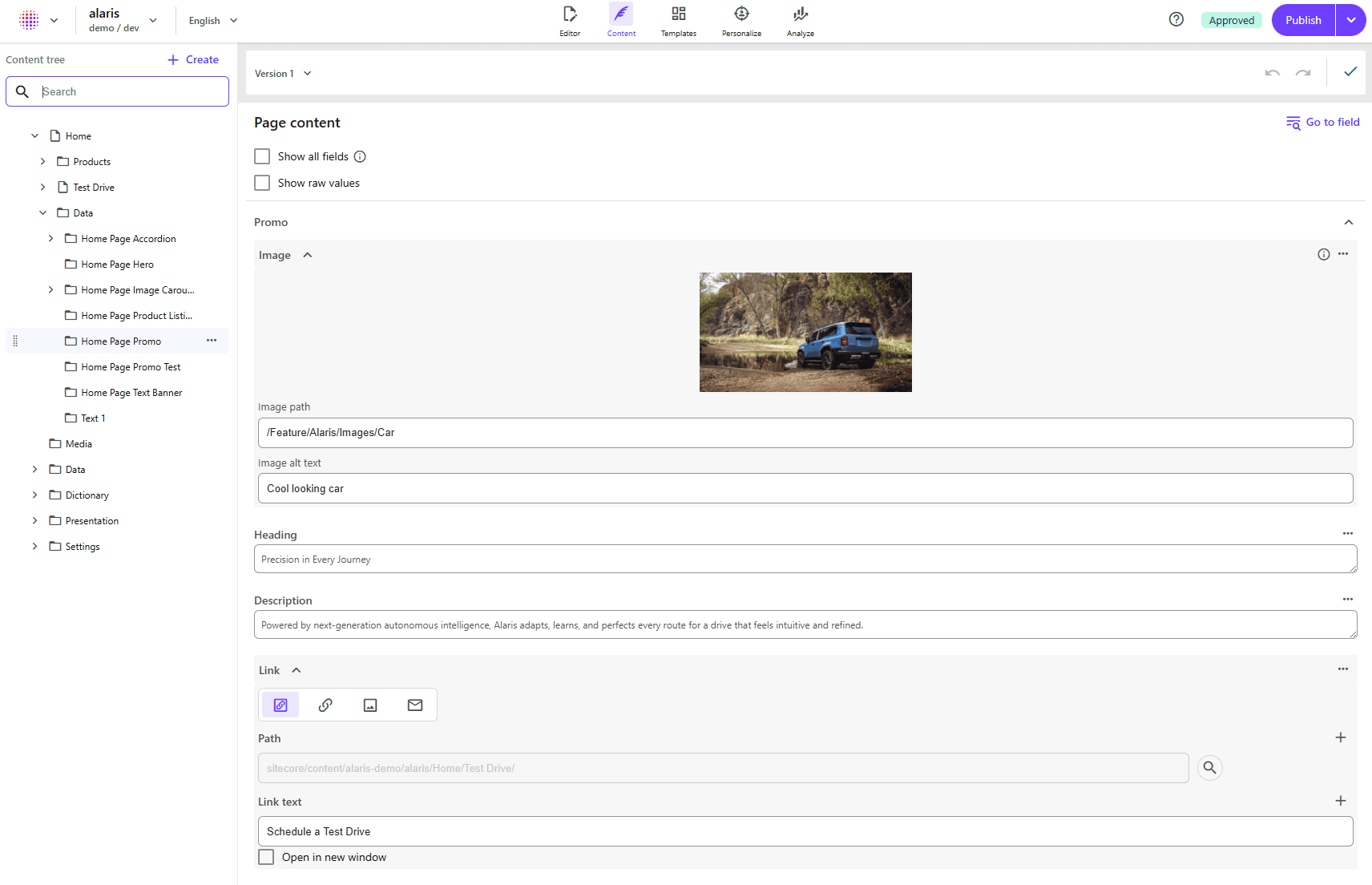
Content mode in Page builder is designed for creating, finding, and editing items without navigating the full content tree in Explorer or Content Editor. It provides a focused, full-screen experience where you can work directly with an item’s fields and structure, helping you move faster when managing content at scale.
With Content mode, you can create items such as folder, pages and content items fast, and search for them in a flat structure, making it easier to work with large content structures. This experience is especially useful when you know what you want to create or find, but do not want to browse through multiple levels of the tree.
In Content mode, you can search within an item to quickly find a specific field. Once found, you can edit the field in a focused, full-screen view that reduces distractions and makes updates easier.
Create content
In content mode, you can create new items directly from the toolbar or the item context menu, or from the Content tree item context menu.
To create an item from the toolbar:
-
In the Page builder, in the top navigation toolbar, click Content.
-
In the Content tree left hand panel, click Create item.
Alternatively, for the item under which you want to create new content, click Actions
 .
. -
In the Select an item template dialog, click the relevant item template, for example a page template, or a folder. Only the insert templates configured for the selected item are shown.
-
Click Select.
-
The new item is created under the selected item. You can now rename the new item, or edit its fields.
Search for content items
Content mode includes a search field that lets you find items across the content tree. The search returns a flat list of items, not a hierarchical view.
When you select a search result, the item opens in full view, and you can browse and edit the fields.
Items with the same name can appear multiple times in search results. The search results do not show the item path.
To find a content item:
-
In the Page builder, in the top navigation toolbar, click Content.
-
In the Content tree left hand panel, in the Search field, type at least one character. Matching items appear in a flat list, with results being loaded in pages as you scroll.
-
Click an item from the search results topopen its fields in full view.