Get performance insights
SitecoreAI provides multiple ways to monitor how your digital experiences perform and to understand the impact of the changes you make. These insights help you spot engagement patterns and make informed, data-driven decisions.
Performance brings together analytics from your sites, forms, tests, search interactions, events, and traffic so you can see how users behave and how your experiences are performing.
Dashboards update in real-time, powered by Azure services. This enables fast processing of live activity without relying on scheduled jobs or batch refreshes and supports future integration with Microsoft analytics tools such as Power BI and Fabric.
Use Performance whenever you need a clear view of audience behavior, engagement trends, and performance outcomes across your digital touchpoints. The dashboards can help you:
- Monitor new content or feature launches.
- Optimize live campaigns.
- Validate personalization updates immediately.
- Catch sudden drops, anomalies, or spikes early.
Navigation and data views
To open the analytics workspace, in the navigation menu, click Performance.
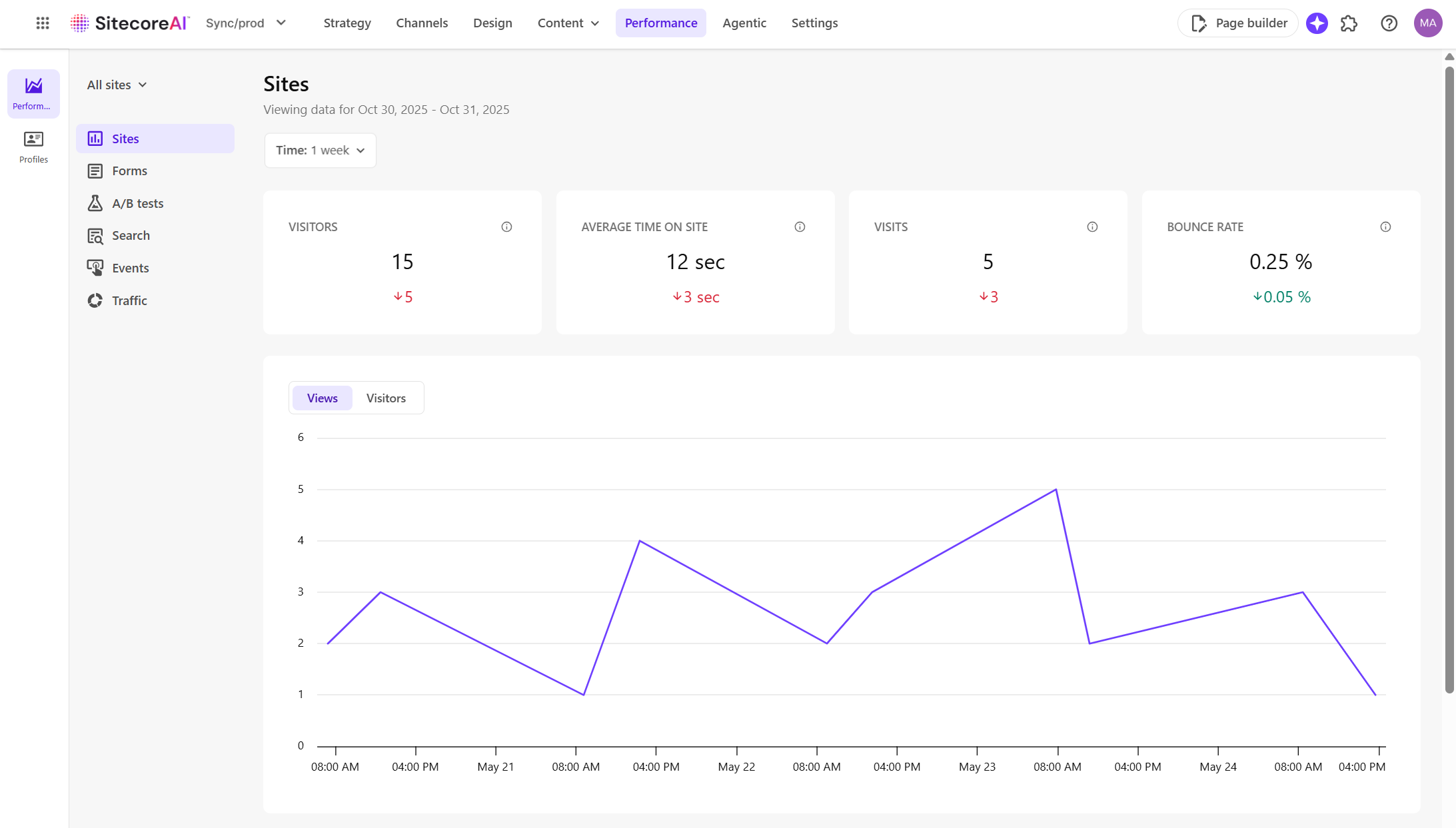
- With Performance selected in the left sidebar, use the left panel to switch between dashboards, including Sites, Forms, A/B tests, Search, Events, and Traffic.
- Use the drop-down list in the header to choose between:
- All sites - view combined analytics for all sites sharing the same analytics identifier, except for A/B test analytics, which cannot be aggregated across sites.
- Single site - view analytics for a specific site.
- Use the Time filter to choose a time frame such as such as 1 hour, 1 day, 1 week, 1 month, or specify a custom date range up to the previous two months.
For information about the Profile page, see Profiles.
Feature availability for profiles is part of a phased rollout. Your organization may not see this functionality yet. It will become available when your environment is included in the rollout.
Dashboards in Performance
Performance includes several ready-to-use dashboards. Each dashboard displays insights based on the interactions that occur on your site, such as page views, form submissions, searches, tests, or other tracked actions. Data appears once the related feature is in use and visitors interact with it.
To enable performance tracking, you must create an analytics identifier and assign it to your website on the Settings tab.
To consolidate data from multiple sites into one dashboard, assign the same identifier to each one.
You can explore the following performance dashboards in Performance:
- Sites - track metrics for one site or a group of sites that share the same analytics identifier, including visitors, views, bounce rate, and average time on site.
- Forms - monitor user engagement with forms, including views, interactions, submissions, and conversion rates.
- A/B tests - compare A/B/n test variants to find top performers and make data-driven improvements.
- Search - analyze how users interact with your site’s search, including views, clicks, click-through rates, top keywords, and null searches.
- Events - view standard and custom events to understand user actions.
- Traffic - track entry routes, page activity, and movement across the site.
Additional dashboards
Beyond the main dashboards in Performance, SitecoreAI also offers deeper, focused, standalone insights:
- Page insights - analyze the performance of a specific page or compare it with a variant directly within Analyze in Page builder.
- Sites dashboard - review analytics, manage site settings, and monitor campaigns for an individual site. You can customize this dashboard to show only the widgets that matter to your workflow, including those available through Marketplace.
These dashboards offer additional insights for optimizing performance at both the site and page level.