Plan campaign strategy
The Strategy app in SitecoreAI is where campaign work begins. It centralizes everything teams need to strategize, plan, and coordinate marketing campaigns in one place.
A campaign represents a major marketing initiative such as a product launch, promotion, or digital advertising strategy. Teams begin by defining business goals, target audiences, and channels. They then ideate around these goals, capturing ideas in a draft brief that outlines objectives and creative direction. When the brief is ready, teams can create a campaign to organize deliverables, assign tasks, and track progress.
Strategy connects these steps so marketers can move seamlessly from briefs to campaigns to execution within a single workspace. By uniting ideation, briefing, campaign planning, and AI-powered brand assistance, it helps teams plan effectively and deliver campaigns that are on time, on brand, and aligned with their goals.
To access it, in the navigation menu, click Strategy.
To use the Strategy features, ensure Stream is enabled in the Sitecore Cloud Portal and that you have been added as a Stream user. If Stream isn't enabled yet, click Enable Stream in Cloud Portal and follow the on-screen instructions.
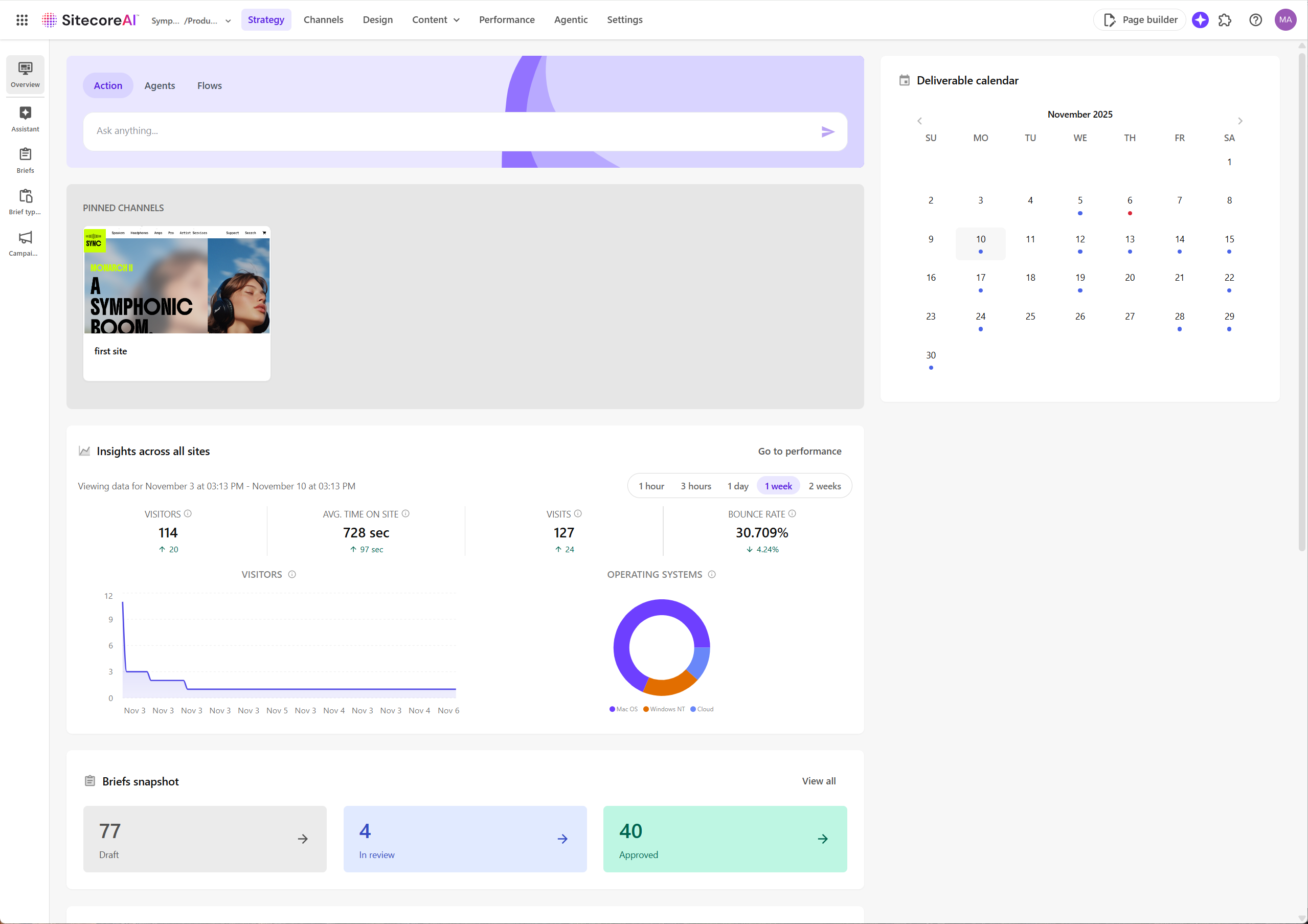
Strategy options
The left sidebar in Strategy provides the core tools and actions for campaign strategy and planning:
Overview
A dashboard view of strategic campaign activities:
-
Get a snapshot of insights across your sites.
-
View timelines and milestones in the Deliverable calendar.
-
Monitor briefs across their lifecycle (Draft, In review, Approved).
-
Review upcoming campaigns.
-
Use the Agentic studio widget to access the features in the Agentic studio.
ImportantTo use the agentic features, ensure Stream is enabled in the Sitecore Cloud Portal and that you have been added as a Stream user. If Stream isn't enabled yet, click Enable Stream in Cloud Portal and follow the on-screen instructions.
Assistant
Chat with the AI-powered Brand Assistant:
- Ask questions about your brand guidelines, audience, and competitors.
- Access approved brand kit details.
- Generate on-brand content and campaign ideas.
- Draft briefs and brainstorm long-form content.
Briefs
Turn ideas into structured campaign briefs faster:
- Create smart briefs manually or with AI assistance using consistent templates.
- Create and manage brief types used to build marketing briefs.
- Add context by uploading supporting files.
- Refine drafts and finalize before approval.
- Publish briefs and use them to create campaigns.
Campaigns
Plan and manage campaigns in a single workspace:
- Create campaigns and define objectives, timelines, and deliverables.
- Assign responsibilities to team members.
- Update campaign details as work evolves.
- Track progress and identify bottlenecks early.
Example workflow: From idea to campaign launch
Here's how a typical campaign strategy and planning journey might look using the Strategy tab and its features.
- Start in Strategy - from the Overview page, you can view analytics for sites, campaigns, briefs on the dashboard. You can also access key tools such as Assistant, Briefs, Campaigns.
- Ideate with the Brand Assistant - open the Brand Assistant to chat and explore campaign ideas. Use AI to generate an initial brief based on your brand, audience and goals.
- Review and publish the brief - check the AI-generated brief and publish it to create it on the Briefs page. You can update details, link campaigns, or collaborate with your team, as needed.
- Convert the brief into a campaign - after the brief is reviewed and approved, convert it into a campaign with a single click.
- Build out the campaign - the converted brief is automatically created as a new campaign in Campaigns. Review or edit its details, add deliverables, tasks, and assign owners.
- Add supporting resources - optionally, upload relevant documents or link additional briefs to the campaign.
- Track progress and launch - use campaign views to monitor timelines, update statuses, and identify bottlenecks. When all deliverables and tasks are complete, you are ready to launch the campaign.