Design components
In SitecoreAI, Design is a single, intuitive workspace where designers, developers, and content authors create, explore, and manage the building blocks of digital experiences. This interface brings together the Design studio, components, forms, and brand kits in one place to ensure consistent design and functionality across sites.
With Design, teams can readily create, configure, and publish components for use in the Page builder. They can add visualization values, generate variants, and reuse on-brand components, forms, and brand kits to build consistent digital experiences quickly and confidently.
To access it, in the navigation menu, click Design.
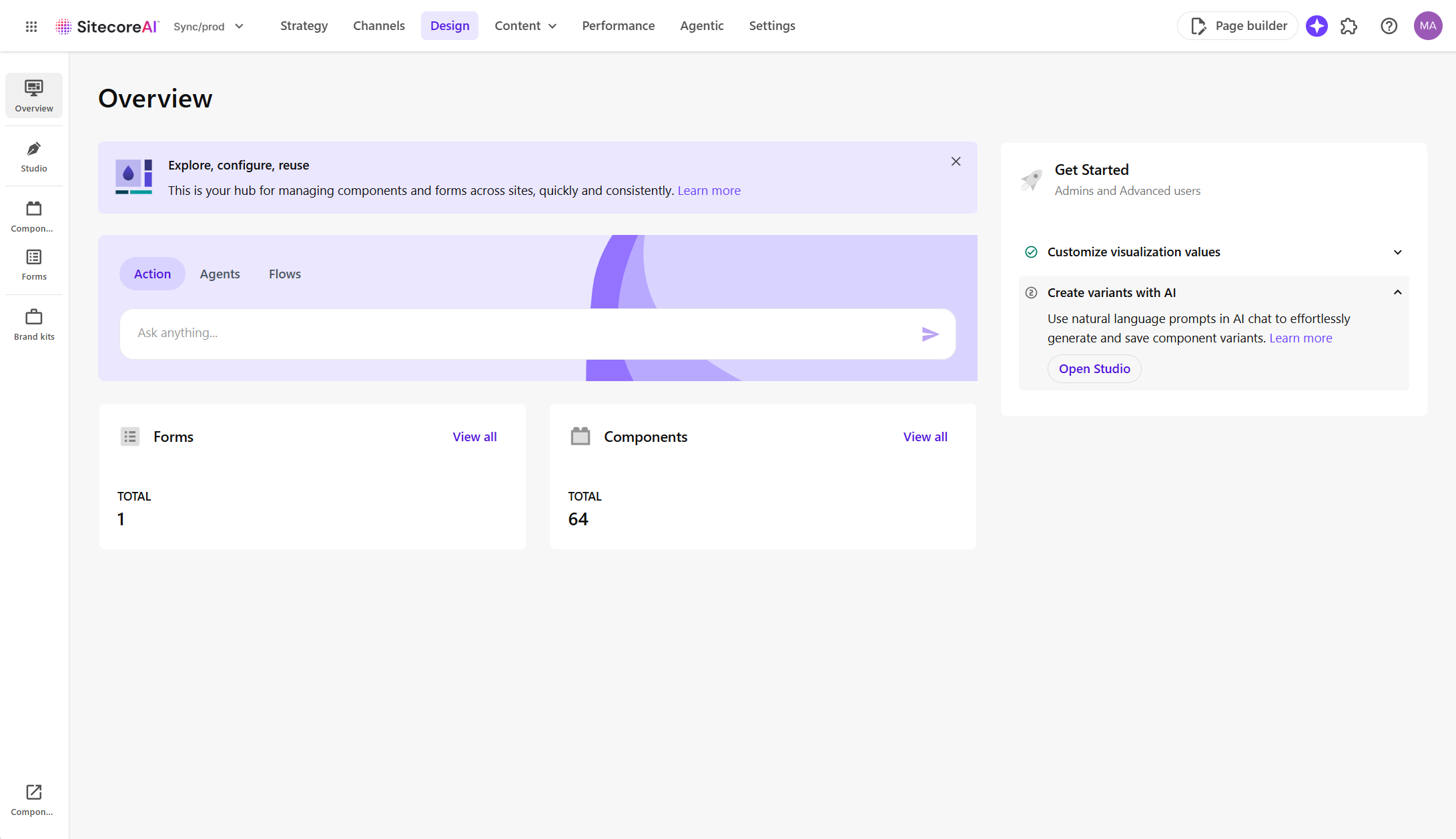
Design options
The left sidebar in Design provides the core tools and actions for or creating, managing, and styling design elements:
Overview
View all your design work in one place, including total, draft, and live components and forms.
-
Check how many components and forms you have.
-
Click View all to open the full list of forms or components.
-
Get started by customizing visualization values or creating variants with AI.
-
Use the Agentic studio widget to access the features in the Agentic studio.
ImportantTo use the agentic features, ensure Stream is enabled in the Sitecore Cloud Portal and that you have been added as a Stream user. If Stream isn't enabled yet, click Enable Stream in Cloud Portal and follow the on-screen instructions.
Design Studio
Use the Design studio to view and test components for your site, as well as to create variants for existing components using AI:
- Visualize and test components in a centralized workspace.
- Experiment with design and content variations.
- Generate new component variants using AI tools.
- Access the code of your component.
Forms
Create simple, user-friendly forms that fit your site’s design.
- Build a form from scratch or use a ready-made template.
- Change field types and layout easily.
- Connect forms to other tools using webhooks instead of storing user data.
- Activate and use forms directly in the Page builder.
Brand kits
Use brand kits to make sure AI-generated content aligns to your brand guidelines.
- Start build your brand knowledge by creating a brand kit for your organization or brands.
- Upload brand documents following our best practices.
- Add or remove users who can access your brand kits.
- Rename, edit or delete a brand kit and manage its source documents.