Insert an image into fields using the Content Editor
In the Content Editor, you can insert various types of media, typically images, into an image field, or a Rich Text field. These media items can be images, animations, film clips, sound files, and so on.
You can also add a media item into a page using the page builder.
Insert an image into an image field using the Content Editor
To insert or change an image in an image field:
-
In the Content Editor, navigate to the item or page that you want to edit.
-
On the Content tab, locate the image field where you want to insert an image, and click Browse.
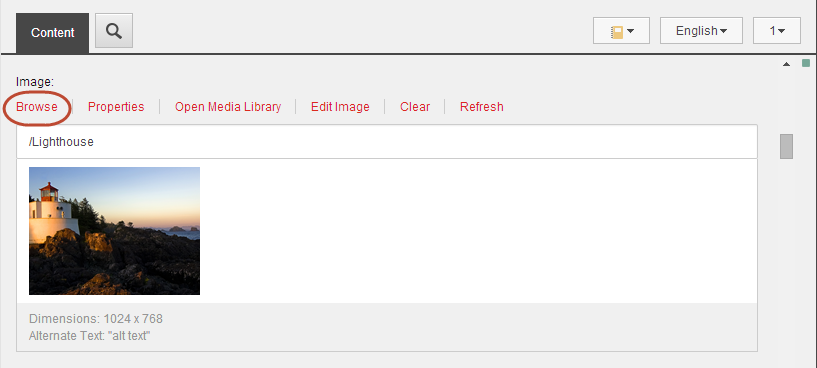
-
The Select Media dialog displays all the items from the Media Library that are available for the field you have chosen.
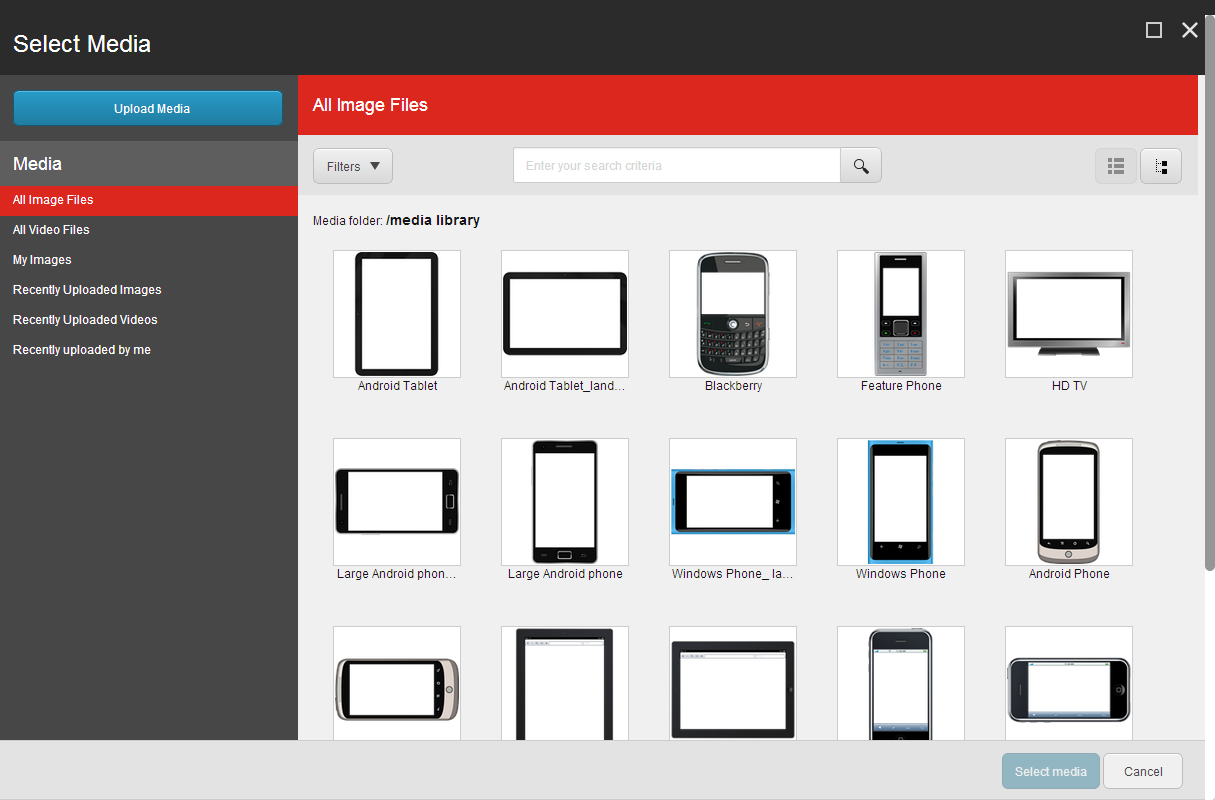
The items in the Select Media dialog are not listed in any particular order, so use the search functionality or the predefined lists from the menu to find your image:
-
In the Media menu, use the links to quickly get a complete list of All Image Files, All Video Files, My Images, Recently Uploaded Images, and Recently Uploaded Videos.
-
To filter the displayed media items according to specific metadata of the image, click the Filters drop-down arrow and select the required filters. The number in parenthesis indicates how many items are available for the filter.
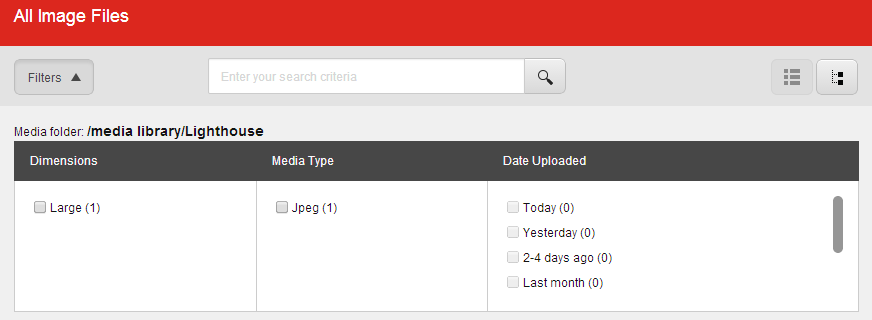
-
To search for a specific item, enter a search word in the Search field.
-
To navigate through the content tree to find the image that you want to use, click Tree View
 in the upper right corner. To go back to the list view, click List view
  .
.
-
-
Select the image that you want to use, click Select Media, and the new image is inserted into the image field.
NoteIf the image that you want to use is not available, click Upload media to upload a new image to the Media library.
Insert an image into a Rich Text Editor field in the Content Editor
To insert an image or other type of media item in the Rich Text Editor:
-
In the Content Editor, navigate to the text field where you want to insert a media item.
-
Open the Rich Text Editor and click
 .
. -
In the Insert Media Item dialog, if the image is already in the Media Library, find and select the image that you want to insert and then click Insert. To locate the image you can navigate through the content tree on the Media Library tab, or you can search for the item on the Search tab.
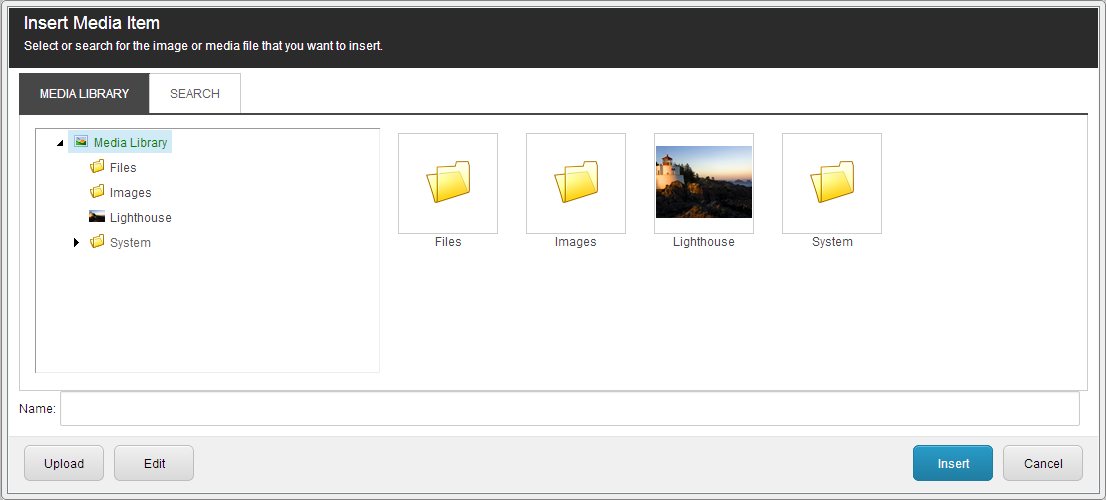
-
If the image is not available in the Media Library, click Upload.
-
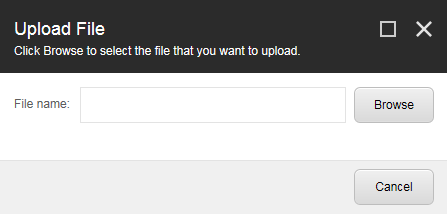
In the Upload File dialog, click Browse and then select the image file that you want to use.
-
In the Open dialog, click Open to upload the image file to the Media Library.
-
The image file opens in the Content Editor. To save the new image and return to the Insert Media Item dialog, click Save/Close.
-
To insert the image in the text field, click Insert.
NoteIf you click Cancel, the Insert Media Item dialog closes, but the new item remains in the Media Library.