Walkthrough: Adding the Horizon module
Horizon is the next-generation editor in Sitecore Experience Platform. To add the Horizon module, you must create specific Docker images, add them to the Azure Container Registry (ACR), and then change the item in the Application repository before running the Mssql containers. You must also extend the Front Door configuration with an additional public-facing service name.
This walkthrough describes the infrastructure changes that you have to apply when you want to deploy the Horizon module on top of an already deployed Managed Cloud containers environment.
This walkthrough describes how to:
- Register a domain name
- Extend the Front Door configuration
- Prepare the Docker files
- Push the images to the Azure Container Registry (ACR)
- Download the Horizon Container Deployment package
- Copy the base Horizon Kubernetes configuration files
- Define Horizon configuration overlays
- Change the image in the Application repository
- Run the mssql_init_hrz container
- Configure Ingress
- Enable the Horizon component
- Apply the change
Register a domain name
Because Horizon is a separate publicly available service, you must register a domain name for it.
To register a domain name:
-
Navigate to the portal where your DNS name is managed from.
-
Create an additional CNAME record for Horizon that points to Azure Front Door:
{infrastructure_id}fdr.azurefd.net,where
infrastructureIdis your environment identifier that starts withmcc. -
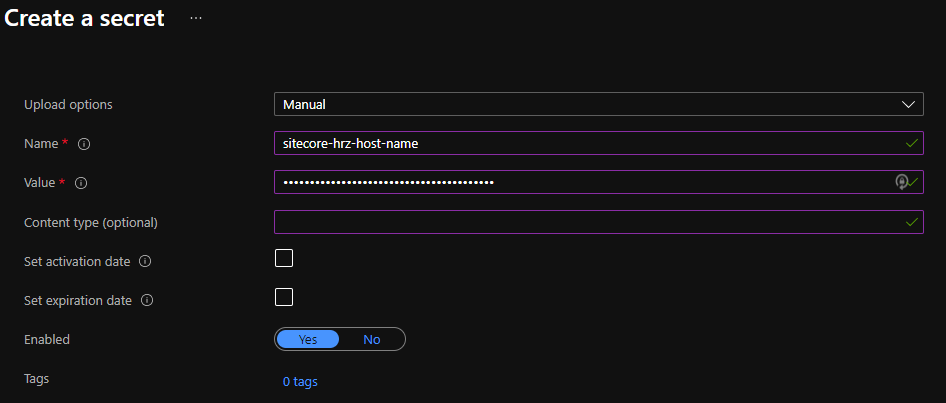
Navigate to the Azure Portal and create a secret within the Key Vault for the environment:
- Secret name -
sitecore-hrz-host-name - Secret value - the Horizon hostname that you created in the previous step.
- Secret name -
Extend the Front Door configuration
You must extend the Front Door configuration with an additional public-facing service name.
To extend the Front Door configuration:
-
Navigate to
frontdoor\backend-config.jsonand define the Horizon back-end config: -
Navigate to
frontdoor\main.tfand in thelocalssection, add a new variable to"sitecore_hrz_host_name“: -
Define the
dataresource to retrieve the Horizon host name from the Key Vault: -
In the
"azurerm_frontdoor"resource, define an additionalrouting_rule: -
In the
"azurerm_frontdoor"resource, define thefrontend_endpoint: -
Adjust
HttpToHttpsso that it covers theHTTPS-hrzrouting rule:
-
You must now apply the changes with a pull request to the Infrastructure repository before you can continue with the next steps.
-
Run the FrontDoor pipeline to apply the changes and wait until the pipeline is executed successfully.
-
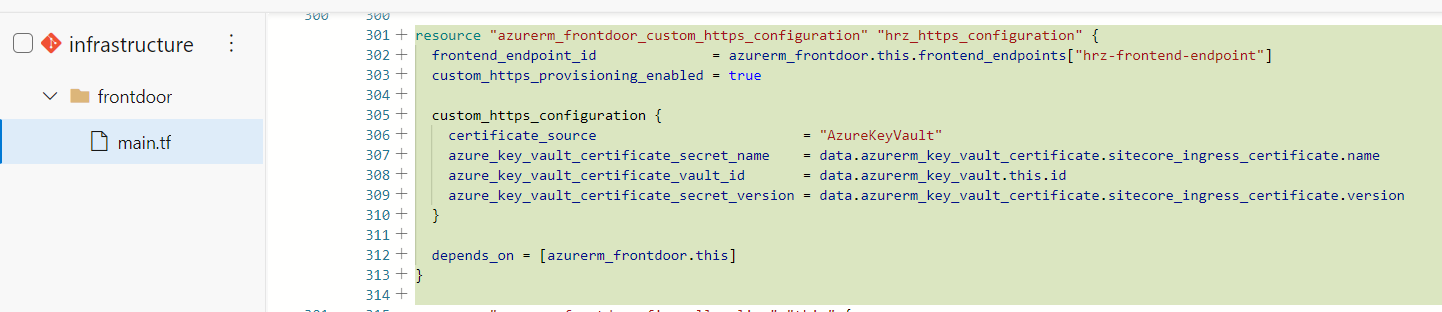
Define the
“azurerm_frontdoor_custom_https_configuration”resource: -
Apply the changes to the environment with a pull request to the infrastructure repository.
The expected result:
-
Run the FrontDoor pipeline to apply the changes and wait until the pipeline is executed successfully.
Prepare the Docker files
To prepare the Sitecore platform images to work with the Horizon service:
- Install the Horizon integration asset image on top of Sitecore content management (CM) and MSSQL-INIT images.
Refer to the Kubernetes deployment guide for Sitecore Horizon for instructions on how to build corresponding custom images.
Push the images to the Azure Container Registry (ACR)
To push the images to the ACR:
- In PowerShell, execute the docker push command. You must push all images to the pre-provisioned ACR:
{infrastructure_id}acr
Download the Horizon Container Deployment package
A prerequisite for adding the Horizon module is the Horizon Container Deployment package.
To download the package:
- On dev.sitecore.net, navigate to the page for the specific Sitecore version that you use and in the Download options section, go to Container Deployment Package.
- Download the
SitecoreHorizonContainerDeploymentzip package and unarchive it to a local folder.
Copy the base Horizon Kubernetes configuration files
To copy the Horizon configuration files:
-
Navigate locally to the Application repository folder and create a folder with the following path:
-
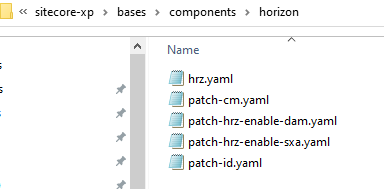
Copy the following Horizon base configuration files from the SitecoreHorizonContainerDeployment package into the folder that you created earlier:
-
k8s\ltsc2019\horizon\hrz.yaml -
* k8s\ltsc2019\horizon\ patch-hrz-enable-dam.yaml -
* k8s\ltsc2019\horizon\ patch-hrz-enable-sxa.yaml -
overrides\{topology}\patch-cm.yaml -
overrides\{topology}\patch-id.yamlNoteThe files marked with * are optional. They are required if you want integration with SXA and/or Dam. For more details about the SXA/Dam integration refer to the Horizon deployment guide.
-
-
In the folder created in step 1, create the
kustomization.yamlfile with the following content:
Define Horizon configuration overlays
To integrate the Horizon module configuration with the Managed Cloud Containers environment, you must define an overlay layer on top of the Horizon base configuration. This abstraction makes it easier to replace the Horizon base configuration in Horizon module upgrades in future releases.
To define the overlays:
-
Create the
roles\sitecore-{topology}\overlays\components\horizon\cm.yamlfile with the following content: -
Create the
roles\sitecore-{topology}\overlays\components\horizon\id.yamlfile with the following content: -
Create the
roles\sitecore-{topology}\overlays\components\horizon\hrz.yamlfile with the following content: -
Create the
roles\sitecore-{topology}\overlays\components\horizon\kustomization.yamlfile with the following content: -
To execute the overlays, navigate to
roles\sitecore-{topology}\tasks\main.yamland add the following:The expected result:
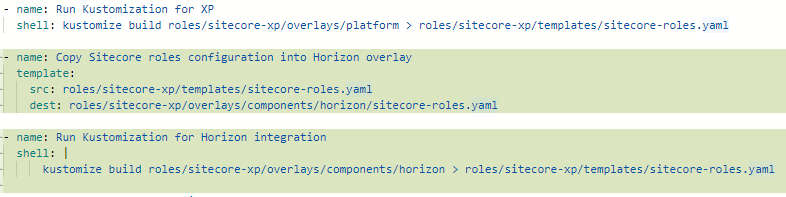
This code example is for XP topology. For XM, replace ‘sitecore-xp’ with ‘sitecore-xm’.
Change the image in the Application repository
Now you can add the Horizon-specific image and two new properties to the Application repository.
To change the images in the Application repository:
- In the Application repository, navigate to
config/docker-imagesand edit thedocker-images.jsonfile as follows:-
Replace the
cmimage withcm-hrz, that you created earlier. -
Add the
mssql_init_hrzproperty, that you created earlier. -
Add the
hrzproperty, and point it to the Horizon service public image that corresponds to your Sitecore version. You can find this value from Horizon artifacts downloaded earlier.Navigate to
k8s\ltsc2019\horizon\kustomization.yamlto find the actual image name and tag. For example: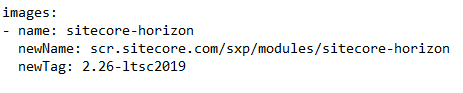
-
Run the mssql_init_hrz container
To run the mssql-init-horizon container:
-
Navigate to
roles\sitecore-{topology}\templates\and add themssql-init-horizonjob file under the name:mssql-init-horizon.yamlwith the following content: -
To add the Ansible tasks to execute the
mssql-init-horizonjob, navigate toroles\sitecore-{topology}\tasks\init.yamland add the following script at the end of the file:
Configure Ingress
Next you must define and apply the Ingress configuration and define the secrets.
To configure Ingress:
-
In the Application repository, navigate to the
roles\sitecore-{topology}\templates\folder and create theingress-hrz.yamlfile with the following content: -
To define secrets, navigate to
roles\sitecore-{topology}\templates\secrets.yamland define thesitecore-hrz-host-namesecret withsitecore-secret-provider. -
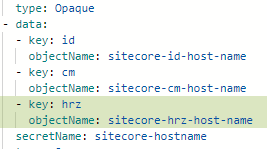
Extend the
sitecore-hostnamesecret:The expected result
-
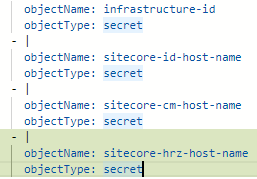
Add
sitecore-hrz-host-nameas asecret-providerparameter:The expected result:
-
Add the new task to
roles\sitecore-{topology}\tasks\main.yaml:
Enable the Horizon component
To enable the Horizon component:
-
In the Application repository, navigate to the
roles\sitecore-{topology}\overlays\platform\kustomization.yamlfile and enable Horizon with thecomponentselement, pointing to the Horizon module configuration scripts folder.
Apply the changes
Now that you have made all the required changes for the Horizon module to be added, you must apply the changes.
To apply the changes:
- Apply the application changes to the environment with a pull request to the application repository.
- Follow Kubernetes deployment guide from Horizon documentation to configure the SolrCloud search indexes after deployment.