Walkthrough: Adding the Sitecore Publishing Service module
The Sitecore Publishing Service (SPS) module provides integration with the opt-in Publishing Service, supporting high-performance publishing in large-scale Sitecore setups. To deploy SPS as a container in a cloud-based solution, you must deploy both the module and the service on top of your Sitecore solution.
This walkthrough describes how to deploy the SPS module on top of an already deployed managed cloud containers environment. It describes how to:
- Prepare the Docker images
- Push the images to the Azure Container Registry (ACR)
- Download the Kubernetes specification files
- Copy the base SPS Kubernetes configuration files
- Define an SPS configuration overlay
- Change the images in the Application repository
- Run the mssql_init_sps container:
- Without disaster recovery.
- With disaster recovery.
- Enable the SPS component
- Apply the application changes
Prepare the Docker images
To prepare the Docker images:
- You must prepare the Sitecore CM, CD, and MSSQL-INIT custom images to include all the resources (files, databases, and so on) from the SPS asset images. The asset images are:
sxp/modules/sitecore-sps-integration-xm1-assetssxp/modules/sitecore-sps-integration-xp1-assets
You must use the asset image for the topology you are deploying. For more information about how to apply the asset images, refer to: Add Sitecore modules and the Sitecore module reference.
Refer to the Sitecore Publishing Service Container Deployment Guide document for instructions on how to build corresponding custom images.
Push the images to the Azure Container Registry (ACR)
To push the images to the ACR:
- In PowerShell, run the docker push command. You must push all SPS custom images (CM, CD, and MSSQL-INIT) to the preprovisioned ACR:
{infrastructure_id}acr.
Download the Kubernetes specification files
In the GitHub Sitecore containers deployment repository, locate and download the following file:
SitecorePublishingServiceContainerDeployment.10.1.0.{latest available build number}.zip
This file contains the Sitecore Publishing Service Kubernetes configuration files for Sitecore XP 10.1.0. Unzip the package locally.
Copy the base SPS Kubernetes configuration files
To copy the base SPS Kubernetes files:
-
Navigate to the Application repository folder and create an
spsfolder:roles\sitecore-{topology}\bases\components\sps -
Copy the following sps base configuration files into the folder:
\k8s\ltsc2019\sps\patch-sps.yaml\k8s\ltsc2019\sps\sps.yaml\k8s\ltsc2019\overrides\{topology}\patch-cm.sps.yaml
-
In the
spsfolder you created earlier, create akustomization.yamlfile with the following content:
Define an SPS configuration overlay
To integrate the SPS module configuration with the Managed Cloud Containers environment, you must define an overlay layer on top of the SPS base configuration. This abstraction simplifies the upgrade process of the SPS base configuration during an SPS module upgrade for future releases.
To define and run the overlays:
-
Create a
roles\sitecore-{topology}\overlays\components\sps\kustomization.yamlfile with the following content: -
Create a
roles\sitecore-{topology}\overlays\components\sps\sps.yamlfile with the following content: -
To run the overlays, navigate to:
roles\sitecore-{topology}\tasks\main.yamland add the tasks next to theRun Kustomization for {topology}task.The following example describes XP topology. For XM, you must replace
sitecore-xpwithsitecore-xm.
Change the images in the Application repository
Now you can add the SPS-specific image and the two new properties to the Application repository.
To change the images in the Application repository:
- Navigate to the Application repository
config/docker-imagesand edit thedocker-images.jsonfile and make the following changes:- Replace the cm image with cm-sps.
- Replace the cd image with cd-sps.
- Add the mssql_init_sps property.
- Add the sps property, and point it to the SPS service public image that corresponds to your Sitecore version.
Run the mssql_init_sps container without disaster recovery
To run the mssql-init-sps container:
-
Navigate to
roles\sitecore-{topology}\templates\and add themssql-init-sps.yamljobs file with the following content: -
Add the Ansible tasks to run the
mssql-init-spsjob. Navigate toroles\sitecore-{topology}\tasks\init.yamland add the following scripts at the end of the file: -
Run the application pipeline.
Run the mssql_init_sps container with disaster recovery
To run the mssql-init-sps container:
-
Navigate to
roles\sitecore-{topology}\templates\and add themssql-init-sps.yamljobs file with the following content: -
Create a custom
init.yamlfile, for example,custom-init.yaml, and put it under the /roles/sitecore-{topology}/tasks folder. -
To add the
mssql-init-spsjob to the file, add the following code: -
To call the custom
init.yamlfile, go to /roles/sitecore-{topology}/tasks/main.yaml and add the following role at the end of the file: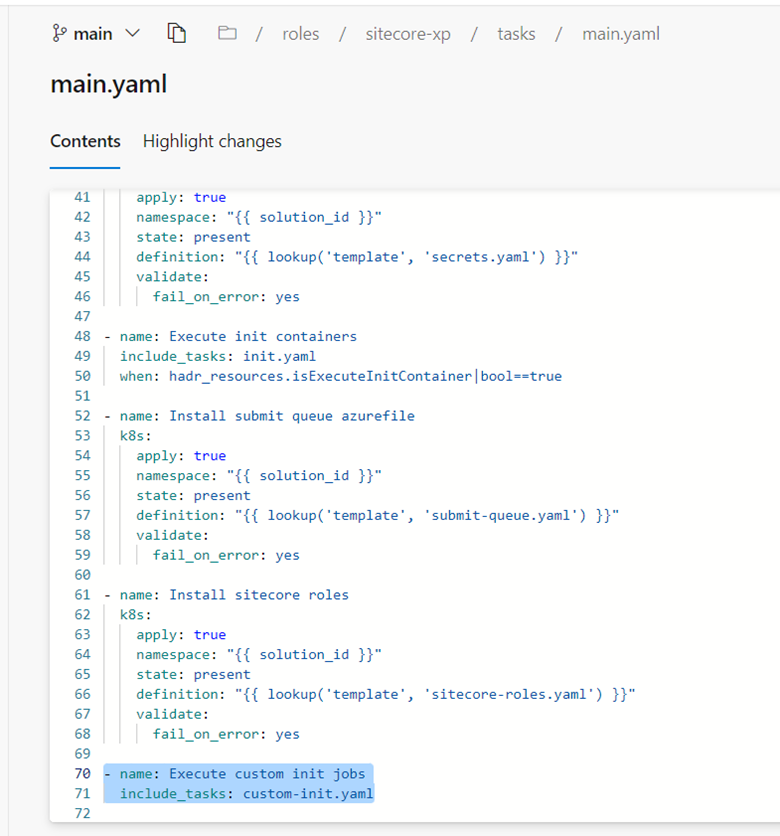
-
Run the application pipeline.
-
If the custom job has been successfully created, comment out the
Execute custom init jobsrole.
Enable the SPS component
To enable the SPS component:
- In the Application repository, navigate to the
roles\sitecore-{topology}\overlays\platform\kustomization.yamlfile and enable SPS by using thecomponentselement, pointing to the sps module configuration scripts folder.
Apply the application changes
To apply the application changes to the environment:
- Create and complete a pull request to the Application repository.