Walkthrough: Adding the JSS module
Sitecore JavaScript SDK (JSS) is a set of npm packages that let you implement Sitecore apps using modern JavaScript frameworks. To add the JSS module, you must create specific Docker images and push them to the Azure Container Registry (ACR) and then change them in the Application repository before running the Mssql containers.
This walkthrough describes how to:
- Prepare the Docker images
- Push the images to the ACR
- Change the images in the Application repository
- Run the Mssql-init-jss container:
- Without disaster recovery.
- With disaster recovery.
Prepare the Docker images
Refer to the Add Sitecore modules topic to learn how to create a custom JSS module.
To be able to work with JSS apps, you must create the following images:
cm-jsscd-jssmssql_init_jss
Push the images to the Azure Container Registry (ACR)
To push the images to the ACR:
- In Powershell, run the docker push command. You must push all images to the pre-provisioned ACR:
{infrastructure_id}acr.
Change the images in the Application repository
Now you can add the JSS-specific naming images to the Application repository.
To change the images in the Application repository:
-
Go to the application repository
config/docker-imagesand editdocker-images.jsonas follows:- Replace the
cmvalue with thecm-jssimage reference URL. - Replace the
cdvalue with thecd-jssimage reference URL. - Add the
mssql_init_jssproperty.
For example:
- Replace the
Enable the underscores in headers option for the ingress controller
The Nginx ingress controller drops request headers that contain underscores by default.
The JSS module uses some headers that contain underscores. To support this functionality, you must therefore enable the underscores in headers option.
To enable the underscores in headers option:
-
Go to
roles/and create the following folder structure:roles/nginx-underscores/tasks. -
In the
roles/nginx-underscores/tasksfolder, add amain.yamlfile that contains the following code: -
In the root directory of the repository, open the
main.yamlfile. -
To add a new nginx- underscores role, after the section:
Insert the following:
-
Run the application pipeline.
Run the Mssql-init-jss container without disaster recovery
To run the Mssql-init-jss container:
-
Go to
roles\sitecore-{topology}\templates\and add themssql-init-spe-jssjob file under the name:mssql-init-jss.yaml. For example: -
To add the Ansible tasks to run the
mssql-init-jssjob, go to*roles\sitecore-xm\tasks\init.yaml*and add the following scripts at the end of the file: -
Run the application pipeline.
Run the Mssql-init-jss container with disaster recovery
To run the Mssql-init-jss container:
-
Go to
roles\sitecore-{topology}\templates\and add themssql-init-spe-jssjob file under the name:mssql-init-jss.yaml. For example: -
Create a custom
init.yamlfile, for example,custom-init.yaml, and put it under the /roles/sitecore-{topology}/tasks folder. -
To add the
mssql-init-jssjob to the file, add the following code: -
To call the custom
init.yamlfile, go to /roles/sitecore-{topology}/tasks/main.yaml and add the following role at the end of the file: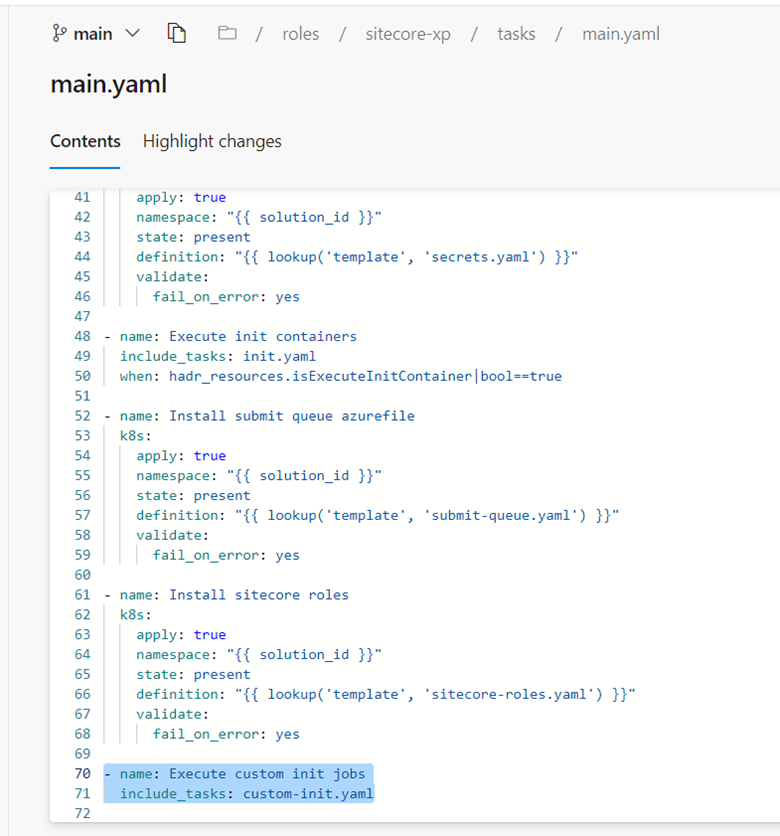
-
Run the application pipeline.
-
If the custom job has been successfully created, comment out the
Execute custom init jobsrole.