Customize the view in the Horizon editor
When you open the Horizon application from the launchpad, the home page of the current site opens in WYSIWYG mode in the Horizon page editor.
Above the content area is a toolbar where you can adjust the view:

This topic explains how to open a page in the page editor and customize the editor window.
Open a page in the editor
To open a page in the editor:
-
Click the page in the content tree in the left-hand panel.
The page opens in the content area in the middle of the screen.
Make more room for the editor
You can make more room for the editor by collapsing the side panes.
To collapse or expand the right or left pane:
- Click the corresponding Collapse/Expand icon
 .
.
Switch the device view
Sitecore applies responsive design to the pages on your site, so pages adjust to the size of the device they are displayed on. The Horizon editor can display the current page as it appears on different devices.
To view the current page with a different device layout:
-
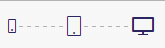
Click the phone, tablet, or desktop icon in the Device switcher:
Rotate the view
In phone or tablet view, you can switch between landscape and portrait mode.
To toggle between landscape and portrait mode:
-
Below the Device switcher, click the Rotate button: