ウォークスルー
このページの翻訳はAIによって自動的に行われました。可能な限り正確な翻訳を心掛けていますが、原文と異なる表現や解釈が含まれる場合があります。正確で公式な情報については、必ず英語の原文をご参照ください。
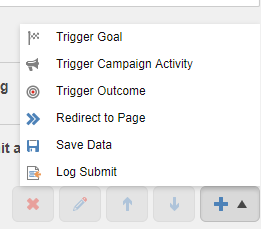
ナビゲーションには「送信」ボタン(前→次→ボタン)を使い、フォームの提出や送信アクションのトリガーを行います。すべての送信ボタンに異なる種類のアクションを追加できます。例えば、「送信アクション「次のボタンに追加されたデータを保存」は、連絡先が「次へ」をクリックしてフォームの次のページに進んだ際にフォームデータベースに保存されます。デフォルトでは、トリガー目標、トリガーキャンペーン活動、トリガーアウトカム、ページへのリダイレクト、データ送信項目を追加できます。
このウォークスルーでは、フォームの送信状況に関するエントリをログファイルに追加するカスタム送信アクションの作成方法を説明します。以下の方法を説明しています:
- サブミッション・アクションクラスを作成する
- アクションアイテムを提出する
サブミッション・アクションクラスを作成する
カスタム送信アクションを作成する際は、SubmitActionBase
サブミットアクションクラスを作成するには:
-
LogSubmitクラスを作成し、SubmitActionBase
-
TParametersDataの種類を指定してください。
-
TryParse メソッドをオーバーライドして、空の文字列パラメータを解析し、trueを返します。
-
Executeメソッドを上書きし、フォーム送信状況とフォームIDを含むメッセージをログに残します。例えば:
using System.Linq; using Sitecore.Diagnostics; using Sitecore.ExperienceForms.Models; using Sitecore.ExperienceForms.Processing; using Sitecore.ExperienceForms.Processing.Actions; using static System.FormattableString;
namespace Sitecore.ExperienceForms.Samples.SubmitActions { ///
/// Executes a submit action for logging the form submit status. /// ///public class LogSubmit : SubmitActionBase { /// /// Initializes a new instance of the /// The submit action data. public LogSubmit(ISubmitActionData submitActionData) : base(submitActionData) { }class. /// ///
/// Tries to convert the specified /// The value. /// The target object. ///to an instance of the specified target type. /// /// true if protected override bool TryParse(string value, out string target) { target = string.Empty; return true; }was converted successfully; otherwise, false. /// ///
/// Executes the action with the specified /// The data. /// The form submit context. ///. /// /// protected override bool Execute(string data, FormSubmitContext formSubmitContext) { Assert.ArgumentNotNull(formSubmitContext, nameof(formSubmitContext));true if the action is executed correctly; otherwisefalse ///if (!formSubmitContext.HasErrors) { Logger.Info(Invariant($"Form {formSubmitContext.FormId} submitted successfully."), this); } else { Logger.Warn(Invariant($"Form {formSubmitContext.FormId} submitted with errors: {string.Join(", ", formSubmitContext.Errors.Select(t => t.ErrorMessage))}."), this); }
return true; } } }
-
ビルドと展開
アクションアイテムを提出する
アクションアイテムを提出するには:
-
/sitecore/System/Settings/Formsに行って。
-
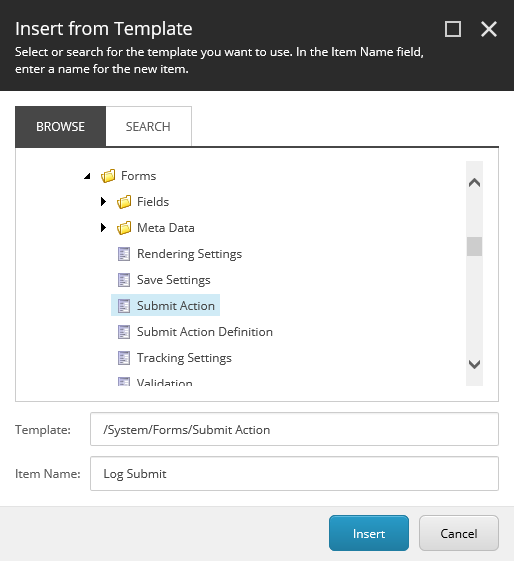
右クリックで 「アクションを送信」をクリックし、「 挿入」をクリックし、「 テンプレートから挿入」をクリックします。
-
/System/Forms/Submit Actionテンプレートを選択し、アイテム名欄で名前Log Submitを入力し、「挿入」をクリックします。
-
作成したアイテムにアクセスし、設定 セクションのModel Typeフィールドで、クラスタイプ名に値を設定します。
-
エラーメッセージフィールドにエラーメッセージを入力してください。例えば「*ログ送信失敗!」*などです。
-
Appearanceセクションで、Forms要素ペインで表示したいアイコンを選択します。
フォーム要素ペインで「送信を追加」アクションをクリックすると、「ログ送信」アクションを選択できます: