Receive a specific output of an audience export in Sitecore Connect
This walkthrough describes how to receive the latest output of an audience export in Sitecore Connect in order to send the output to third-party systems. First, you create a recipe to setup the webhook address and payload schema, then you add an action to retrieve the latest audience export output. Next, you expand the recipe to configure it to receive and extract the gzipped files of the output every time your audience export finishes running.
The five-step recipe is shown in the following image:
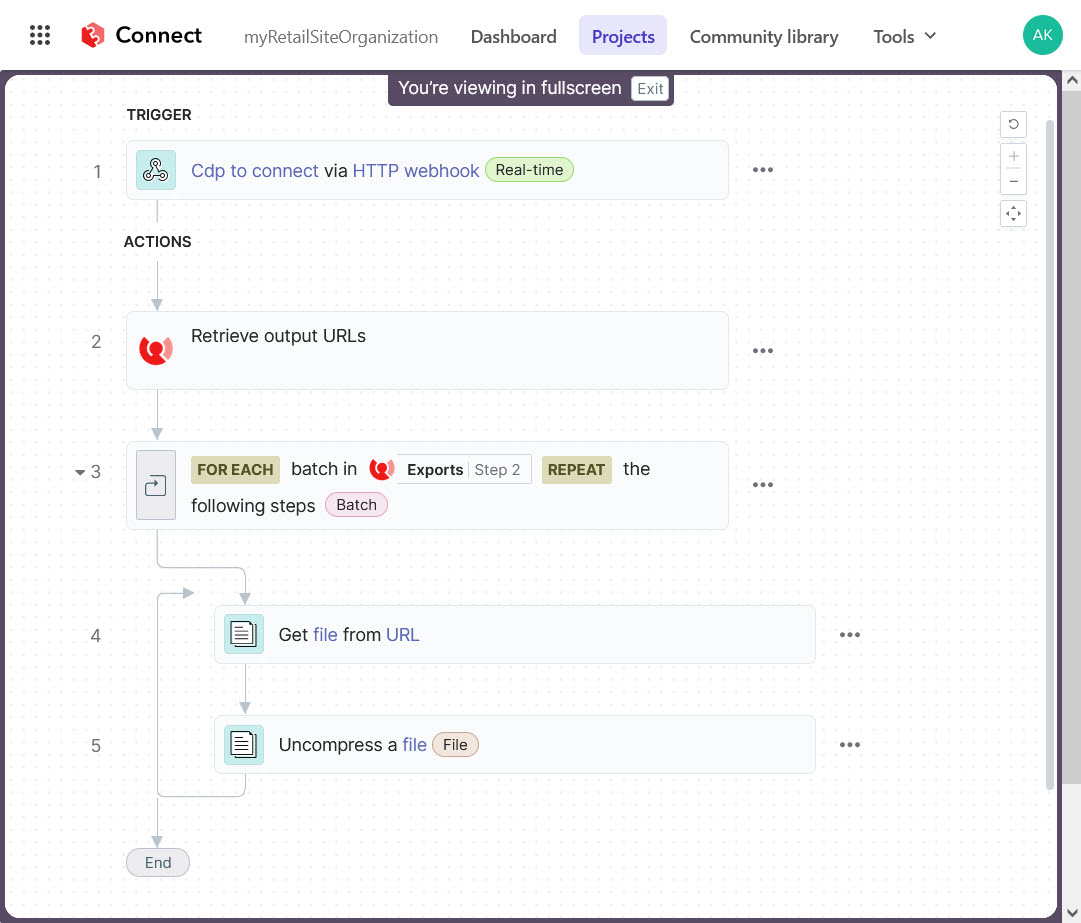
This walkthrough describes how to:
- Generate a webhook address and set up the payload schema.
- Add an action to retrieve the URLs of a specific output of an audience export.
- Get the gzipped output file from the URLs.
- Extract the gzipped output.
- Test your recipe.
-
Make sure you have a valid API key and API secret in Sitecore CDP. You'll have to provide these if you need to configure a new CDP connection.
-
Understand the contents of the output of an audience export.
Generate a webhook address and set up the payload schema
Create a recipe in Sitecore Connect and set up the trigger. This enables you to set up and generate a webhook address and add a sample payload schema. This step corresponds to step 1 in your recipe.
To generate a webhook address and set up the payload schema:
-
In Sitecore Connect, in a project, click Create > Recipe.
-
In the Set up your recipe window, click Trigger from a webhook, then click Start building.
-
In the Setup pane, click setup manually.
-
In the Event name field, enter a unique event name, for example, CDP to Connect. An HTTPS webhook URL displays.
-
In the Payload configuration section, click Use JSON under Payload schema.
-
In the Generate schema window, paste the following JSON sample, then click Next.
-
Review the schema preview, then click Generate schema.
-
In the Payload configuration section, the JSON schema is now added to the Payload schema section.
Add an action to retrieve the URLs of a specific output
Add an action to your recipe to retrieve the URLs of a specific output of the audience export. This step corresponds to step 2 in your recipe.
These URLs are where the output is available to download. By retrieving them in your Sitecore Connect recipe, you can work with the output directly in the recipe.
To retrieve the URLs:
-
On the recipe canvas, below Actions, click the plus sign, then click Action in an app.
-
In the App pane, search for Sitecore CDP then click it.
-
In the Action pane, click Audience export - Get files by execution ref.
-
In the Connection pane, if you already have an active connection to use, select it. Otherwise, create a new one by completing the following fields:
- Client key and API token - find these values in Sitecore CDP by clicking
 > API access.
 - Client ID and Client secret - the client ID is the API key, and the client secret is the API secret. Find these values by creating an API key in Sitecore CDP > Developer Center > API keys.
- AWS region - find this value in Sitecore CDP by clicking > Company information > Environment.
- Client key and API token - find these values in Sitecore CDP by clicking
-
In the Setup pane, locate the Audience export execution ref field.
-
At the bottom right corner of the recipe canvas, expand Recipe data.
-
In Step 1 output, in Payload, click and drag the Audience export execution ref field into the Audience export execution ref field.
The export job reference identifies a specific output of an audience export. By specifying the reference in the Audience export execution ref field, you ensure that Sitecore Connect retrieves the output URLs for the exact output you want to receive.
-
Click Save.
Get the gzipped output file from the URLs
After receiving the output URLs, you configure your recipe to get the gzipped output from the URLs. This step corresponds to steps 3 and 4 in your recipe.
To get the gzipped output:
-
On the recipe canvas, below the Retrieve output URLs step, click the plus sign, then click Repeat for each.
-
In the configuration pane, click the Input list field. The Recipe data pane expands.
-
In the Recipe data pane, in Step 2 output, click and drag the Exports field into the configuration pane > Input list field.
-
In the configuration pane, in Repeat mode, select Batch of items.
-
In the Batch size field, enter 5000.
-
On the recipe canvas, inside the For each step, click Select an app and action. The App pane displays.
-
In the App pane, search for File tools by Workato, then click it. The Action pane displays.
-
In the Action pane, click Get file from URL. The Setup pane and the Recipe data pane display.
-
In the Recipe data pane, in Step 3 output > Batch, click and drag the URL field into the Setup pane > URL field.
By specifying the output URL in the URL field, you ensure that Sitecore Connect gets the gzipped output from the URLs.
Extract the gzipped output
After getting the gzipped output from the URLs, you configure your recipe to extract the output. This step corresponds to step 5 in your recipe.
To extract the gzipped output:
-
On the recipe canvas, hover below the Get file from URL step so that a plus sign displays, then click the plus sign and click Select an app and action. The App pane displays.
-
In the App pane, search for File tools by Workato, then click it. The Action pane displays.
-
In the Action pane, click Uncompress a file. The Setup pane and the Recipe data pane display.
-
In the Setup pane, in Compression format, select Gzip.
-
In Archive format, select None.
-
In the Recipe data pane, in Step 4 output, click and drag the File contents field into the Setup pane > File contents field.
By specifying the output URL in the URL field, you ensure that Sitecore Connect extracts the gzipped output.
-
Click Save, then click Exit to close the recipe editor.
-
Click Start recipe. The recipe now shows an Active status.
Test your recipe
You've now expanded your recipe to five steps, and it's now configured to retrieve the output URLs of your audience export, get the gzipped output from the URLs, then extract the gzipped output. To make sure your recipe works, test it.
To test your recipe:
-
In your recipe, click Test recipe.
Your recipe is now listening for new webhook notifications.
-
In Sitecore CDP, in your audience export, click Resend last notification again.
-
In your recipe, in Test jobs, check that the status of your test job is Successful. This means that your recipe successfully extracts the gzipped output of your audience export.
Next steps
Your recipe to receive and extract the output of an audience export in Sitecore Connect is now ready.
Next, go to Sitecore CDP and connect the recipe to an audience export and run the audience export. Each time the audience export runs, the webhook triggers the connected recipe and performs the defined action.
You can also continue automating the process of sending the output to third-party systems where you can activate your audience.