Share content between headless sites
SitecoreAI lets you share data sources, page designs, partial designs, and pages between headless sites within one site collection.
Make a headless site a shared site
It can be very convenient to arrange the styling of your sites by sharing the presentation of one master site.
To make a headless site a shared site:
-
In the Content Editor, navigate to the headless site collection, and in the Sharing section use the arrows to move the site that you want to share to the Selected pane.
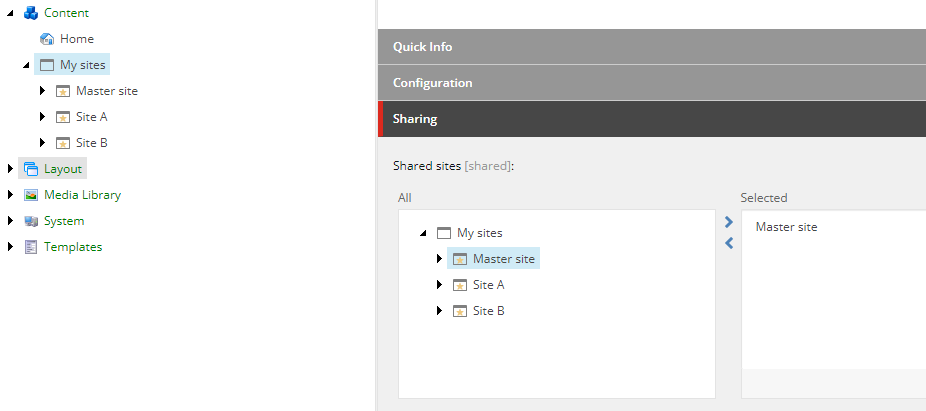
In this example, the headless Master site is now a shared site. The other sites within the same site collection can now use partial designs, page designs, and data sources from the headless master site.
Enable cross-site linking for headless sites
The Link rendering lets content authors add links to sites. Links can be internal links, media links, external links, anchors, an email address, and JavaScript. To link within site collections and sites, you must adjust the site settings.
To enable cross-site linking for headless sites:
-
Set the link root location by navigating to sitecore/Content/
/ and, in the Site Configuration section, in the Link Settings field, select one of the following options:/Settings Link settings field option Link root location Itself only Default value. The available link root location comes from the current site. Linkable sites in site collection All linkable sites within the current site collection. All linkable All linkable sites within all site collections. -
To make a site linkable, navigate to sitecore/Content/
/ , and in the Basic section, select the Linkable Site check box./Settings/Site Grouping/
Share headless content as a delegated area
As well as sharing page designs, partial designs, and data sources between sites in the same site collection, you can also share pages. Sharing content as a delegated area lets you control the content from one central location in the content tree.