Enable or disable language codes in sitemap URLs
If your pages exist in different languages, consider whether you want the URLs written to the sitemap to contain language codes. Adding language codes helps the search engines determine the language of a page. This means that internet users are more likely to find relevant content in their preferred language.
You configure language embedding for each site.
You can configure this feature in the following ways:
- Default - pages in all languages, except for the default language, get a language code.
- Always - pages in all languages get a language code.
- Never - regardless of the language, no page gets a language code.
To enable or disable language codes in the sitemap:
-
Decide the desired behavior for this feature: default, always, or never.
-
Create a patch file in the SitecoreAI project.
-
Create a new .config file under
authoring/platform/App_Config/Include. For example:
-
-
Add SXA link providers via the patch, as in this example:
-
Deploy the configuration.
- Commit the patch file to the repository.
- Deploy the SitecoreAI project (for example, via Sitecore Deploy).
Patch files are applied during deployment and merged into the runtime configuration.
-
In the Content Editor, navigate to sitecore/Content/[site collection]/[site]/Settings and click the Sitemap item.
-
In the URL options section, in the Link provider name field, do one of the following:
-
To use the default setting, leave the field empty.
-
To enable language embedding for all languages, enter the name of the custom link provider, where languageEmbedding equals
always, for example,lpCustomAlways.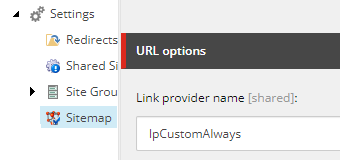
-
To disable language embedding for all languages, enter the name of the custom link provider, where languageEmbedding equals
never, for example,lpCustomNever.
-
-
To test that language embedding has been configured correctly, publish the site and view the sitemap.
Language embedding set as described here is overruled by the language embedding configuration selected in the site settings.