Manage sites
In Channels, you can manage site settings by clicking Options > Settings for the desired site.
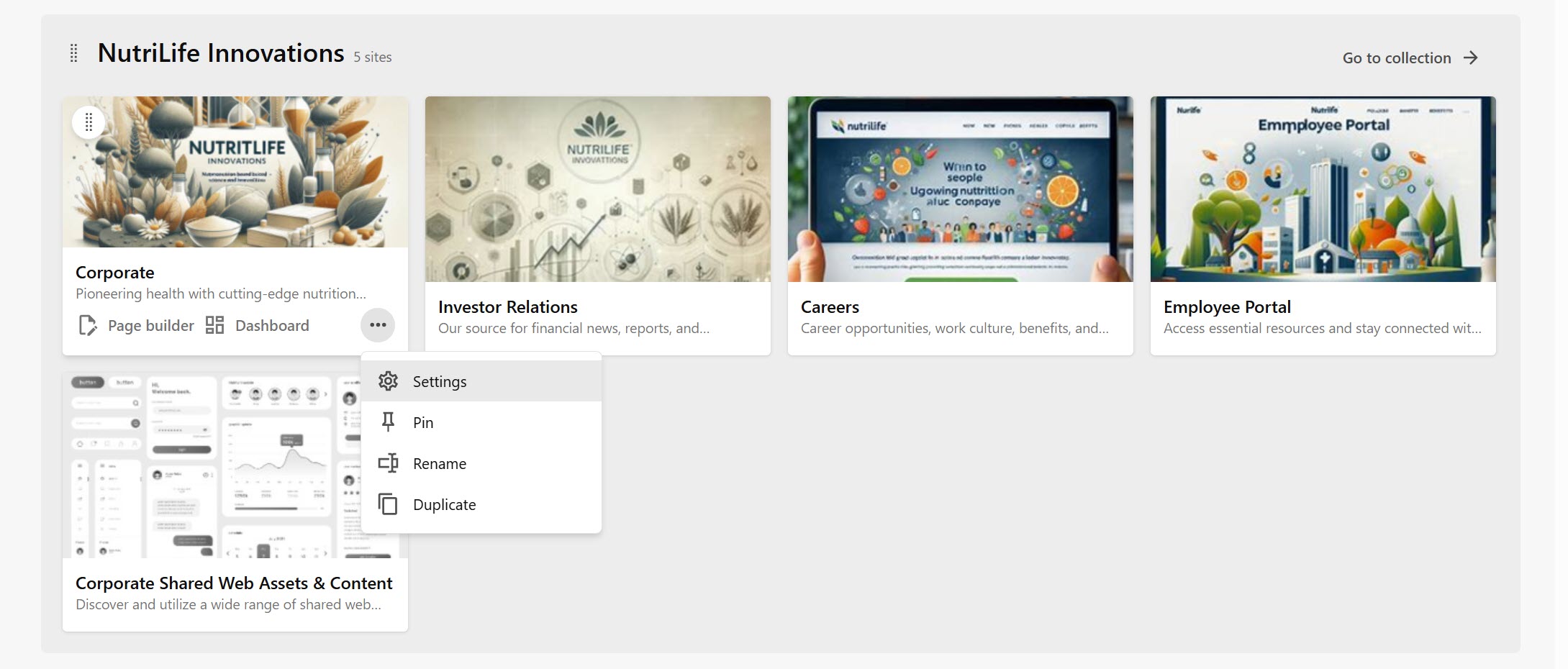
In the Settings tab, you can:
- Manage General site settings, such as the site name and thumbnail.
- Define the Site host by specifying a specific homepage, a default language, and various hostnames for the site.
- Delete the site.
To create and manage sites and site collections, you must have the Admin or the Sitecore Client Site Managing role. Contact your system administrator to request the access rights as needed.
Manage general site settings
You can manage site settings by clicking Options > Settings for the desired site. Additional settings, such as languages and hosts, are handled at the site host level.
In the general settings, you can manage basic site information such as:
-
Name and Description.
-
System name - used for underlying folders and back-end processes.
-
Thumbnail - this is generated automatically from the homepage. To create a custom thumbnail, you can click Upload to upload a
PNGorJPGimage that you can crop and zoom as needed.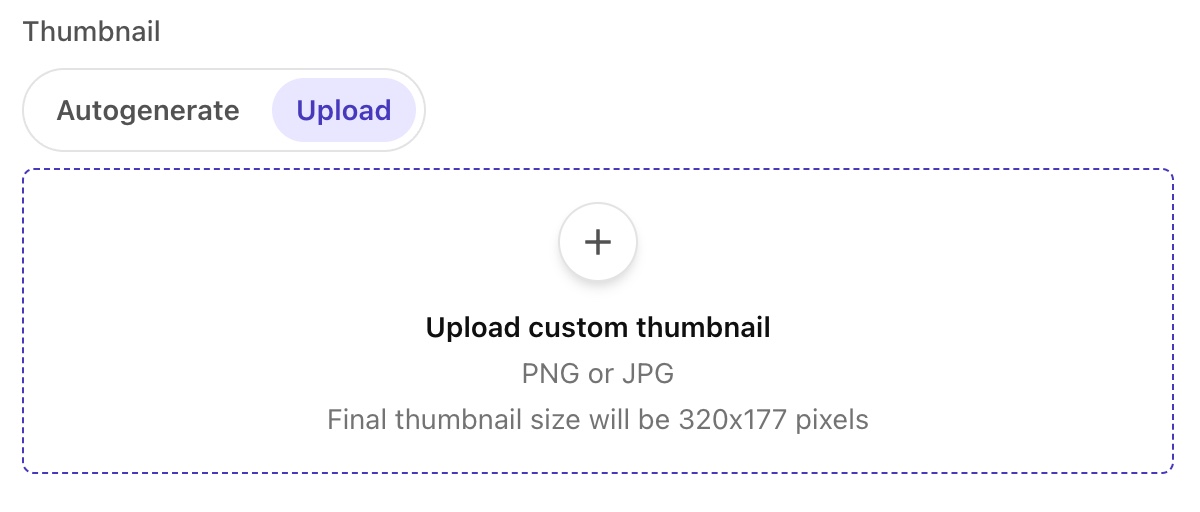
Manage hosts
To be published online, each site must be given at least one hostname, and it must be assigned a front-end application used to display it to your audience.
To manage site hosts:
- In the left hand pane, click Site hosts.
- In the site hosts table, click the name of the site host.
- In the settings tab, you can manage the following:
-
Name of the site host. This is usually the same system name as the original site.
WarningIt is possible to edit this site host name, but doing so for a published site might break the live website.
-
Default language for the site host. In the drop-down list, click the language you want to use as default for this site host. The list contains all languages and locales that are enabled for the environment.
-
Language embedding. If you select this option, the 2-digit code of the default language for the site will be added to the hostname in the URL. Here's an example en indicates that the language is English: https://example.com/en/about-us.
NoteThis parameter enforces language embedding for a given site, no matter what settings are specified in other places, for example, in the
languageEmbeddingsetting on the localizedProvider, or in thelanguageEmbeddingsetting on the urlBuilder. -
Homepage of the site, which is the page the site visitors will see when accessing the hostname URL.
-
Hostname, which is the URL that the site resolves to when accessed by website visitors, as defined in your front-end hosting service. You can add several hostnames for the same site.
-
Target hostname is the unique hostname that you want to use for generating URLs for pages, links, and sitemaps. It is needed for generating sitemaps for your live sites.
WarningA site can have multiple site hosts as long as they share the same target hostame.
Using "*" in the target hostname causes errors during publishing.
-
Editing host, where you choose the front-end application that is used for render the site in the editing interface like Pages. You can use the default provided by Sitecore, and change it later.
-
Other properties fields can be used by a developer to customize the site by adding additional attributes as key-value pairs.
-
Delete a site
If you delete a website, it will no longer be accessible to any users. All the following associated items will also be deleted:
- Pages
- Settings
- Media files
- Data sources
- Presentation elements
- Dictionaries
- Components, variants, and page designs
Deleting a site may affect related websites in the collection. If the site shares items with other sites, this might result in broken links. Items that are cloned to other sites are turned into regular items, and the links removed.
To delete a site:
- In the general settings, in the Danger zone section, click Delete site.
- In the warning dialog, enter the name of the website and click Delete. The website is deleted and removed from the environment.