- SitecoreAI development
Scheduled tasks
The built-in scheduler in SitecoreAI allows you to run periodic background operations without editing configuration files. Tasks are defined as items in the content tree (database), making them easy to manage, version, and deploy.
Two Sitecore item types participate in scheduled task execution:
- Command items
- Schedule items
Command items
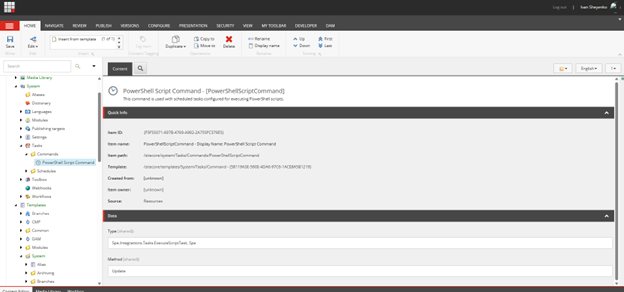
A Command item defines what code should be executed. It is located in /sitecore/system/Tasks/Commands.
A Command item points to an executable code and includes the following fields:
- Type - the assembly-qualified class name.
- Method - the method Sitecore should invoke.
Schedule items
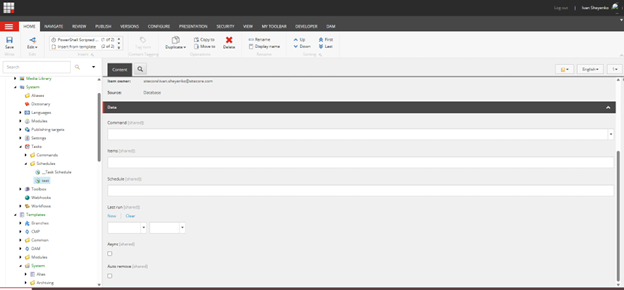
A Schedule item defines when and how often the command runs. It is located in /sitecore/system/Tasks/Schedules.
A Schedule item includes the following fields:
- Command - reference to the associated Command item.
- Items - a query used to fetch items passed into the command.
- Schedule - a pipe-separated string that defines execution timing.
- Async - if enabled, runs the task in a background thread as a Sitecore Job.
- Auto remove - automatically deletes the schedule after expiration.
- Last run - timestamp of the most recent execution.
Schedule field format
The Schedule field on a Sitecore Schedule item uses a pipe-separated (|) four-part syntax:
Example:
Field breakdown
The following table describes each field in the Schedule item syntax.
| Field name | Description | Format | Example |
|---|---|---|---|
| StartDateTime | Defines when the schedule becomes active. | yyyyMMddTHHmmss | 20260220T000000 Meaning: February 20, 2026 at 00:00 |
| EndDateTime | Defines when the schedule expires. | yyyyMMddTHHmmss | 99990101 Meaning: This value is commonly used to indicate that the schedule does not expire. |
| DaysOfWeek | A numeric bitmask that specifies the days on which the task should run. | Each day has an assigned bit value: Sunday = 1 Monday = 2 Tuesday = 4 Wednesday = 8 Thursday = 16 Friday = 32 Saturday = 64 To combine multiple days, sum their bit values. | 127 = 1 + 2 + 4 + 8 + 16 + 32 + 64 Meaning: The task runs every day of the week. |
| Interval | Defines how frequently the task runs. Note Sitecore uses interval-based polling rather than clock-time execution. | d.HH:mm | 1.02:05 Meaning: The task runs every 1 day, 2 hours, 5 minutes, and 10 seconds. |
How Sitecore determines when a task runs
Sitecore does not use a cron‑style (absolute time) scheduler. Instead, it uses interval-based execution.
The scheduling process works as follows:
- The system polls the database at regular intervals (default: every 10 minutes).
- If a schedule is due, the associated command runs.
- Tasks cannot be triggered at an exact minute.
If the Last run field contains a value, the next execution is calculated from that timestamp plus the configured Interval.
When you modify or reschedule a recurring task:
-
The system does not automatically reset the Last run field.
-
If the time between the current Last run value and your newly scheduled StartDateTime is less than the Interval, the first execution after rescheduling will be skipped.
To ensure execution at the newly configured start time:
You must clear the Last run field.
Create a scheduled task
Use the following procedure to create a scheduled task.
-
Write task code
Create a class containing the logic you want to automate.
Simple example:
Example with parameters:
-
Create a Command item
Create a new Command item:
- Path -
/sitecore/system/Tasks/Commands/ - Template -
/sitecore/templates/System/Tasks/Command - {58119A3E-560E-4DA6-97C6-1ACE8A5B1219}
Configure the fields:
- Type -
Namespace.ClassName, Assembly - Method -
Execute
- Path -
-
Create a Schedule item
Create a new Schedule item with the following details:
- Path -
/sitecore/system/Tasks/Schedules/ - Template -
/sitecore/templates/System/Tasks/Schedule - {70244923-FA84-477C-8CBD-62F39642C42B}
Configure the fields:
- Command - link to your new Command item.
- Schedule - a string that defines the timing.
- Items - optional query
- Async - enable if background execution is recquired.
- Path -
Verify task execution
You can verify that a scheduled task has executed by:
-
Checking the Last run field
Ensure it has been updated with a recent timestamp.
-
Reviewing logs
Review SitecoreAI logs for task execution entries. Look for entries similar to: