- GraphQL APIs
Set up the GraphQL IDEs
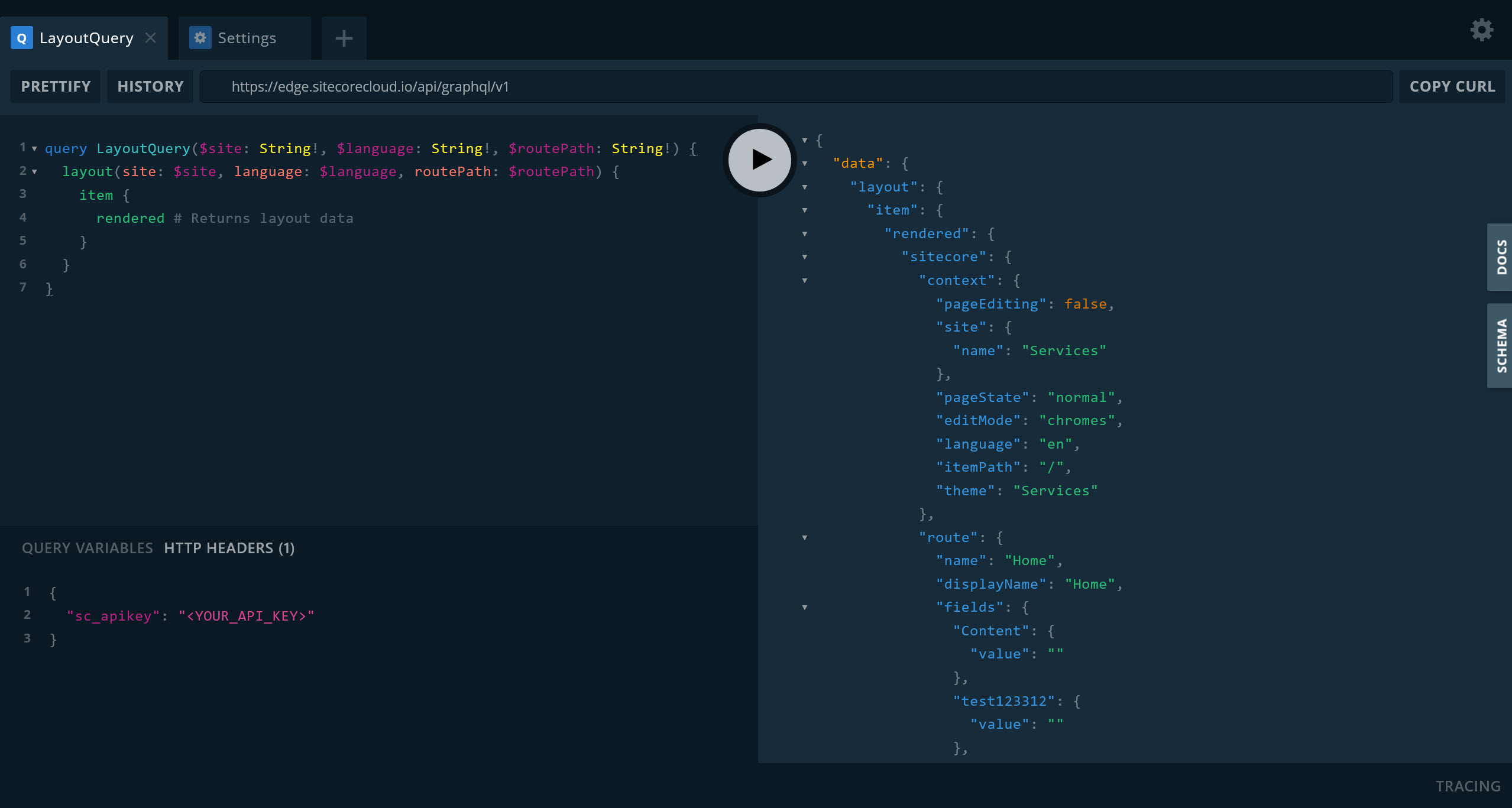
The GraphQL IDE (GraphQL Playground) is a graphical, in-browser IDE that lets you explore GraphQL APIs, make queries, and inspect and understand the response structure. The IDE is especially useful for testing queries during development, before you use them in your application.
The GraphQL IDE is available for the Preview GraphQL API and the Delivery GraphQL API, two read-only APIs that let you retrieve Sitecore content.
The GraphQL IDE is also available for the Authoring and management GraphQL API, which lets you both retrieve and modify Sitecore content.
To set up the GraphQL IDE:
-
On the Sitecore Cloud Portal home page, in the QUICK LINKS section, click SitecoreAI Deploy.
-
In the Deploy app, on the Projects page, click the relevant project.
-
Click the environment where you want to use the GraphQL IDE.
-
Do one of the following, depending on the API you want to access:
-
Preview GraphQL API - on the Details tab, in the Preview GraphQL IDE section, click Generate Preview API token, and copy the token. You'll use the token in the GraphQL IDE in a later step.
WarningThe Preview API token is securely stored in
/sitecore/system/Settings/Services/API Keys/. If you delete or modify this item, you might break the Generate Preview API token button. -
Delivery GraphQL API - on the Details tab, in the Live GraphQL IDE (Experience Edge) section, click Generate Delivery API token, and copy the token. You'll use the token in the GraphQL IDE in a later step.
-
-
Do one of the following, depending on the API you want to access:
-
Preview GraphQL API - in the Preview GraphQL IDE section, click Launch IDE. The GraphQL IDE opens in a new tab.
NoteYou can also access the IDE by opening the following URL in your web browser:
https://<YOUR_ENVIRONMENT_HOST_NAME>/sitecore/api/graph/edge/ide/Replace the placeholder with your environment host name. Find the value on your environment's Details tab.
If you're using Docker for Sitecore development, you can also use localhost to access the GraphQL IDE for the Preview API.
-
Delivery GraphQL API - in the Live GraphQL IDE (Experience Edge) section, click Launch IDE. The GraphQL IDE opens in a new tab.
NoteYou can also access the IDE by opening the following URL in your web browser:
https://edge.sitecorecloud.io/api/graphql/ide
-
-
In the GraphQL IDE, on the HTTP HEADERS tab, type the following code, replacing the API token placeholder with the token you copied in a previous step:
You can now start making GraphQL queries in the IDE.
Make a query
After setting up the GraphQL IDE, you can start making queries.
Here's an example query that retrieves information about all your sites, including every site name, language, and root path:
Use query variables
Using query variables is a best practice because they are cached for re-use and help prevent injection vulnerabilities.
Here's an example query that retrieves the complete layout data (page representation) for a page by its path. Note that the query uses GraphQL variables for $site, $language, and $routePath.
To run this query, you must first specify the variables and their values on the QUERY VARIABLES tab:
This lets you specify and update commonly used values in one place, and reuse them across your queries.
Access the GraphQL schema
A GraphQL schema is the contract that defines every type, field, argument, and relationship the API exposes. It's written in SDL (Schema Definition Language), and it's the single source of truth for what queries are valid and what shape the responses will take. You can download the GraphQL schema from the IDE and use it in your development environment to set up local tooling such as query validation, autocompletion, or type generation.
The schema file is especially useful for searching through it, copy-pasting a type definition, or letting an LLM read it so you can ask questions about it.
To access the GraphQL schema:
- In the GraphQL IDE, on the right-hand side, click SCHEMA. The GraphQL schema appears.
- Optionally, to download the schema, click DOWNLOAD, and select one of the available formats:
- JSON - to download the schema as a JSON file.
- SDL - to download the schema as an SDL (.graphql) file.
Access the GraphQL reference documentation
The GraphQL reference documentation is a navigable, human-friendly reference. It's especially useful for navigating queries and reading type and interface details.
To access the GraphQL reference documentation:
- In the GraphQL IDE, on the right-hand side, click DOCS. The GraphQL reference documentation appears.
- To start navigating, click a root query. As type, interface, and argument details appear, click the ones you want to learn more about.
The GraphQL schema and the reference documentation both use the same underlying data. The main difference is that the schema is machine-readable and ideal for searching, while the reference documentation is human-readable and ideal for navigating the GraphQL implementation.