Configure SitecoreAI instance
The 2 Configure SitecoreAI instance page is where you configure the target SitecoreAI environment and site, and initialize the migration process.
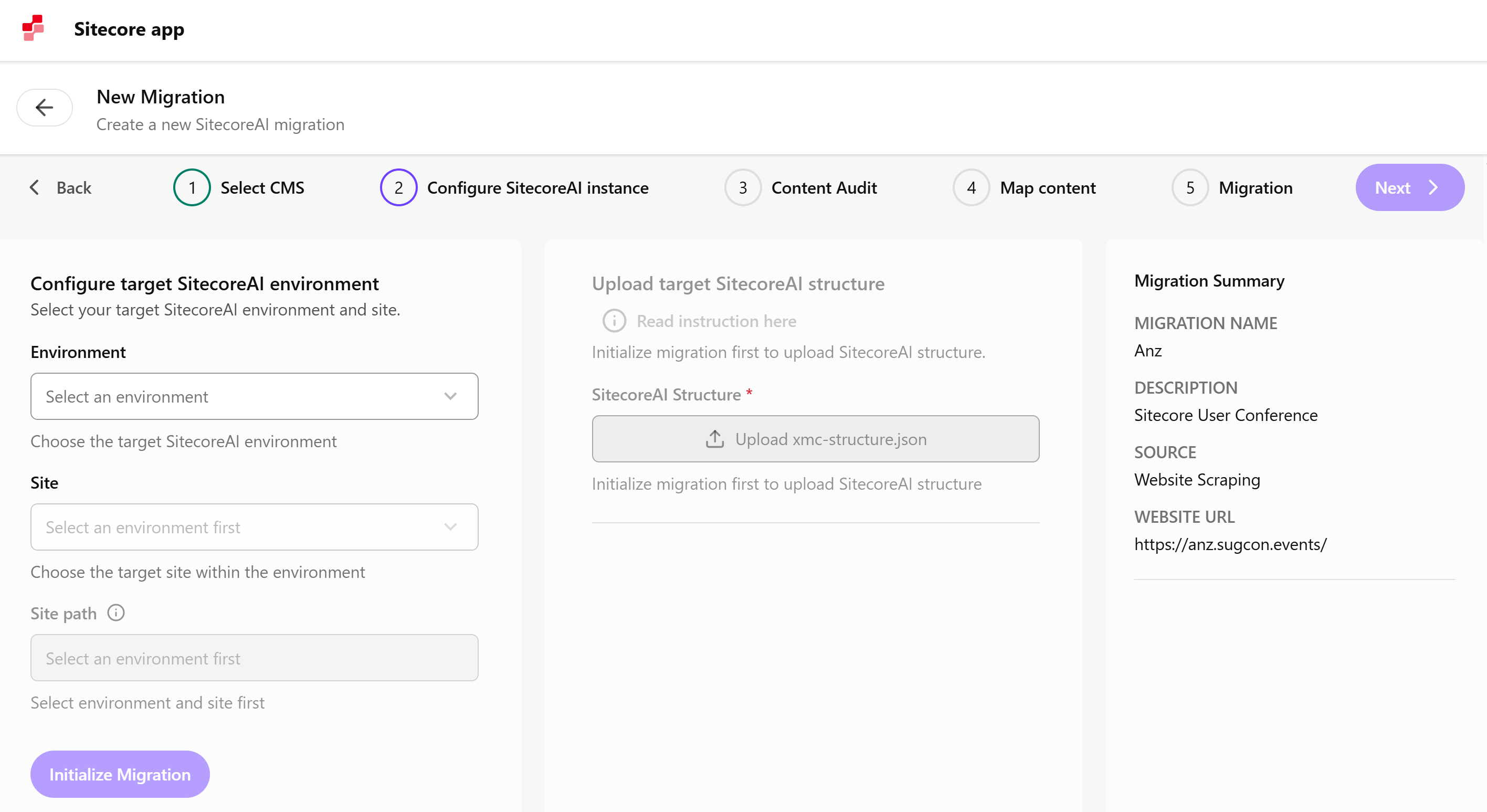
To configure the SitecoreAI instance:
-
On the Configure SitecoreAI instance page, in the Configure target SitecoreAI environment pane, from the Environment drop-down list, select the target SitecoreAI environment.
-
From the Site drop-down list, select the site you want to migrate.
-
In the Site path field, specify the path to the site (for example,
sitecore/content/sugcon/anz).To see the site path, open your site in the SitecoreAI Content editor and navigate to Content > <YOUR_SITE> > pathway-target-site. In the Quick Info section, copy the Item path.
-
Click Initialize Migration.
-
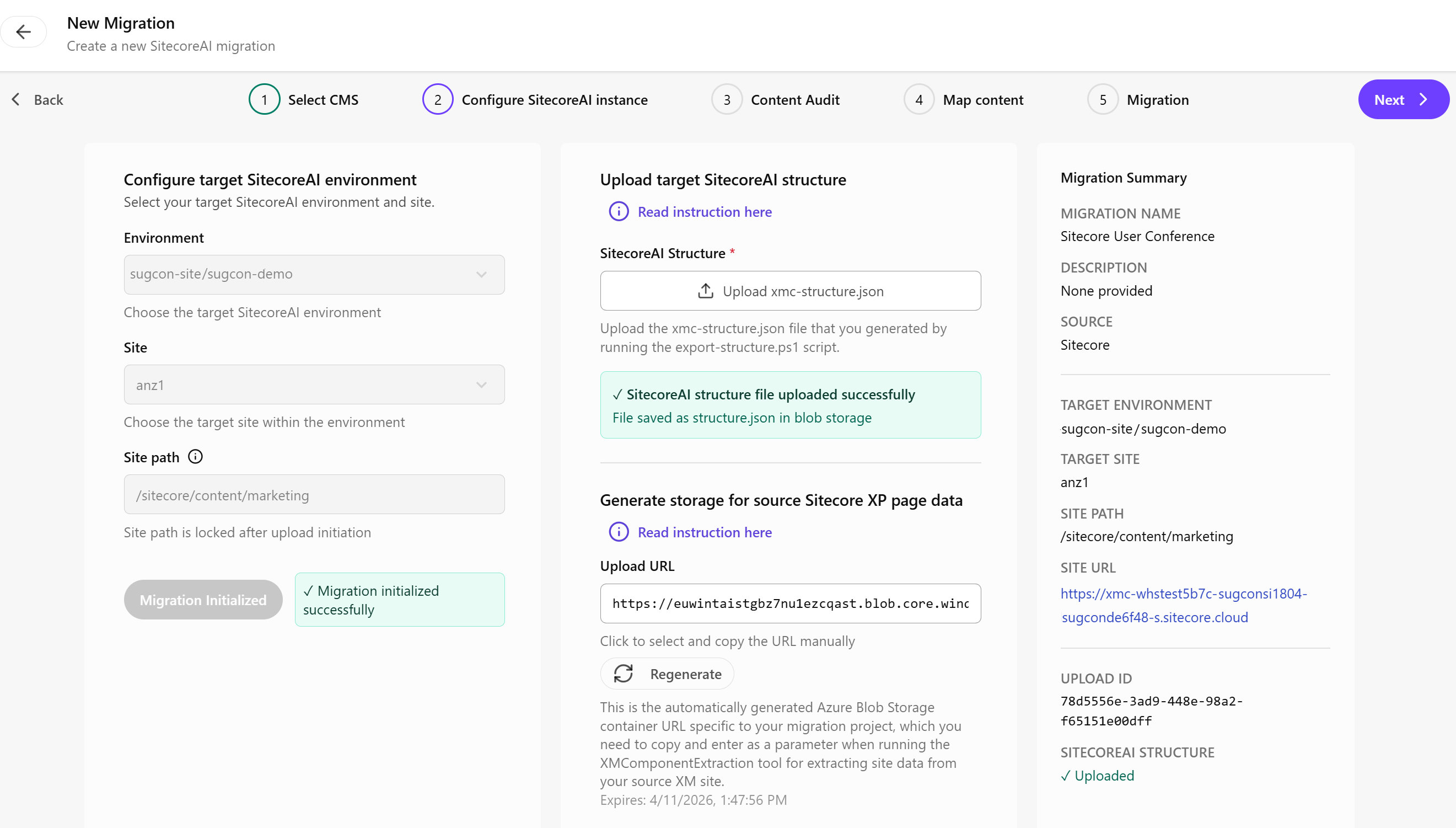
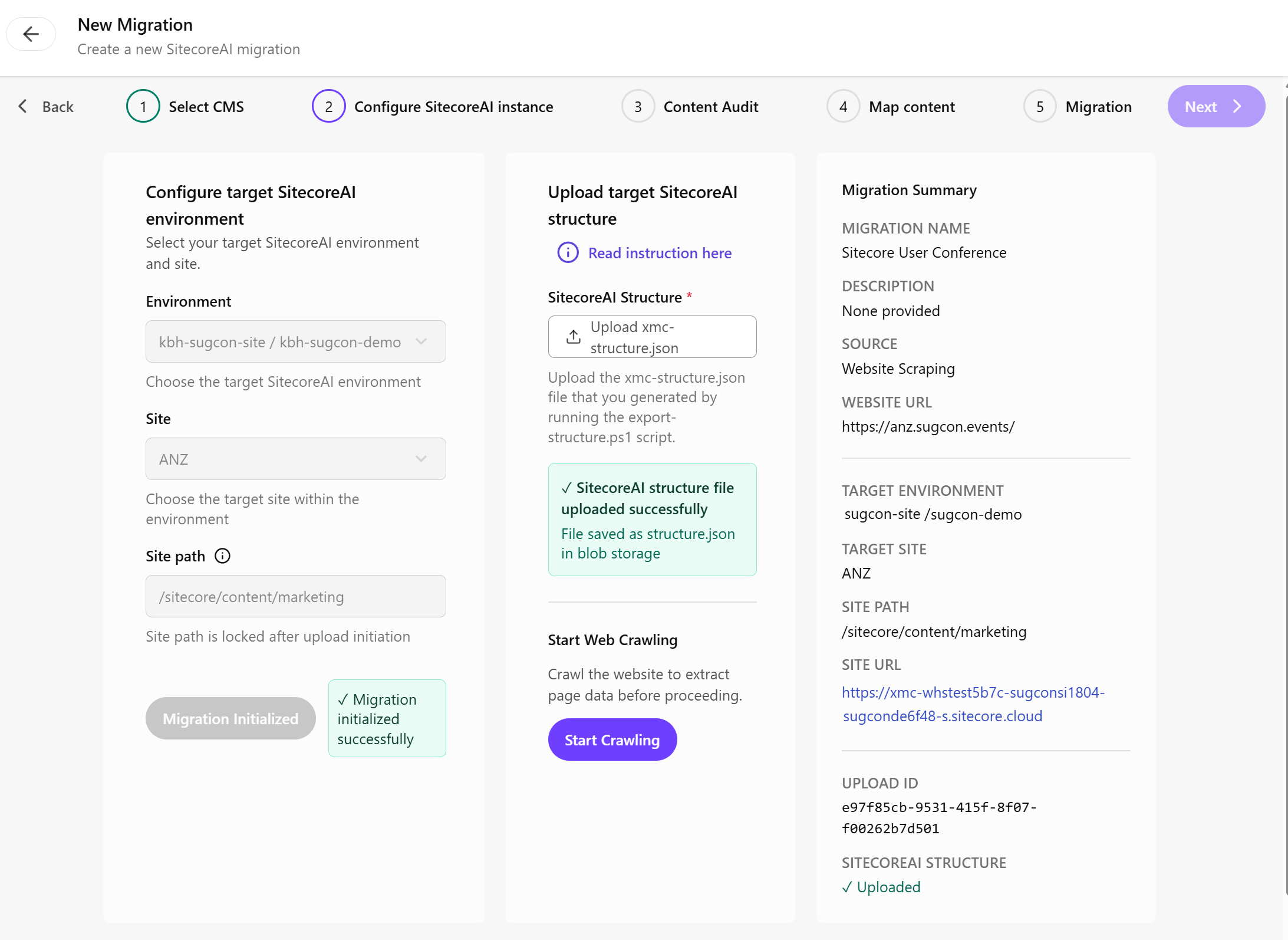
In the Upload target SitecoreAI structure pane, click Upload xmc-structure.json file to upload the target structure definition. If you have not yet created the
xmc-structure.jsonfile, click Read instructions here and download theCMSExportStructure-x.x.x.zippackage to export the site structure file. In the Upload target SitecoreAI structure dialog that opens, click Read instructions here for additional information on thexmc-structure.jsonfile, including troubleshooting. -
If you chose:
-
Sitecore website as your source, generate an upload URL, and then click in the Upload URL field, and copy it to the clipboard. This is used when you extract the site data.
-
Any website as your source, in the Start Web Crawling section, click Start Crawling to extract the page data.
-
-
When all steps are successful, click Next.