- 2. Configure SitecoreAI instance
Export the site data from the source environment
This process exports all items from the Sitecore site source environment and uploads them to Azure Blob Storage, where they can be accessed by the SitecoreAI Pathway app.
When migrating Sitecore websites, you must have Admin access for XM/XP to change the security settings in the config and upload the extraction handler. You must also have .NET 10.0 installed.
With non-Sitecore websites, this procedure is not needed as the site data is extracted using a crawler.
To export the site data from the source environment:
-
Unpack the
SXPSiteExtractiondownloaded from the SitecoreAI Pathway app. -
In your CM server, locate the
AppConfig/Sitecore/ServicesClient/Sitecore.Services.Client.configfile and ensure that theSitecore.Services.SecurityPolicysetting has the valueSitecore.Services.Infrastructure.Web.Http.Security.ServicesOnPolicy.This change allows the extraction handler to access the required APIs.
IMPORTANTRevert this setting to its original value after the extraction is complete.
-
In your CM server, navigate to the
sitecore/admindirectory and upload theExtractorHandler.ashxfile that was part ofSXPSiteExtraction.zip. To verify the handler is accessible, send a request to the.ashxfile. A valid response indicates the handler is working correctly. -
On the Configure SitecoreAI instance page of the migration wizard, in the Generate storage for source Sitecore XP page data section, click in the Upload URL field and copy the Azure Blob Storage URL.
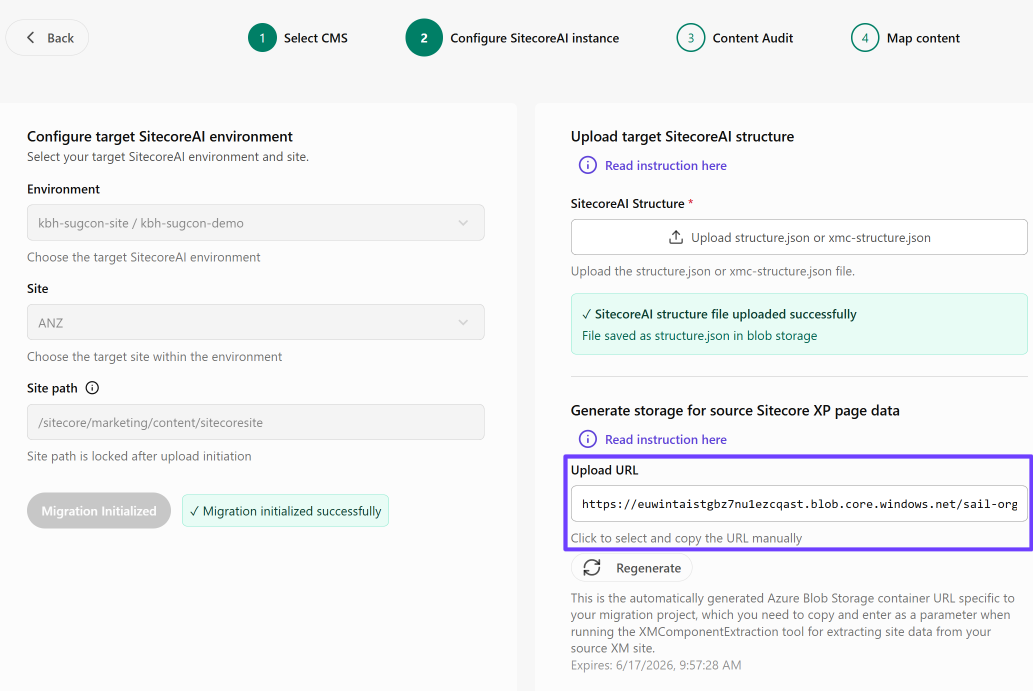
-
Open a terminal and run the extraction app (
Extractor.App.Con.exe) with the following parameters:CM Host- the hostname of the source XM/XP Content Management host.Username- the username of an admin account on the source XM/XP environment.Password- the password for the admin account.Upload URL- the Azure Blob Storage URL.
For example: