- 2. Configure SitecoreAI instance
Configure SitecoreAI instance
The Configure SitecoreAI instance page is where you configure the target SitecoreAI environment and site, and initialize the migration process. This page differs depending on whether you are migrating a Sitecore site or a non-Sitecore site.
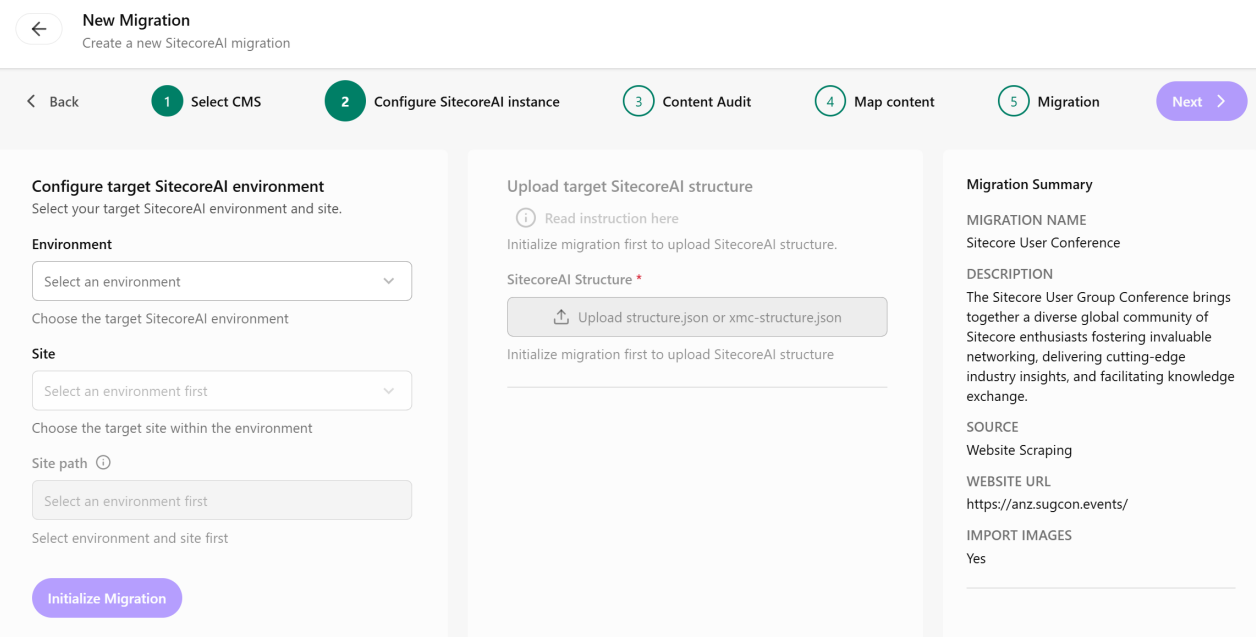
To configure the SitecoreAI instance:
-
On the Configure SitecoreAI instance page, in the Configure target SitecoreAI environment pane, from the Environment drop-down list, select the target SitecoreAI environment.
-
From the Site drop-down list, select the site you want to migrate.
-
In the Site path field, specify the path to the site (for example,
/sitecore/content/sugcon/anz).To see the site path, open your site in the SitecoreAI Content editor and navigate to Content > <YOUR_SITE> > pathway-target-site. In the Quick Info section, copy the Item path.
-
Click Initialize Migration.
-
In the Upload target SitecoreAI structure section, click Upload structure.json or xmc-structure.json to upload the target structure definition. If you have not yet created this file, click
 Read instructions here and follow the instructions to export your site structure file. If issues occur, refer to the troubleshooting section.
 -
If you chose:
-
Sitecore website as your source, in the Generate storage for source Sitecore XP page data section, click
Read instructions here and then generate an upload URL. Click in the Upload URL field, and copy it to the clipboard. This is used when you extract the site data.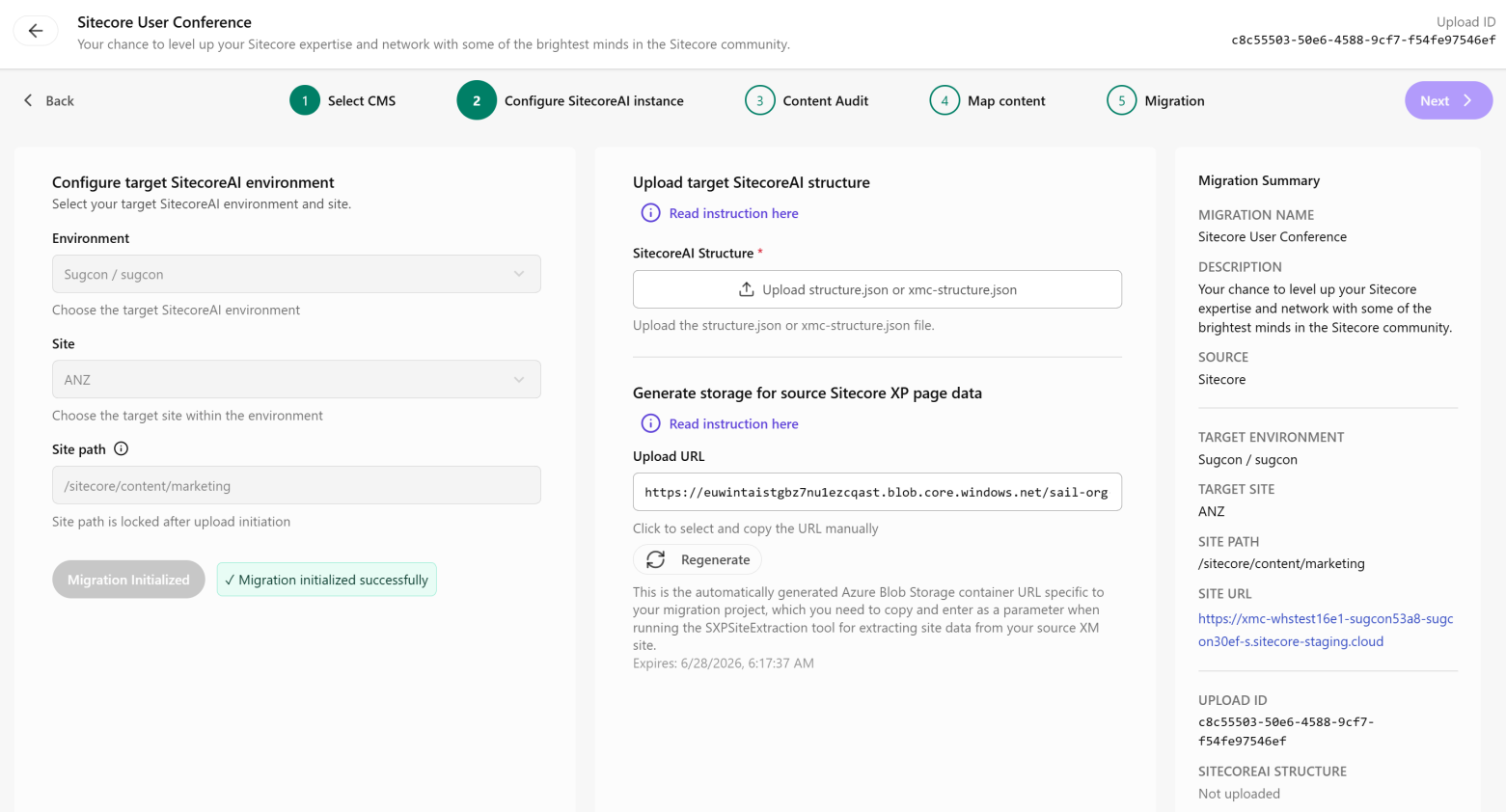
-
Any website as your source, in the Start Web Crawling section, click Start Crawling to extract the page data.
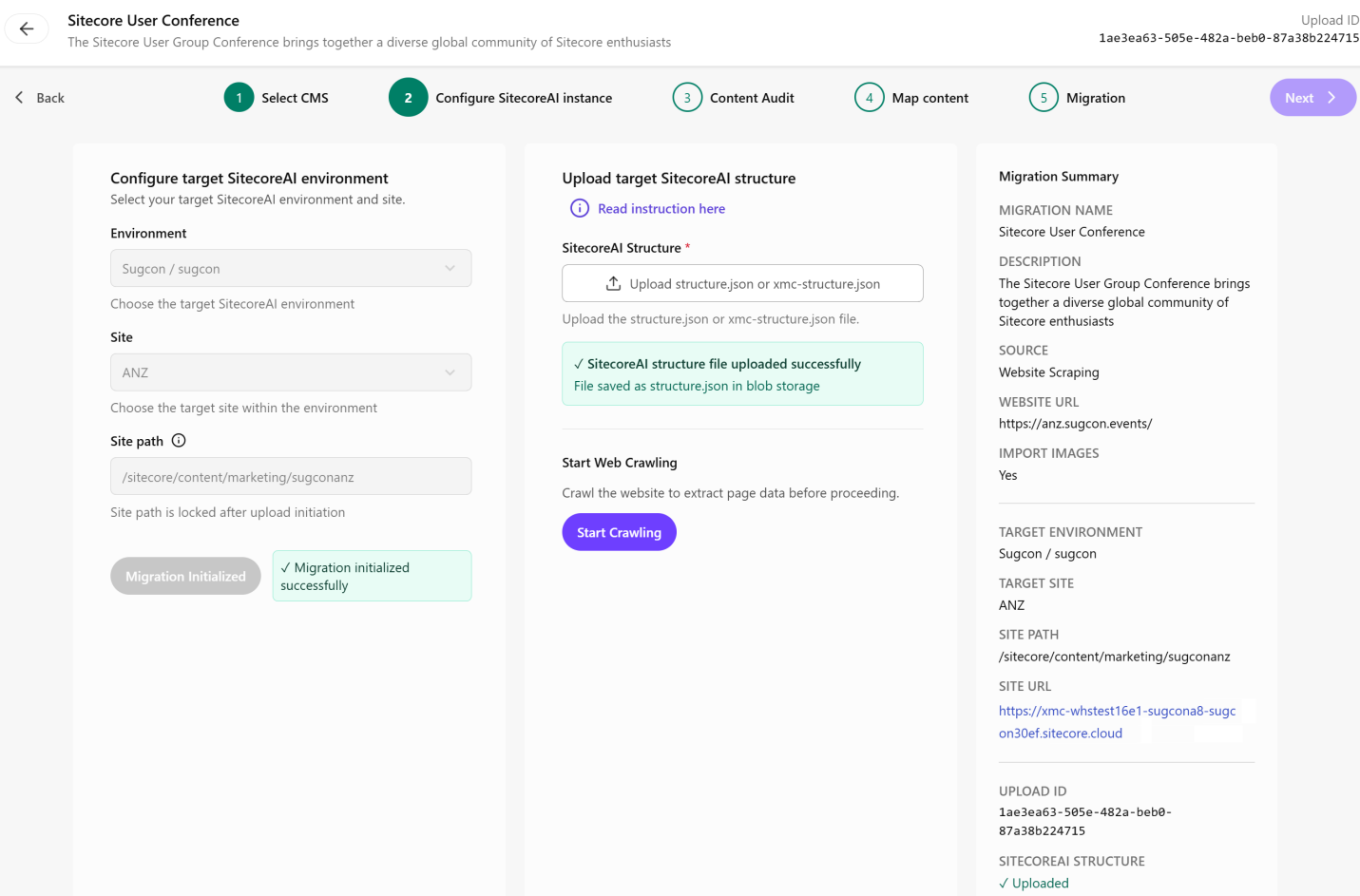
-
-
When all steps are successful, click Next.