- SitecoreAI development
Use a patch file to customize the Sitecore configuration
You can use patch files to add or change configuration settings in the Sitecore.config file. SitecoreAI merges the patch files with the Sitecore.config file to create the configuration file that is used at runtime.
This walkthrough describes how to:
- Create a patch file
- Control how settings are applied
- Control the load order of configuration files
- Apply the configuration
Create a patch file
To create a patch file to customize configuration settings:
-
Create a file in one of the two customizable layers:
- To customize default SitecoreAI settings in a way that is independent of the system environment, place patch files in the
<project root>/authoring/platform/App_Config/Include/folder (which belongs to the Custom layer). - To configure SitecoreAI for a specific environment, such as QA or Development, place patch files in the
<project root>/authoring/platform/App_Config/Environmentfolder (which belongs to the Environment layer).
- To customize default SitecoreAI settings in a way that is independent of the system environment, place patch files in the
-
Make sure the
App_Configfile and relevant layer directories (IncludeorEnvironment), and any custom configuration files, are explicitly included in the project in the development environment you are using, such as Visual Studio.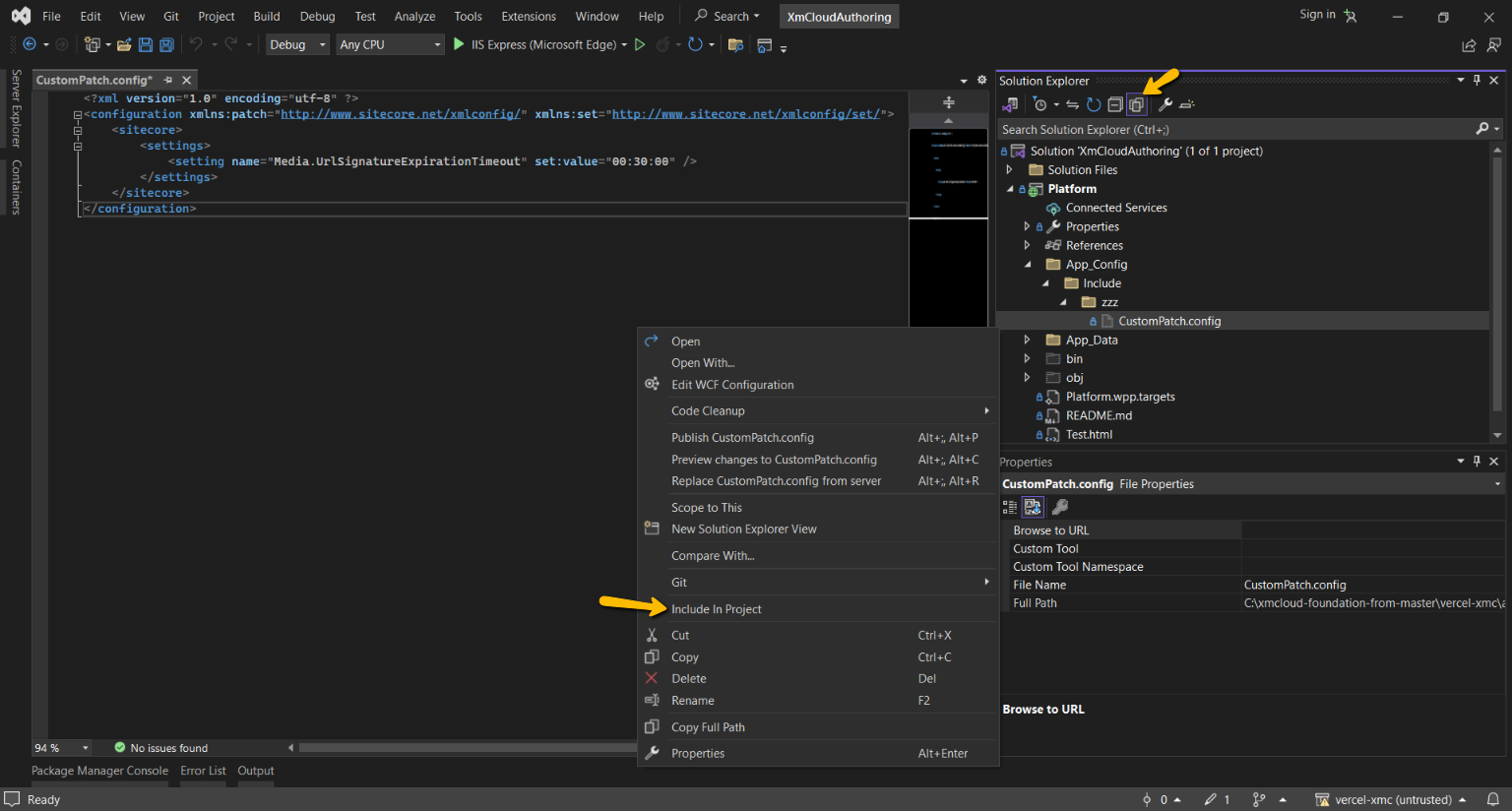
-
Give the patch file a name ending with the extension
.config. -
Start with this basic structure in the file:
-
In the
<sitecore>section of the patch file, add the setting changes that you want to add to the configuration.NoteYou can only patch settings in the
app_config/sitecore.configfile. Settings in other files such as theweb.configandapp_config/layers.configfiles cannot be patched. If you need to change the settings in these files, you must edit them directly.
Control how settings are applied
When SitecoreAI applies the changes from a patch file, it tries to match each element in the patch file to an element in the existing configuration using the combination of the element name and all the attributes of the element. If there is a match, SitecoreAI updates the existing element. If there is no match, SitecoreAI inserts a new element.
If a patch file element matches more than one element in the existing configuration, SitecoreAI applies the update to the first matching element that it finds. We therefore strongly recommend that you specify enough attributes of the element to uniquely identify it.
By default, SitecoreAI inserts new elements at the end of the configuration section that the elements belong to.
To control how SitecoreAI inserts elements:
-
Register the
patchandsetXML namespaces that enable you to use attributes to modify or add settings, by adding them to the<configuration>setting: -
Use a
patch:attribute to specify where the element is placed relative to existing elements, or to specify that it replaces or updates an existing element of the same name. You can use the following attributes:patch:before– inserts the element before the specified element.patch:after– inserts the element after the specified element.patch:attribute– defines or replaces the specified attribute of the element. You can achieve the same effect using thesetnamespace.patch:delete– removes the specified element.patch:instead– replaces the specified element.
For example, to add a site named
mysiteand place it before the existing site with the namewebsite, use the following syntax:
You can use examples of patch files to help you change the SitecoreAI configuration.
Control the load order of configuration files
The order in which SitecoreAI loads configuration files is important because the changes that a file makes can be modified or overwritten by files that load later. If SitecoreAI finds the same configuration setting in multiple files, the last file to load overwrites the previous versions of the setting.
To control the sequence in which the configuration files load within a layer:
-
In the /
App_config/layers.configfile, add a<loadOrder>setting to the layer's definition: -
Add the file folders or individual files inside the
<loadOrder>section in the order you want them to load:
When SitecoreAI encounters a <loadOrder> setting, it loads the configuration files in this order:
- Folders and files that are specified in the
<loadOrder>section load first, in the order they are listed. In the previous example, the files in the Folder23 folder load first, then thesitespecific.configfile, and then the files in the Folder1 folder. - Folders and files that are not specified in the
<loadOrder>section load second. They load in alphabetical order. Files that are placed in the root of a folder load before files within subfolders.
Apply the configuration
Lastly, push the changes to your environment. To do so:
- Follow the steps to deploy your changes to an environment.