Add or remove an element in a page
In Page builder, you can work on the layout of a page by adding or removing an element, or moving and reordering elements. When working with the Shared layout mode switched on, the changes you are making on the layout of the page are shared with all the different versions of that page.
Add a component to a page
In Page builder, you can add an element to a page: this includes components and forms.
Depending on the configuration of the page, there are different positions where you can insert an element:
- In an empty placeholder.
- Before or after a component that is already on the page.
There are three ways to add a component on a page: you can drag a component from the left-hand pane to an authorized location on the page canvas, you can use the plus button that appears in authorized position on the canvas, or you can use the elements hierarchy on the Layers tab.
To add a component to a page using the Components tab:
-
In Page builder, in Editor mode, open the page you want to work on.
-
Click the Components tab. The left-hand pane displays your components and the forms you have designed and activated in Forms.
NoteBy default, the components are grouped according to how they are organized in the app where they were built: in collections for the Component builder, and grouped as they are in the content tree of the Content Editor.
-
Select the component that you want to add and drag it to where you want to place it on the page.
-
As you drag the component, the cursor changes to a light grey color to indicate that you cannot add the component in the current position.
-
When you drag the component to a compatible placeholder, the cursor changes to a green plus icon.
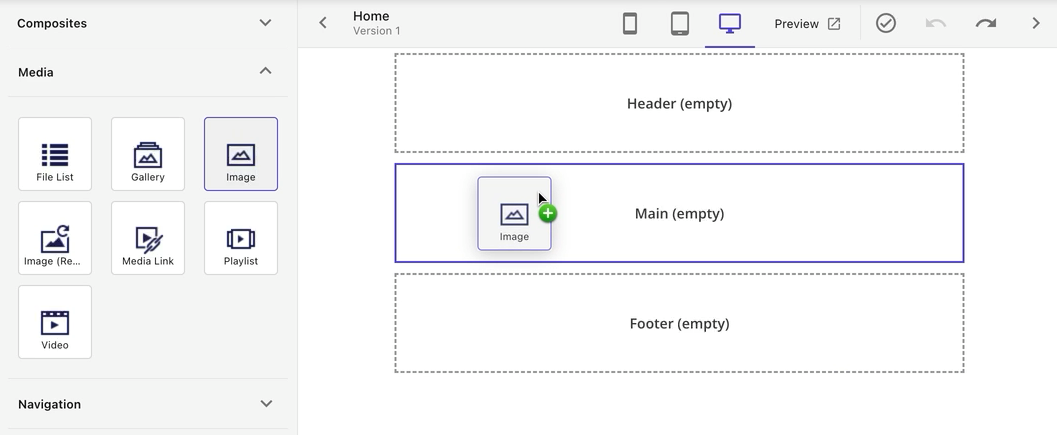
-
If you drag the component to a position where you can insert the component above or below a component that is already on the page, a blue tab with an arrow appears.
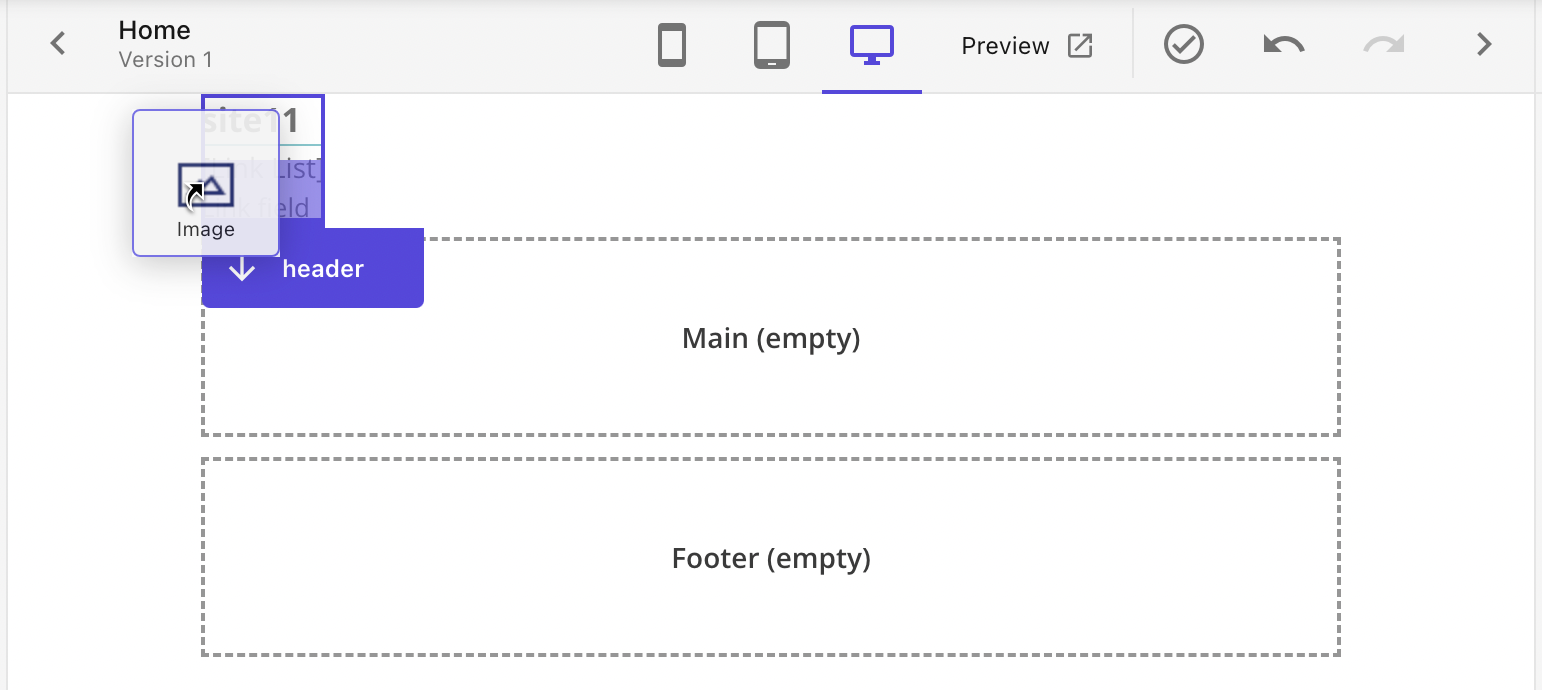
-
-
Release the mouse button to insert the component in the indicated position.
-
Now you can further configure the component using the options in the right-hand pane.
To add a component to a page using the canvas:
- In the canvas, move your cursor to a blue plus button. This indicates that the layout of the page authorizes adding a component in this position.
- Click Plus . A modal opens, and displays the list of authorized components for this particular location.
- Click on the component you want to add.
To add a component to a page using the layers hierarchy:
- In Page builder, in Editor mode, on the Pages tab, open the page you want to work on.
- In the left-hand pane, click the Layers tab to see the list of all elements included on the page.
- To add a component in a container (above or below existing components) directly in the layers list, click Plus . Only authorized components are available for you to add in a particular position.
Remove a component from a page
In the Pages editor, you can remove a single component from a page, or all components from a container.
If the element is not editable, for example, it is part of a page design or partial design, you cannot remove it from the page.
To clear a single component:
- In the canvas or in the layers list, click the component and click Delete .
To clear a container from all its components:
- In the canvas or in the layers list, click the container and click Remove all components .