Publish a page
When you edit or create new pages, you must publish your changes before they appear on your website. In Pages, when you publish a page, it is the current language version of the page and all related items that are published using the Smart publish process. This means that the page and related items are only published if it has changed since the last publication.
You can also choose to publish a page with all of its subpages, or with all of its language versions.
In the following example, you can publish the Page item alone or with its three subpages.
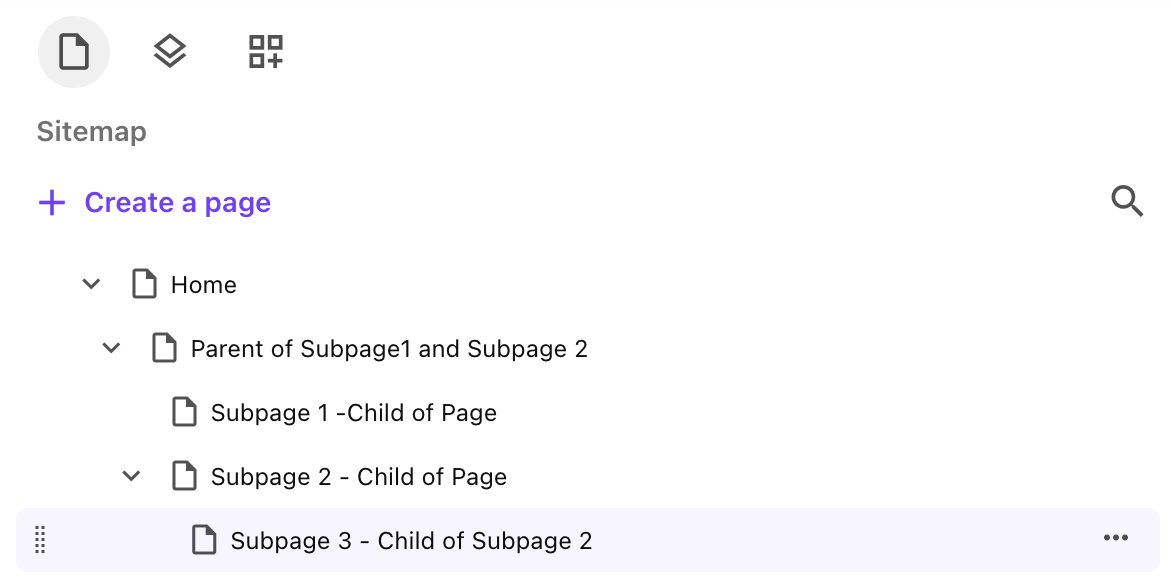
You can also choose the publish the page with all the items that it referred to, or just a selection of the referenced items. Because the page uses Smart publish, a selected item is only published if it has changed since the last publication.
If an item is in a workflow, it must be in the final state of the workflow before you can publish it.
Publish a page
To publish a page:
- In Pages, open the page that you want to publish.
- In the top right corner, click Publish.
- In the Publish pop up, you can click:
-
Subpages to also publish all of the page's subpages .
-
Current languages to publish the language version of the page currently open in the canvas.
To select additional languages, clear the check mark in Current language, then click Select languages. In the Select languages to publish dialog, click all the languages you want to publish, then click Save.
-
All references to also publish all of the page's referenced items. Click View references to open the Page reference items in the left-hand panel. Publishing all references might significantly increase the duration of the publishing job.
-
- Alternatively, you can click Select references. This opens a dialog where you can select manually one or more of the page's referenced items, then click Save. Back in the Publish dialog, you can see how many reference items you have selected.
- When you publish reference items, click Publish related items to also publish the reference items' related items. Publishing all related items can also significantly increase the duration of the publishing job.
- Click Start publish.
The page, and potentially the subpages, language versions, and selected references that have changed since the last publication will be published. You can check on the progress of the publishing job in the Publishing jobs table.