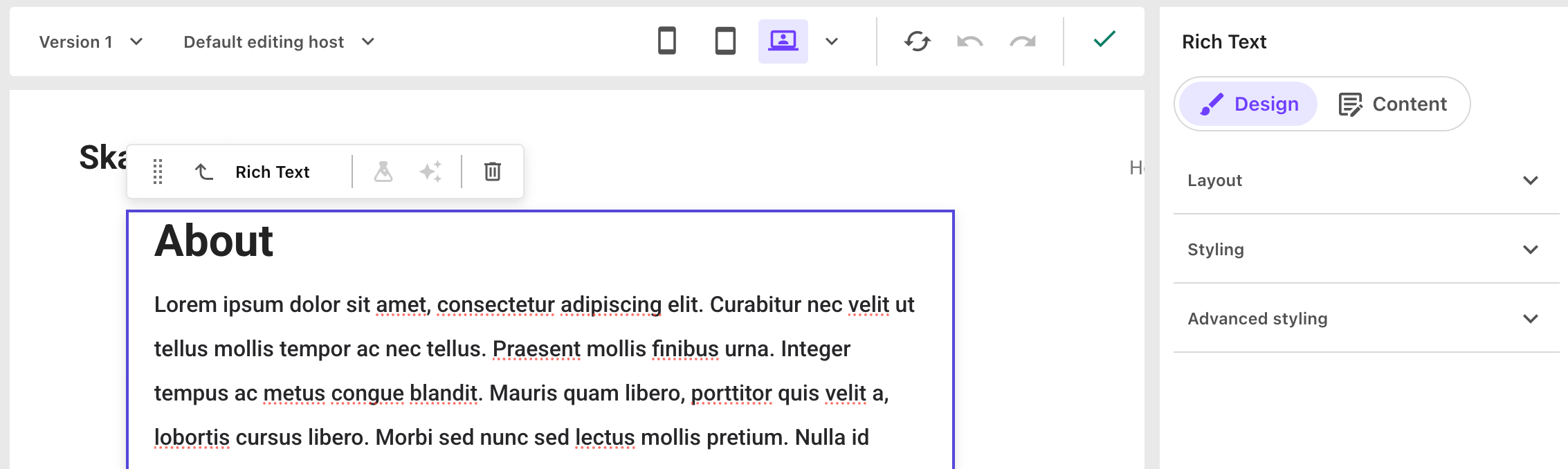
Selecting a component or placeholder
In the page builder, a component or placeholder can contain a field, another component, or another placeholder of the same size. To make it easier to select nested items, the left-hand pane of the page builder includes an interactive hierarchy of all the elements on the canvas. Similarly, when you select an element on the canvas, you can use the context toolbar to select the parent element.
Selecting an element using the layers hierarchy
On the left-hand side of the page builder, the layers tab offers an overview of the hierarchy of all elements on the page and lets you select the exact element you want to work on. Any of these elements can be selected and edited according to their own individual properties, providing a WYSIWYG page-building experience.
On the layers tab, elements with nested elements will appear with expand/collapse buttons, and all elements are expanded by default. Hover your mouse on an element on the tab to see it highlighted on the canvas, or click it to select it on the canvas.
Selecting an element in the canvas
When you click anywhere in the editor view in the page builder, the lowest-level element is selected and a context toolbar appears with the name of the element. You can click the arrow on the left-hand side of the context toolbar to navigate up to the parent of the currently selected element.
For example, in the following screenshot, a Text field is selected.
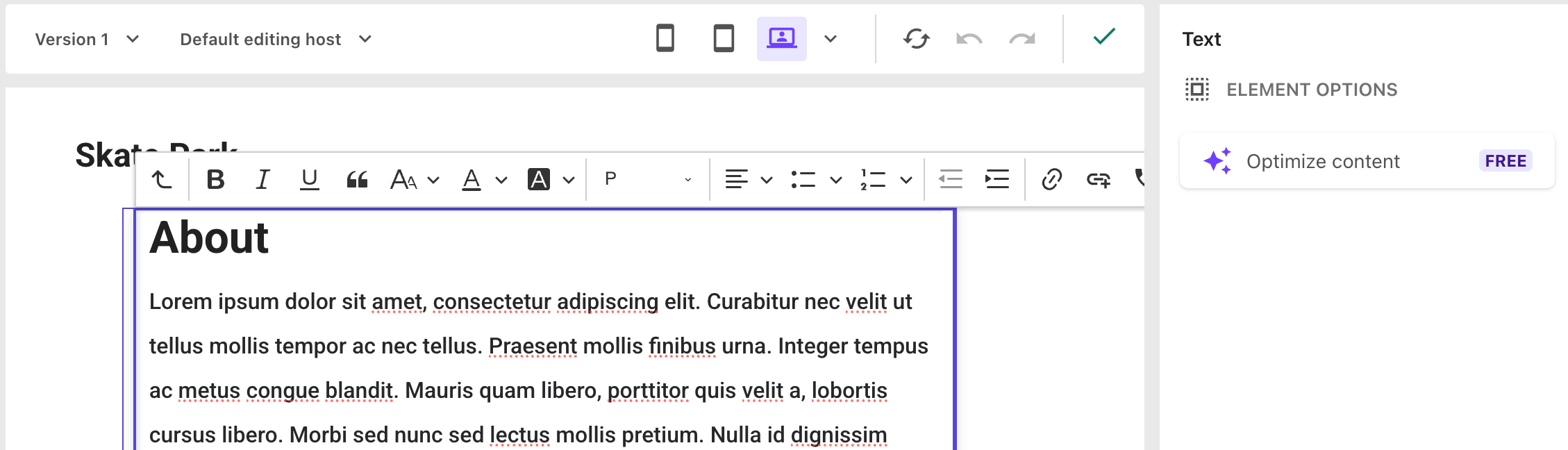
If you click the left arrow in the Text context toolbar, the component that contains the field (in this example, a Rich Text component) is selected.