Configure the Image tag attribute mapping in Sitecore
In Sitecore Connect for Content Hub, you can send any asset attributes from Content Hub as additional metadata for the assets synchronized to Sitecore.
By default, when you click Select in the Insert from DAM pop up, Sitecore generates an Image tag in the Image field.

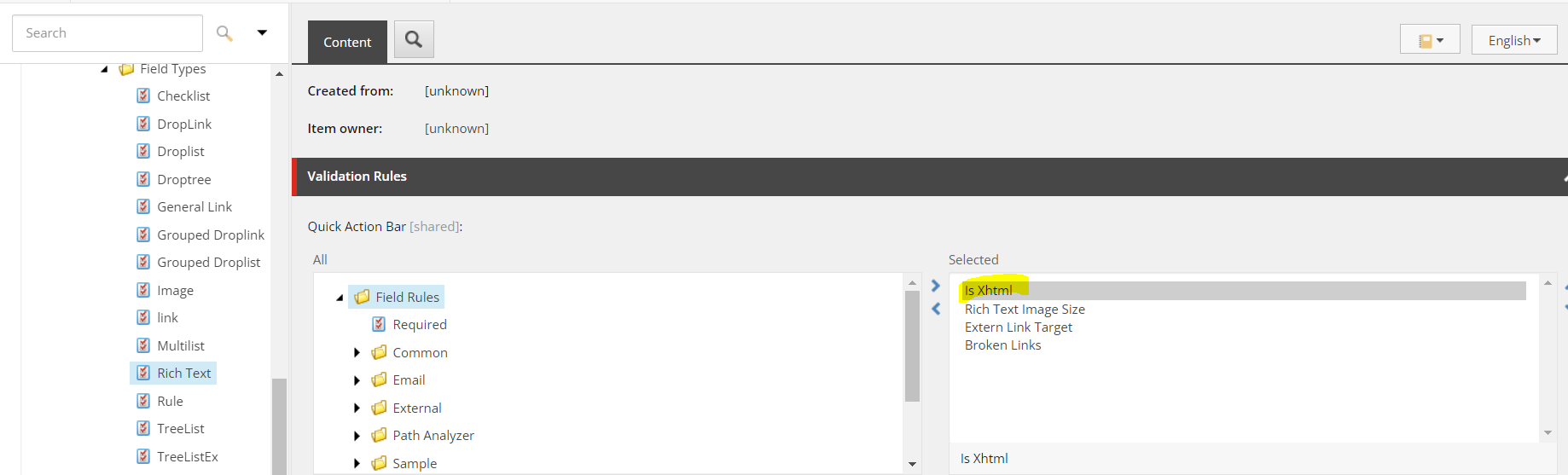
However, you can configure different attribute mappings on the DAM Image tag attribute as needed. You can add as many attribute mappings as you want.
Add a new attribute mapping
To add a new attribute mapping:
-
In the Content Editor, navigate to the /sitecore/system/Modules/DAM/Config/Mapping folder.
-
Right-click on the folder, click Insert, and then click Attribute. Enter the name for the new item, for example, Title.
-
On the Content tab, in the Data section, fill out the following fields:
Field Content Content Hub Property The name of the property on the M.Asset entity in Content Hub. Sitecore Attribute The attribute name in the Sitecore Image tag.The value in the Sitecore attribute field must follow XML attribute standards. Special characters, such as empty spaces or white spaces, are not allowed. NoteIf you use multilevel properties, for example,
"Description":{"en-us"...}, you must add the property name in the Content Hub Property field, for example,Description.en-us. -
Click Save.
-
To help select the property from the structure in Sitecore Content Hub, open a browser tab and enter the URL for the
M.Assetentity, for example,https://<your content hub URL>/api/entities/9782.NoteIn the example URL, replace 9782 with the ID of the entity you have selected.
The browser shows the content hub property in JSON, for example,
Title: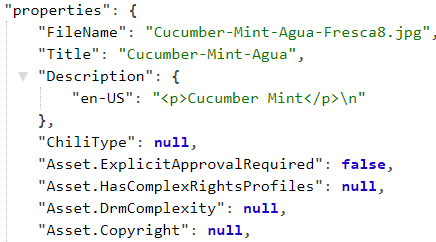
Edit an existing attribute mapping
To edit an existing attribute mapping:
-
In the Content Editor, navigate to the /sitecore/system/Modules/DAM/Config/Mapping folder.
-
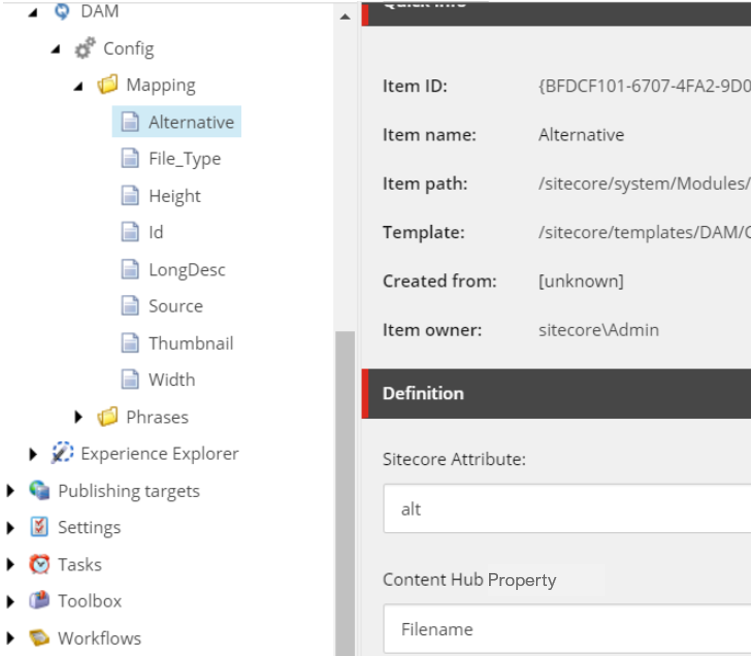
Select the attribute you want to change, for example, the Alternative item. On the Content tab, in the Data section, for example, set the Content Hub Property field to Filename:
-
Click Save.
Exclude DAM asset attributes from rendering
You can exclude a DAM asset attribute from being rendered when publishing a page to the content delivery (CD) server. You might want to do this, for example, to hide internal information about a DAM asset from external users.
To exclude a DAM asset attribute from rendering:
-
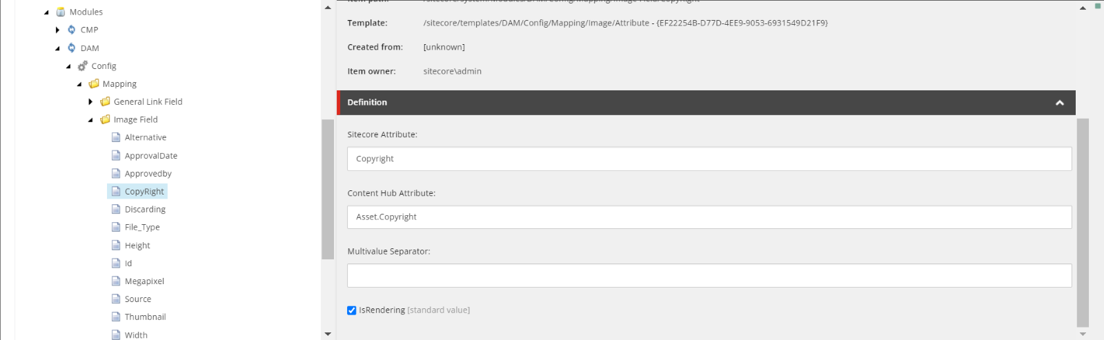
In the Content Editor, go to the desired attribute mapping item under
/sitecore/system/Modules/DAM/Config/Mapping/Image Field/.The following example uses the CopyRight attribute.
-
Clear the IsRendering check box.
Add mapping for a DAM asset with a multilanguage attribute
You can map a DAM asset attribute available in multiple languages so that it is also available in Sitecore in the required languages.
-
If it does not already exist, add the attribute mapping for the DAM asset.
-
Make sure that the required languages are defined in Sitecore. If needed, you can add a new language to Sitecore.
-
All languages used should have a attribute mapping version which is configured, or it may result in missing attributes.
To add mapping for a DAM asset with a multilanguage attribute in Sitecore:
-
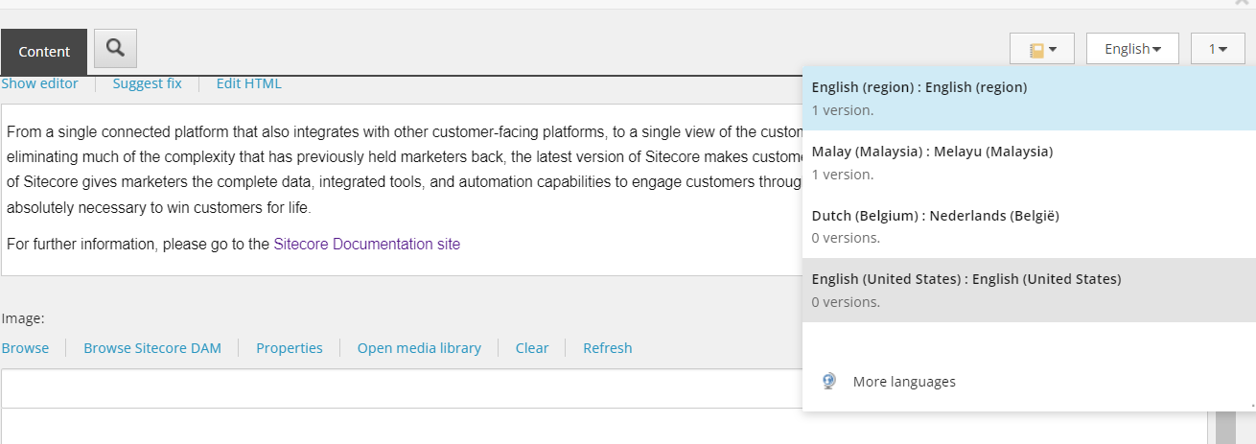
In the Content Editor, on the Content tab, click the language drop-down menu, and then click the desired language for the DAM asset attribute, for example, English US.
-
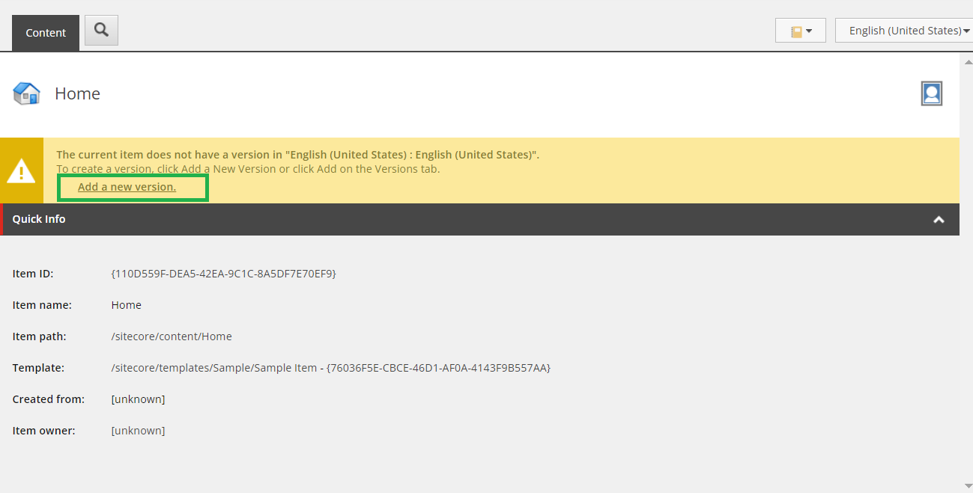
To add a new version of the item in the required language (for example, English US), click Add a new version.
-
To insert the DAM asset attribute in the required language, click Browse Sitecore DAM, and then select the item.
-
Click Save.
Map DAM multivalue fields
You can map DAM attributes that contain multiple values and separate them using a delimiter.
When Sitecore stores multiple values in a field, by default it uses a comma (,) to separate the individual values. You can change the delimiter to a different character.
-
In the Content Editor, navigate to an attribute mapping that has multiple values.
-
In the Multivalue Separator field, enter a delimiter. In the following example, the ActionLIst multivalue attribute is configured to use a comma (,) to separate values.
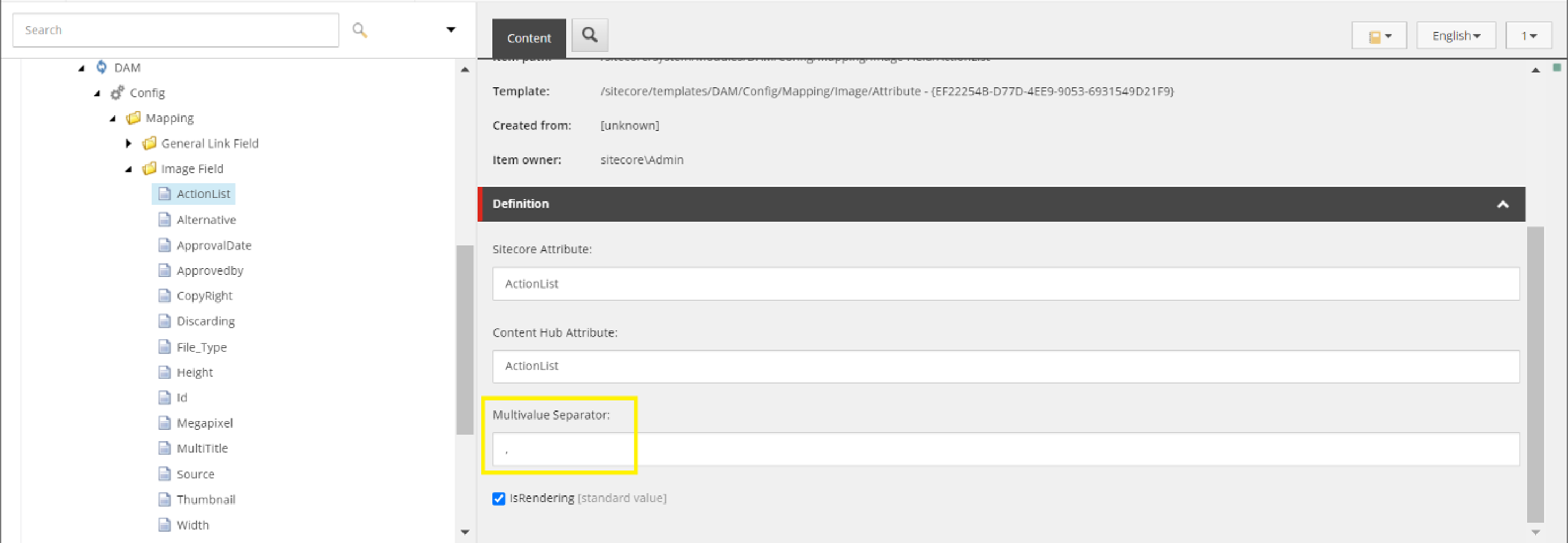
The following shows the display of the ActionList values separated by a comma.