Add content to a component
This topic explains how to add content to components previously built with Content Editor. For component built with the Component builder, you can learn here how to style and configure your component.
In the page builder, when a component is added to the page, you can edit the component locally on the page, and changes will be saved on the page only. Alternatively, you can choose to assign a content item to a component, or you can create a new content item to use as the data source for the component. In these cases, changes you make to the content are saved to the content item, and since the content item can be shared between different pages, the changes will also be visible on the pages reusing the same content item.
Assign an existing content item to a component
When you add a component to a page, you can assign an existing content item to the component.
You can also use this procedure to change the content item already assigned to a component.
When you add a component to a page, this change is saved to the page layout. The newly added component uses the page item as a data source, so if you edit the content in the newly added component, those changes will be saved in the page item.
To assign a content item to a component:
-
On the Editor tab, open the relevant page. In the editor view, click the component that you want to assign a content item to.
-
In the right-hand pane, click Content, then Select item.
-
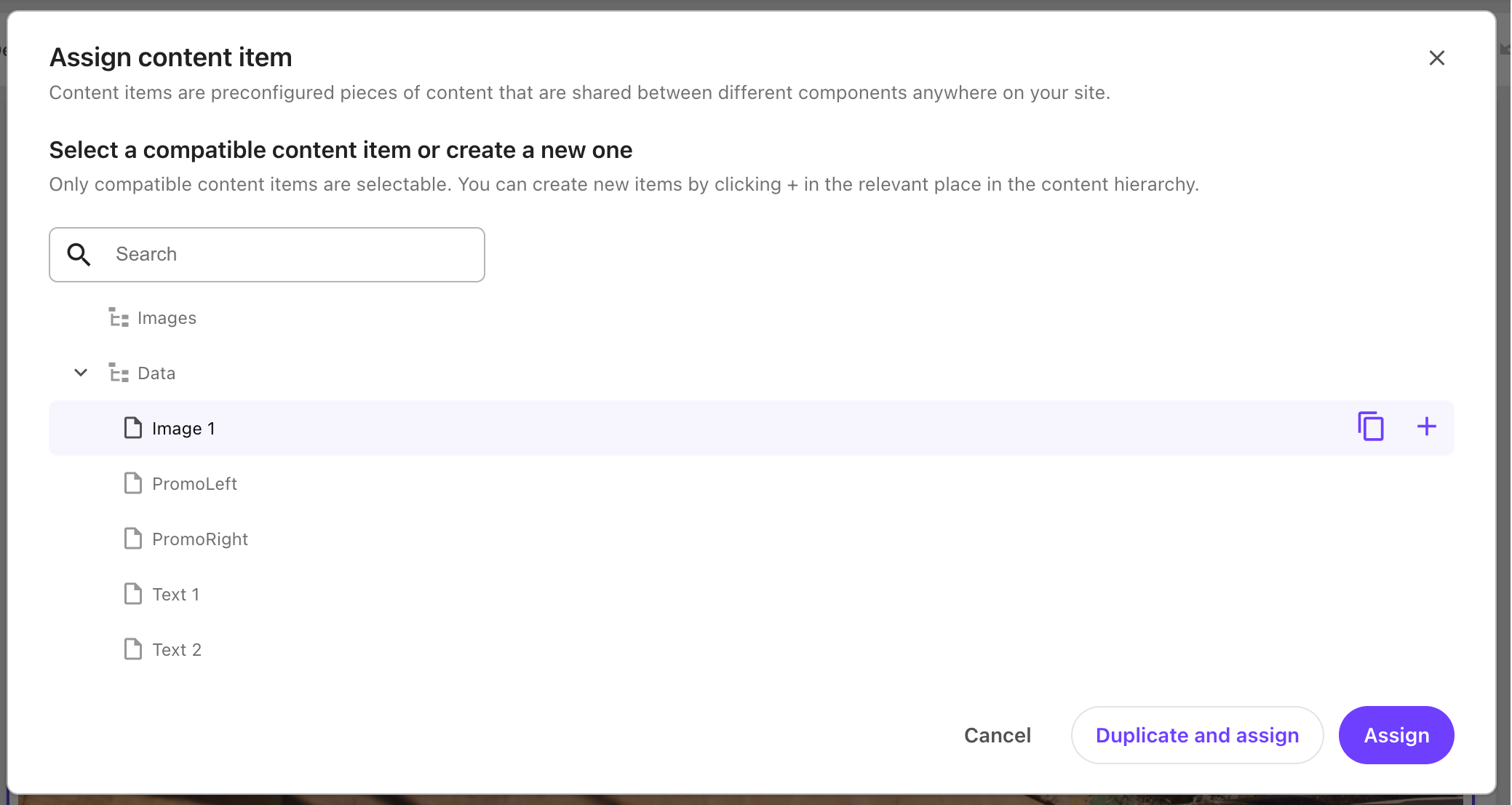
In the Assign content item dialog, the content tree only show selectable items, or folders containing selectable items.
To search for a specific content item, enter at least one character in the Search field. Clearing the Search field deselects all items and restores the original tree.
-
Select the relevant content item and click Assign. Alternatively, click Duplicate and assign to create a new numbered version of the item and assign it to the component.
You can learn more about adding and editing various type of content in the Configuring components section.
You cannot assign a content item to a non-editable component, or change the content item associated with a non-editable component.
Create a new content item as data source for a component
You can create a new content item at the same time as you assign the item to a component. The item can be created from a template, or by duplicating an existing item.
To create a new content item as a data source for a component:
-
On the Editor tab, open the relevant page. In the editor view, click the component that you want to create a content item for.
-
In the right-hand pane, click Content,then Select item.
-
In the Assign content item dialog, in the content tree, select the parent item for the new content item and click Create new .
-
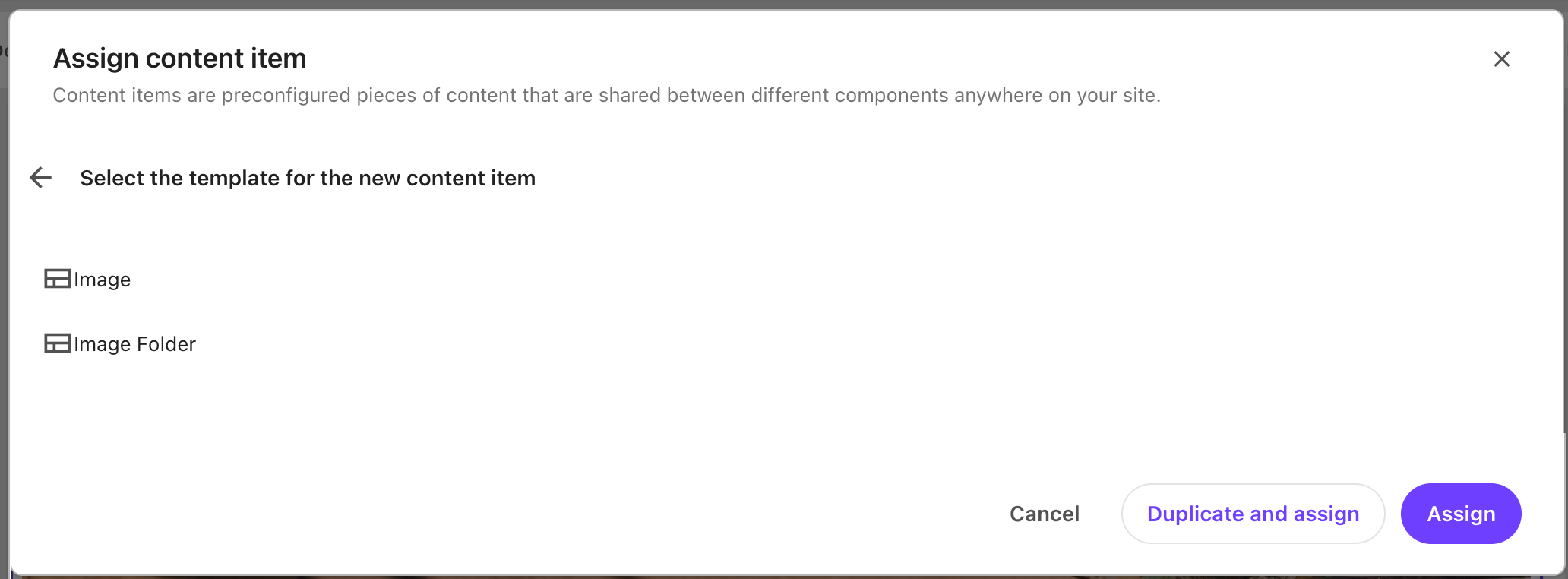
Select a template.
-
Enter a name for the new content item.
-
Click Assign.
Now you can edit the new content item.
Alternatively, you can also create a new content item (but not a page item) by duplicating an existing one.
To duplicate an existing item:
- On the Editor tab, open the relevant page. In the editor view, click the component that you want to duplicate a content item for.
- In the right-hand pane, click Content, then Select item.
- In the Assign content item dialog, in the content tree, select the content item and click Duplicate .
- Enter a name for the duplicated content item.
- Click Assign.
Edit the content item for a component
Data for a component can be stored locally on the page or in a separate content item. If the component has a content item assigned as its data source, you can open the content item directly from the page in the Page builder Editor mode.
To edit the content item for a component:
-
On the Editor tab, open the page you want to edit.
-
On the canvas, select the component that you want to edit.
-
In the right-hand pane, click Edit.
-
Edit fields on the item.
NoteChanges affect other pages that use the content item.
-
To return to the page editor, on the ribbon, click Go back.